Model Inference
The Inference page deploys a completed checkpoint or an external model as an inference service. It offers three ways to validate and roll out the service: simulated inference, MCAP data testing, and offline edge deployment.
Roles and Prerequisites
Roles and Permissions
| Role | Allowed actions | Required permissions |
|---|---|---|
| Administrator | Create, view, start, stop, and delete inference services; manage inference quotas | View Inference, Manage Inference Jobs |
| Project Manager | Create, view, start, stop, and delete inference services | View Inference, Manage Inference Jobs |
The menu entry is Model → Inference. For how to configure module permissions, see Module Permissions.
Prerequisites
| Item | Requirement |
|---|---|
| Inference service | The inference service is deployed and reachable |
| Model source | One of: a training checkpoint, custom model weights and config, or a HuggingFace pretrained model |
| GPU resources | The inference node has an available GPU; without a GPU it falls back to CPU |
| Inference quota | The quota is not exhausted; an administrator grants quota in Quota Management |
| Permission | Manage Inference Jobs |
Procedure
Model Sources
When creating an inference service, select a tab by source.
| Source | Tab | Description |
|---|---|---|
| Training checkpoint | Use Fine-tuned Model | Select a completed training job and its checkpoint |
| Custom model | Upload Custom Model | Upload model weights and a config file; the model type is parsed from the config |
| Pretrained model | Use Pretrained Model | Select a built-in model, or enter a HuggingFace repository ID |
Deploy from a Checkpoint
- Go to Model → Inference and click Create Inference.
- Under Use Fine-tuned Model, select a training job.
- Select a checkpoint under that job.
- Enter the inference service name and service description.
- Select a GPU. The system recommends the GPU with the lowest memory usage by default.
- Click Create Inference Service and wait for deployment to finish.
Deployment creates a container, loads the model weights and config, starts the inference service, and runs a health check.
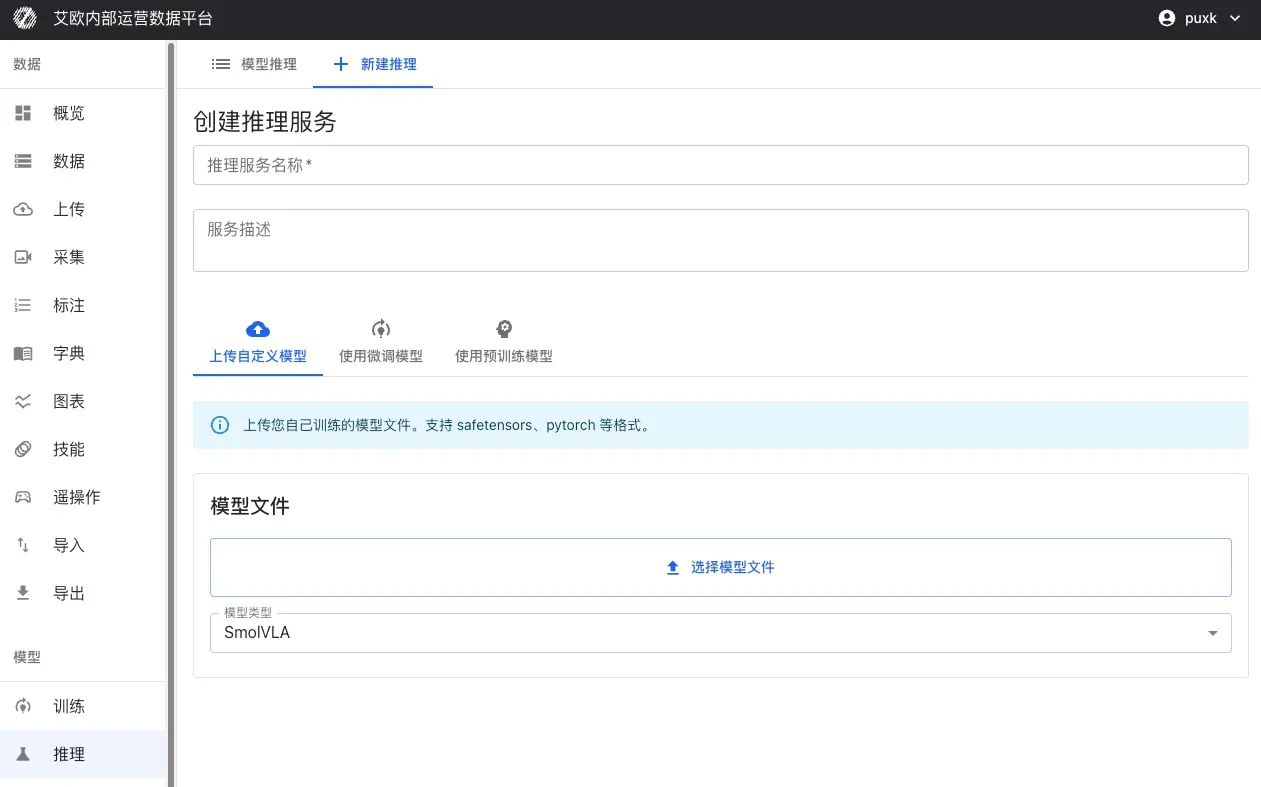
Upload a Custom Model
Uploading a custom model requires the model weights and config; the system parses the model type from the config.
| Item | Requirement |
|---|---|
| Model weights | .safetensors file |
| Model config | config.json, used to identify the model type |
| Dataset config | train_config.json, optional |
Verification
Inference Test Modes
The platform provides three inference test modes; choose by scenario.
| Mode | Purpose | Input |
|---|---|---|
| Simulated inference | Verify service startup and the input/output format | Random fill or manual input |
| MCAP test | Validate inference quality with real recording data | MCAP file, input mapping, inference range |
| Offline edge deployment | Deploy to a GPU on the robot locally | Offline image, config file, ROS client |
Simulated Inference
Steps:
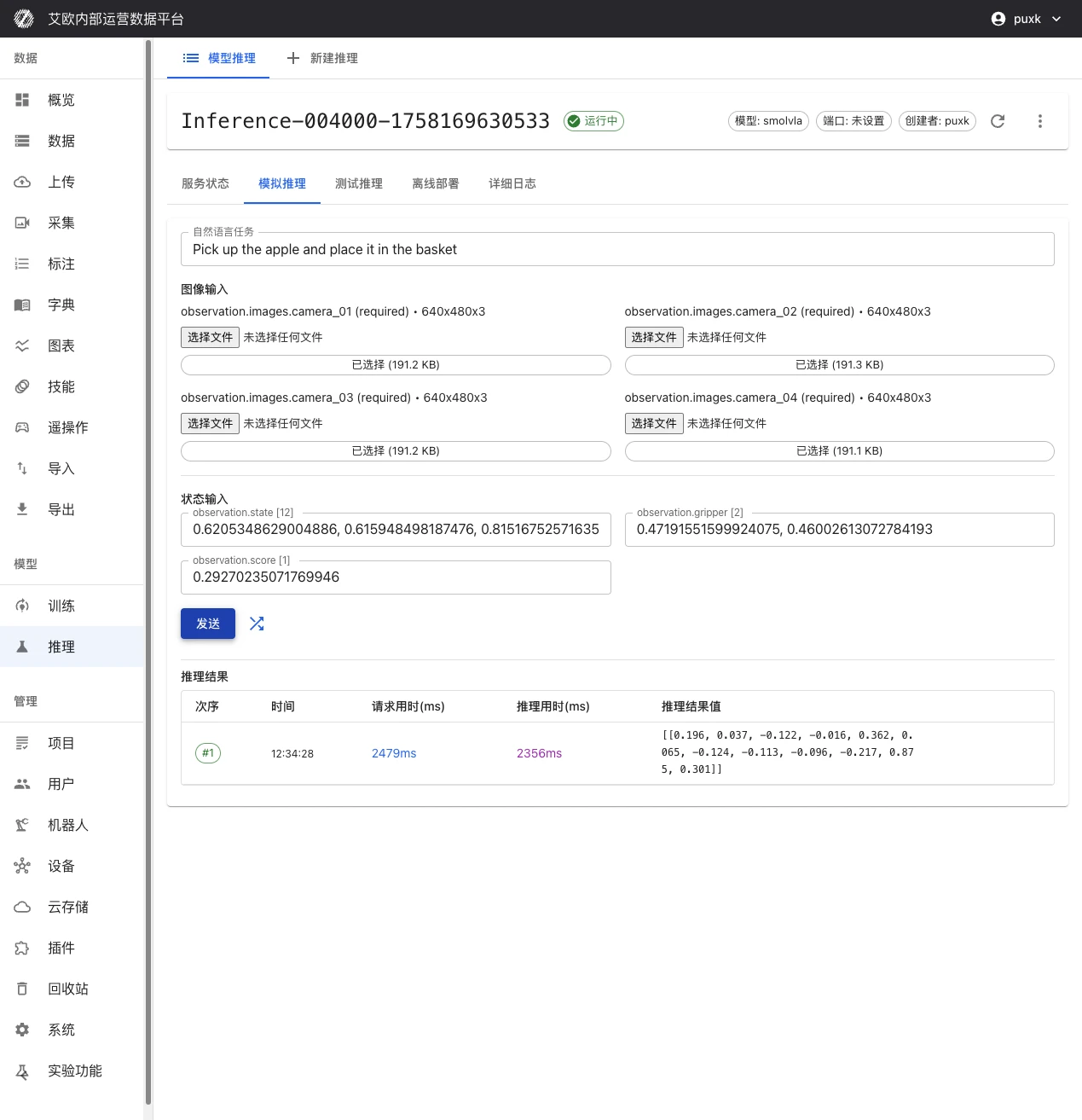
- Open the inference service detail page and switch to the Simulate Inference tab.
- Enter the task instruction under NLP Task.
- Click Random Fill All Inputs to generate test data, or enter image and state inputs manually.
- Click Send and review the inference result.
The result table records the order, time, request duration, inference duration, and inference result value of every request.
MCAP Test
Steps:
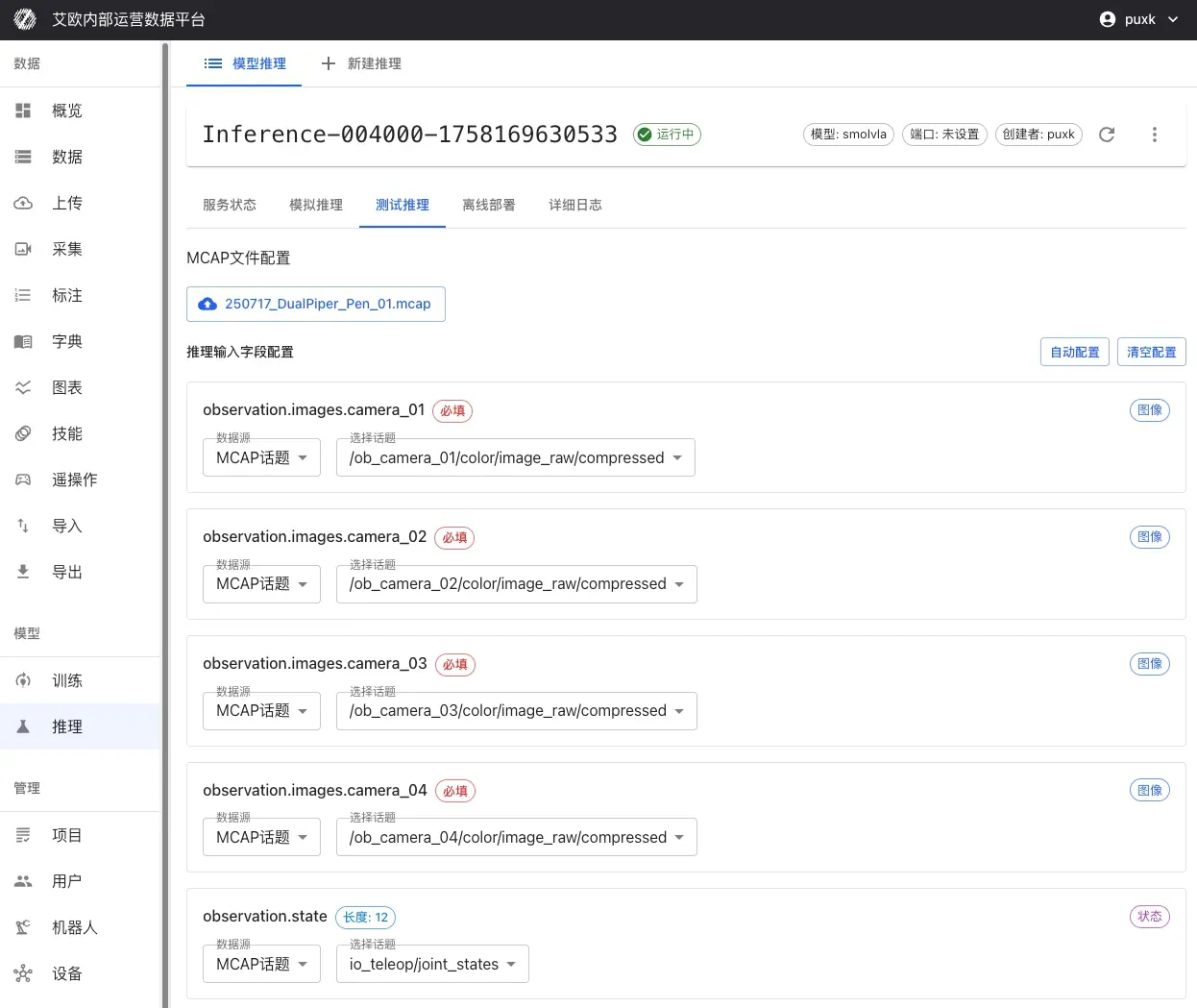
- Open the inference service detail page and switch to the Test Inference tab.
- Select an MCAP file, either from a platform dataset or by local upload.
- Configure the inference input fields: for each field, choose a data source (MCAP topic, custom value, or unused), and select the expert action topic.
- Set the data filter conditions.
- Click Start Inference to run inference frame by frame over the sequence.
The data filter conditions are listed below.
| Condition | Description |
|---|---|
| Status | All, Success, Failed |
| Time range | Start time and end time |
| Frame range | Start frame and end frame |
| Error threshold | Show only frames whose error exceeds the threshold |
After inference completes, the page reports statistics: total frames, successful inferences, failed inferences, average request time, average inference time, and throughput. It also provides joint comparison, error trend, and error distribution charts. Results can be exported as CSV, JSON, or a report.
Inference pauses automatically after 2 consecutive failures, and the page offers options to continue or stop.
Offline Edge Deployment
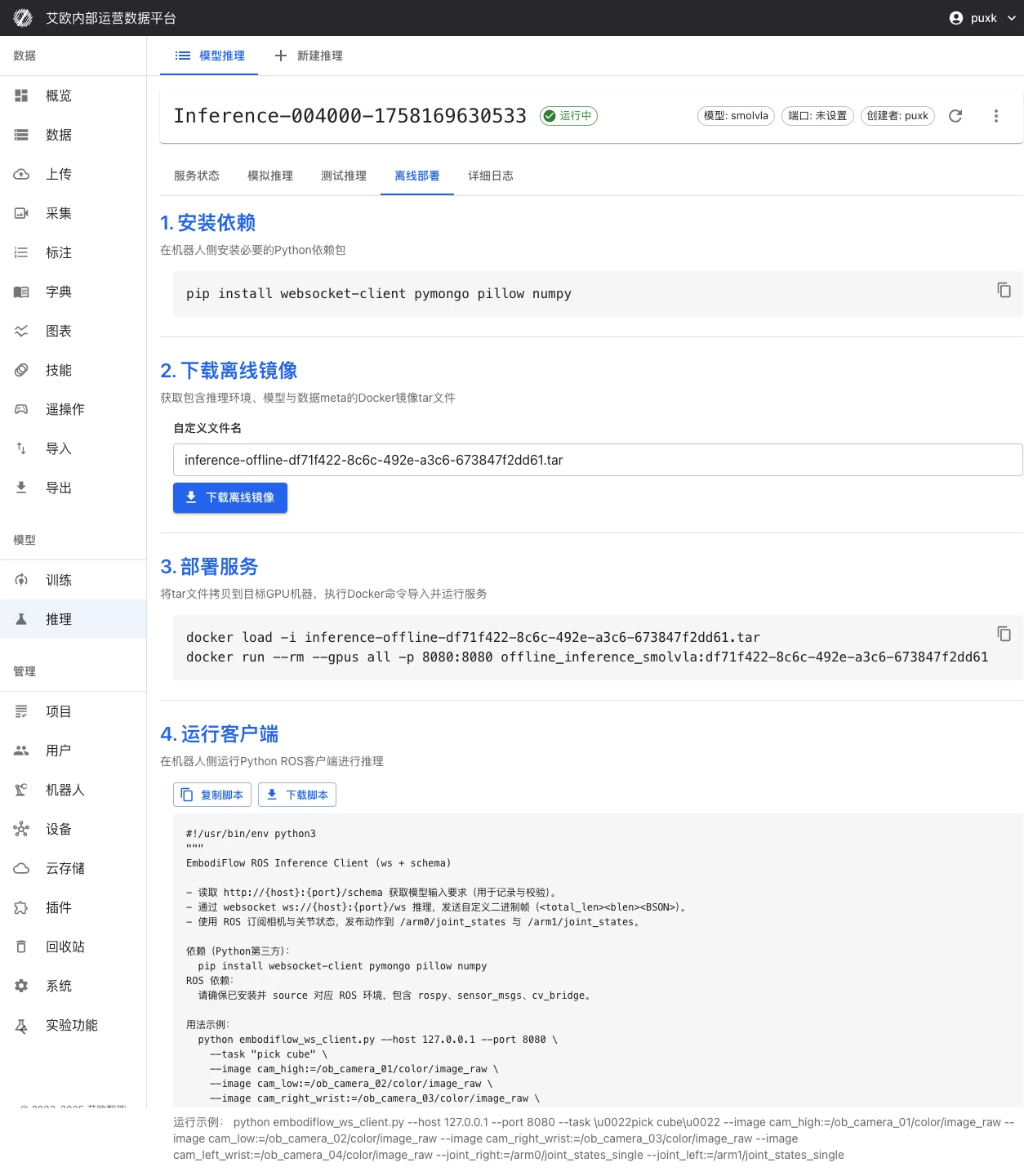
Offline deployment places the inference service on a GPU on the robot locally, for networks with restricted access or scenarios sensitive to latency.
| Step | Action |
|---|---|
| 1 | Install dependencies: install the required Python packages on the robot and source the matching ROS environment |
| 2 | Download the offline image: obtain the container image tar file that contains the inference environment, model weights, and config |
| 3 | Deploy the service: load and start the inference service with the container command from the page |
| 4 | Prepare the config file: download or fill in the service config |
| 5 | Run the client: run the ROS client script from the page |
The ROS client communicates with the inference service over WebSocket, and messages are BSON-encoded. The client subscribes to sensor topics and publishes joint control commands.
Service Status
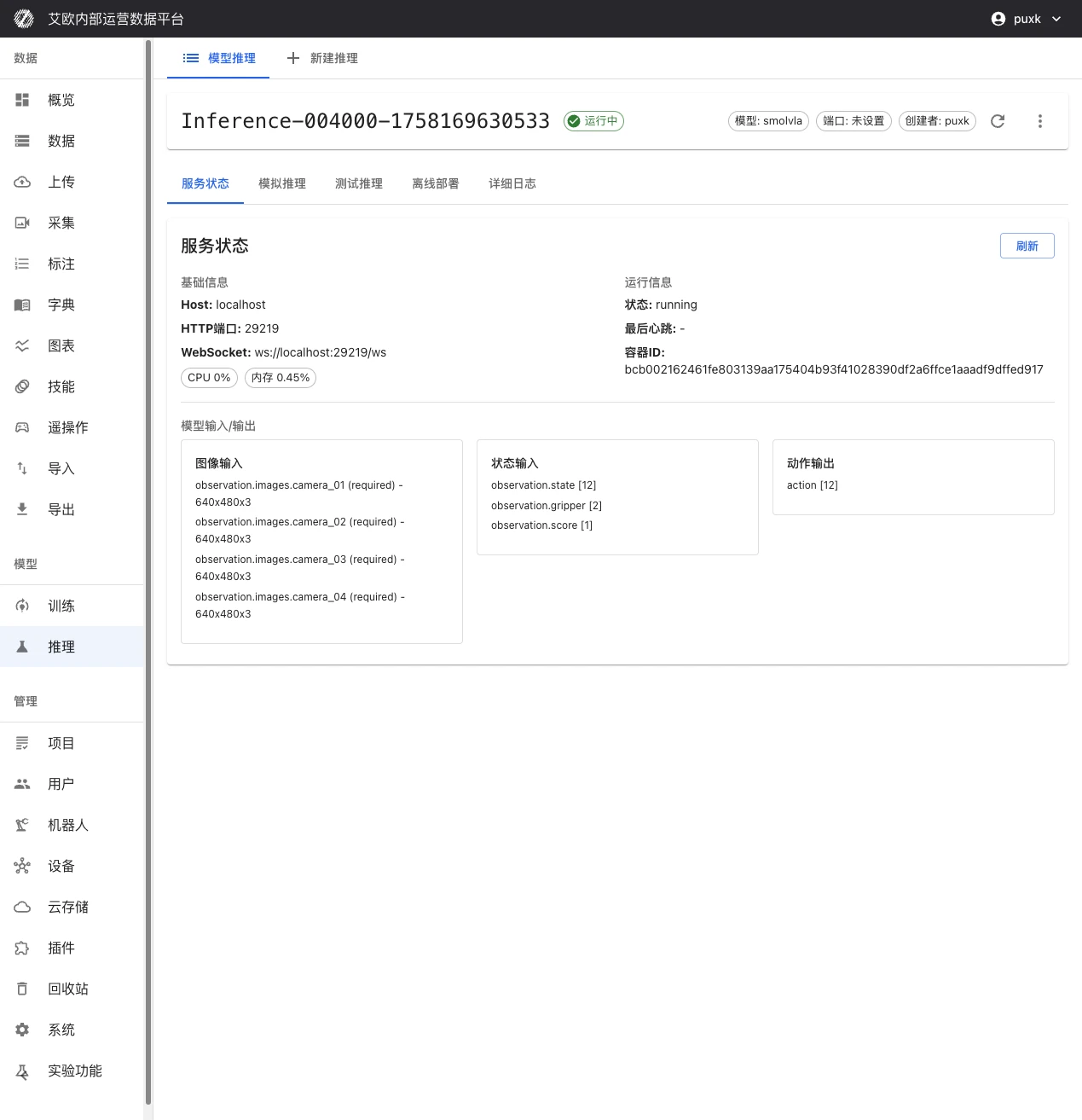
The inference service detail page shows service information and resource monitoring.
| Section | Content |
|---|---|
| Service information | Model type, creator, model source, and creation time |
| Resource monitoring | CPU usage, memory usage, GPU utilization, and GPU memory usage |
The service status values are listed below.
| Status | Meaning |
|---|---|
| Running | The service is ready and can accept inference requests |
| Starting | The container is starting or the model is loading |
| Start Failed | The service failed to start |
| Stopped | The service is not running |
| Unknown Status | The service status is not available yet |
Service Control
| Action | Effect | Constraint |
|---|---|---|
| Start Service | Start a stopped service | Available when the service status is Stopped |
| Stop Service | Stop a running service | Available when the service status is Running |
| Delete Service | Delete the inference service and release resources | Cannot be undone |
Inputs and Outputs
The input and output fields of an inference service are defined by the model schema. After deployment, view them under Model Structure on the detail page. The fields fall into the following categories.
| Category | Description |
|---|---|
| Image input | One or more camera images; the resolution is defined by the model schema |
| State input | Observations such as joint states and gripper states; the dimensions are defined by the model schema |
| Task description | Natural-language task instructions |
| Output parameters | Joint control commands |
Error Handling
| Symptom | Possible cause | Resolution |
|---|---|---|
| Cannot create an inference service | Inference quota exhausted | Request quota in Quota Management |
| Service failed to start | Insufficient GPU resources, wrong model files, wrong config, or container startup failure | Check the service logs and redeploy after fixing |
| Test inference unavailable | The service is not started | Start the inference service first |
| Repeated MCAP test failures | Inference request errors | The service pauses automatically after 2 consecutive failures; choose continue or stop as prompted |
| Offline client cannot connect | Port not open or missing dependencies | Open the port; install dependencies and source the ROS environment |
| Inference results diverge from expectations | The test data differs from the training scenario | Test with an MCAP file closer to the training scenario; switch checkpoints |
Related Pages
| Page | Purpose |
|---|---|
| Model Training | Create training jobs, configure parameters, and manage checkpoints |
| Quota Management | Grant and view inference quota |
| Dataset Export | Export test data such as MCAP |
| Data format | MCAP structure and field definitions |