Annotator Guide
Roles and Prerequisites
Target Roles
| Role | Description |
|---|---|
| Annotator | Executes annotation, submits for check, and handles unqualified results |
| Administrator, Project Manager | Perform the same status operations and additionally can edit and delete tasks |
| Auditor, Collector | Do not perform annotation |
Prerequisites
| Item | Requirement |
|---|---|
| Account | Created by an administrator with the Annotator role assigned; already added to the project that owns the task |
| Task assignment | Assigned as the annotator of the target task |
| Permissions | View Annotation Tasks and Perform Annotation |
| Task status | The status is Pending Start, In Progress, Pending Check, or Unqualified |
| Dictionary | The annotation dictionaries for skills, objects, targets, and other fields are maintained by an administrator |
Task Statuses and Available Actions
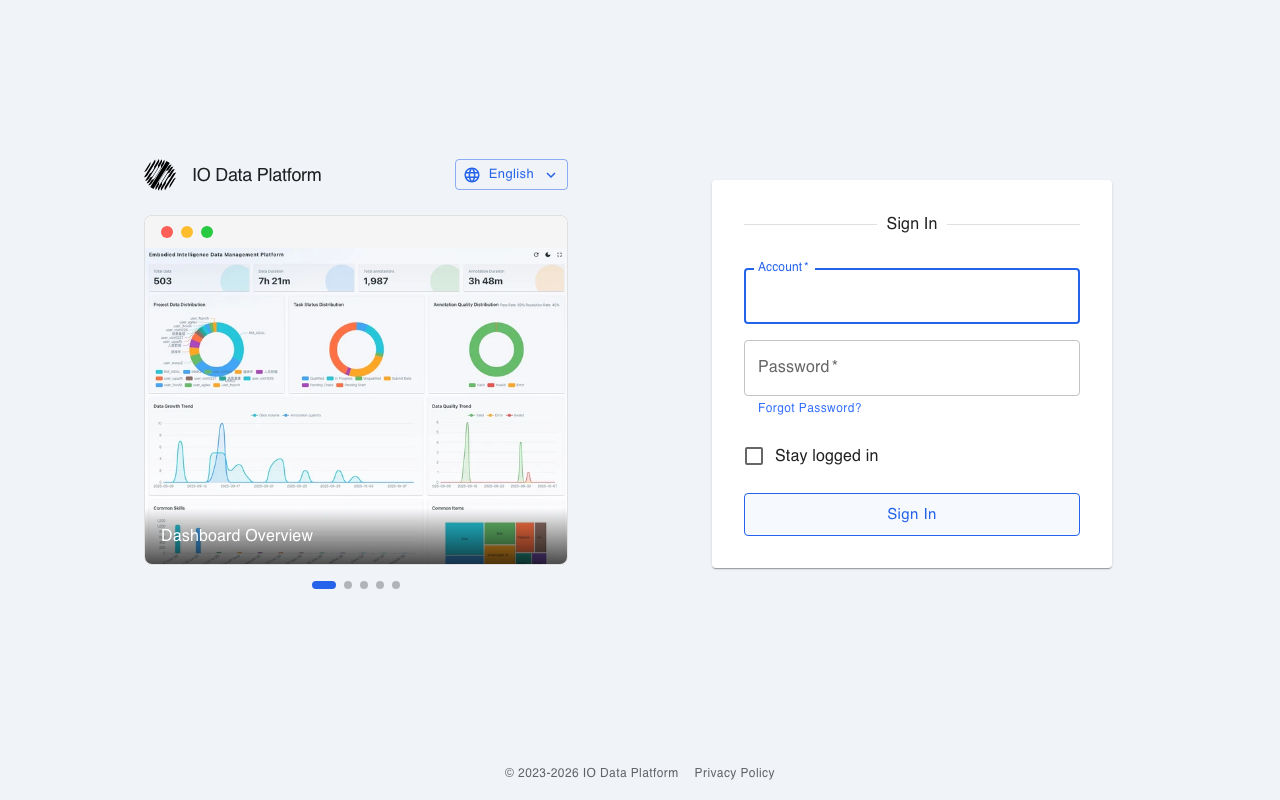
The task state machine has six statuses. The table below gives the meaning of each status and the status operations available to an annotator.
| Status | Meaning | Annotator can set | Next status available to the annotator |
|---|---|---|---|
| Pending Start | The task is created but not yet started | Yes | In Progress |
| In Progress | Annotation is under way | Yes | Pending Check |
| Pending Check | Annotation is finished and awaiting check | Yes | In Progress |
| Unqualified | The check failed and rework is required | No | Pending Check |
| Qualified | The check passed | No | None |
| Submit Data | The data is submitted and the workflow is finished | No | None |
An auditor sets Unqualified; an annotator cannot move a task to that status. When a task is Unqualified, the annotator can set it back to Pending Check. When a task is Qualified, the annotator cannot change its status.
Operation Workflow
Opening the Annotation Interface
- In the Data group on the left, select Annotation to open the annotation task list.
- Open the task assigned to the annotator to enter its details page.
- On the Annotation Data tab, select or click the target dataset.
- Select Start labeling; if the dataset already has annotations, the button reads Continue Annotation.
- The annotation interface opens in a new browser tab.
The task details page has four tabs.
| Tab | Purpose |
|---|---|
| Annotation Data | List of datasets linked to the task; the entry to start annotating |
| Batch Annotation | Quick Annotation, Batch Copy Annotations, and Batch Replace Annotations |
| Problem annotation | List of annotations marked as invalid |
| Annotation Statistics | Annotation descriptions and statistics |
Annotating and Saving
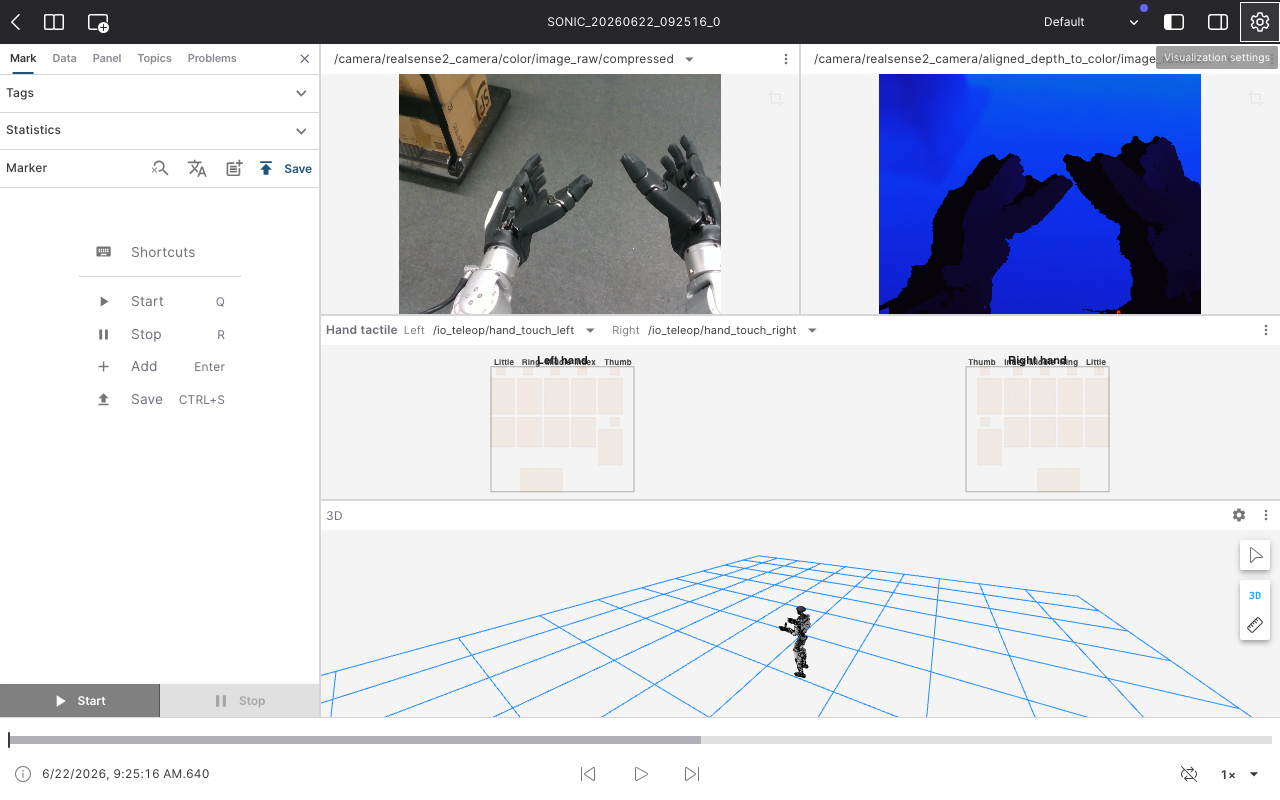
- In the annotation form, select the skill, object, target, and adverbial. If nothing matches, add a custom dictionary item.
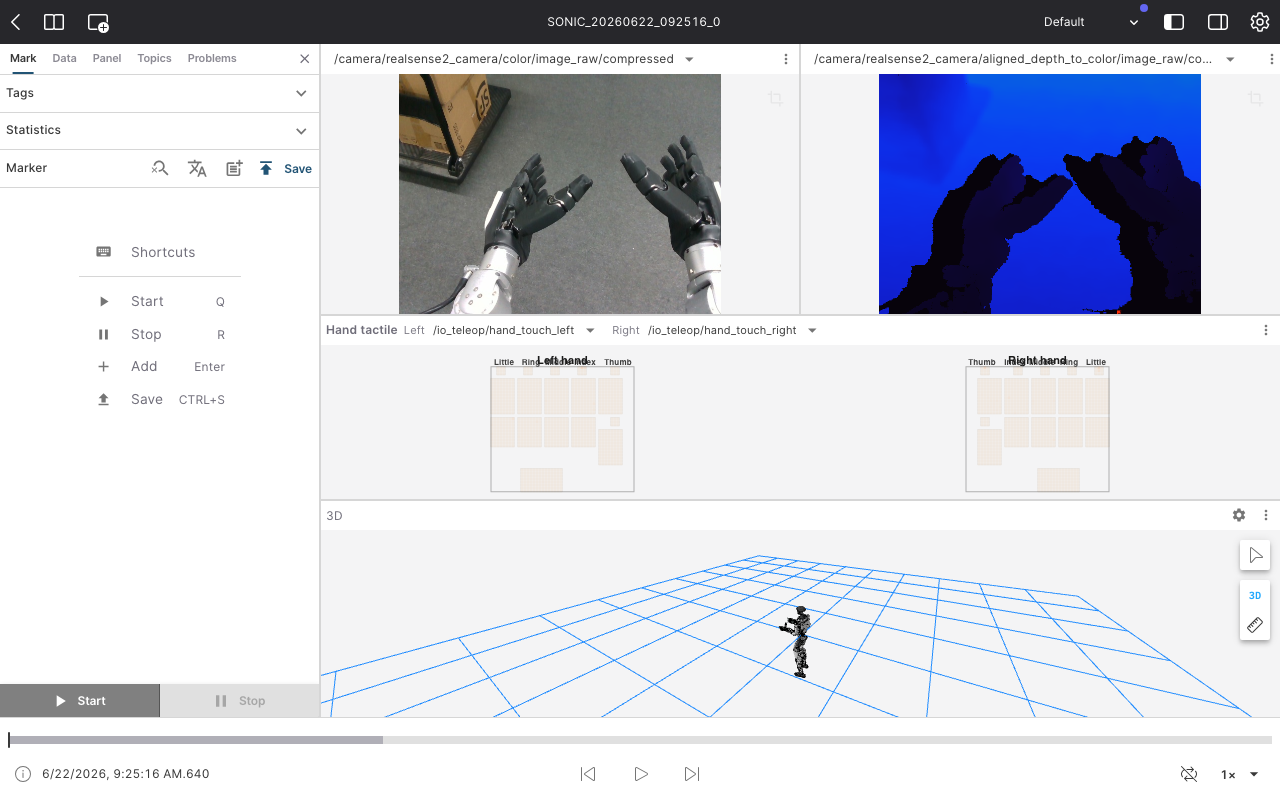
- Press Q to set the action start time and R to set the action end time.
- Press Enter to add the annotation.
- Press Ctrl+S to save the annotation.
- Repeat these steps for the remaining actions in the dataset.
The annotation interface uses the following shortcuts.
| Shortcut | Action |
|---|---|
| Q | Set start time |
| R | Set stop time |
| Enter | Add annotation |
| Ctrl+S | Save annotation |
| Space | Play or pause |
| ← / → | Seek backward or forward |
Before submission, the form validates the following items.
| Message | Meaning |
|---|---|
| The start time is not set | The start time was not set with Q |
| The end time is not set | The stop time was not set with R |
| The start time cannot be greater than or equal to the end time | The time range is reversed |
| The skill is not set | No skill was selected |
| The object is not set | No object was selected |
Batch Annotation
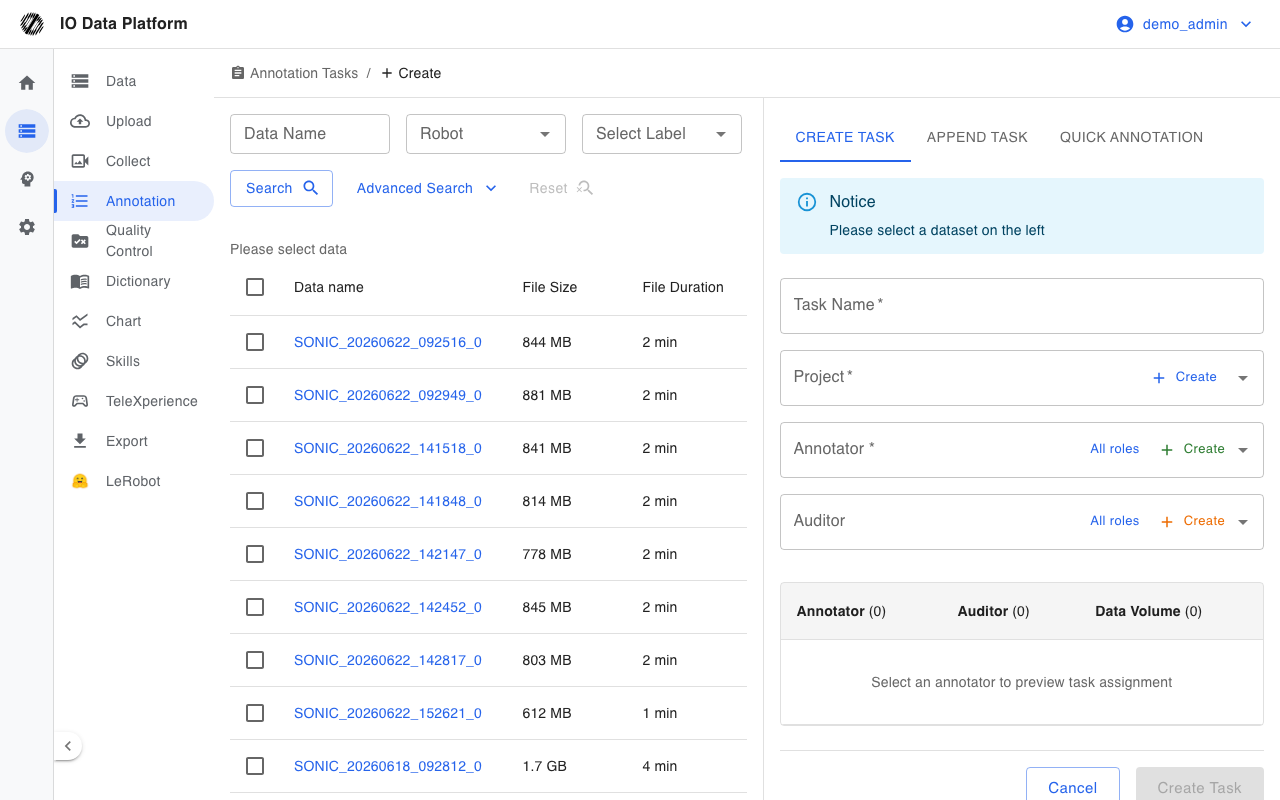
The Batch Annotation tab on the task details page offers three modes.
| Mode | Behavior |
|---|---|
| Quick Annotation | Appends the same description to every dataset in the task and keeps existing annotations |
| Batch Copy Annotations | Copies a sample annotation to other datasets in proportion to the timeline |
| Batch Replace Annotations | Replaces descriptions, objects, targets, and similar text in bulk according to rules |
Handling and Correcting Problem Annotations
When a collection action, the basic data, or a pose is abnormal, mark the corresponding annotation as invalid.
- In the annotation tree of the annotation interface, select an annotation node.
- Select a problem type in the pop-up menu.
- The marked node appears with a red strikethrough; selecting the same problem type again clears the mark.
- Save the annotation.
The available problem types are listed below.
| Problem type | Available scenarios |
|---|---|
| Invalid collection data | Annotation and check |
| Invalid basic data | Annotation and check |
| EE result anomaly | Annotation and check |
| Abnormal pose data | Annotation and check |
| Incorrect semantic description | Check mode |
| Annotation node does not match the action | Check mode |
The marked results are collected on the Problem annotation tab of the task details page.
The procedure for correcting a problem annotation is as follows.
- Open the Problem annotation tab on the task details page and check the problem type and the correction time.
- Click the dataset name in that row to open the dataset in check mode.
- Correct the annotation content or clear the problem mark on the annotation.
- After saving, the correction time for that row updates accordingly.
When the correction time shows Uncorrected, the problem annotation has not been handled yet.
Submitting for Check and Follow-up
- After annotating every dataset in the task, go to Current Workflow in the sidebar of the task details page.
- Select Next Step: Pending Check; the task status becomes Pending Check and the task passes to an auditor for review.
- Once an auditor marks the task Qualified, the annotator can no longer change its status.
- If an auditor marks the task Unqualified, it enters the Unqualified status, and the sidebar shows the Rejection Reason entered during review.
- After correcting the annotations according to the reason, the annotator selects Next Step: Pending Check to resubmit.
Verification
| Check | Expected result |
|---|---|
| Annotation saved | The dataset Annotation Count increases and a new node appears in the annotation tree |
| Batch annotation | The datasets under the target task show the annotations, which can be checked on Annotation Statistics |
| Problem annotation | Invalid annotations are listed on the Problem annotation tab; before handling, the correction time shows Uncorrected |
| Status transition | After submission, the task status is Pending Check |
| Rework | When the task is Unqualified, the sidebar shows the Rejection Reason |
Error Handling
| Symptom | Possible cause | Resolution | Owner |
|---|---|---|---|
| The task cannot be set to a review-related status | An annotator cannot set Qualified or Unqualified | Use a status the annotator can set, such as In Progress or Pending Check | This role |
| A message states that the task is already Qualified and cannot be modified | The task status is Qualified | Stop editing; to rework, an auditor sets the task to Unqualified | Auditor |
| A message states that the account is not related to the task | The task is not assigned to the annotator | Contact a project manager to reassign it | Project Manager |
| Saving stops with a connection interrupted message | The network is temporarily unavailable | The annotation draft is stored locally; save again once the network recovers | This role / Operations |
| The left menu is missing Annotation | Role or module permissions are insufficient | Contact an administrator to check the role and the View Annotation Tasks permission | Administrator |
Related Pages
Related Interface Reference
Related Links
| Page | Purpose |
|---|---|
| Annotation Tasks | Task state machine, task details, and batch actions |
| Dictionary Management | Annotation conventions for skills, objects, and labels |
| Auditor Guide | Review and rejection workflow |
| Getting Started | Common sign-in and navigation steps |
| Data QC | QC rules and result definitions |
| Permissions | Roles and permission hierarchy |