Data Annotation
Annotation maps a piece of robot data to a natural language description and provides the supervision signal for training. The annotation result determines whether a model can map an instruction such as "clear the table" to specific actions and objects.
Definitions
| Term | Description |
|---|---|
| Annotation task | The task unit that carries annotation work for a batch of datasets; it has state transitions |
| Annotation record | One time segment within a piece of data, or one image region |
| Skill | An action template, such as pick {A} from {B} |
| Object | The object acted on, filling {A} in the template |
| Target | The target position or container of the action, filling {B} in the template |
| Adverbial | Additional description, such as the order of actions |
| Panel | The rendering unit of data, corresponding to one camera or sensor Topic |
Annotation Types and Fields
Annotation Types
The platform provides three annotation methods, with the entries and applicable objects below.
| Annotation type | Applicable object | Annotated content | Entry |
|---|---|---|---|
| Semantic segmentation annotation | Time-series data such as MCAP | Time segment + skill, object, target, and adverbial, generating Chinese and English descriptions | Enter Studio from the data list |
| Image item annotation | Camera view images | Image region + item name | Image annotation page |
| Batch annotation | Homogeneous datasets | Reuse one sample annotation | Batch annotation page of an annotation task |
Semantic segmentation annotation covers one piece of data and can contain one or more annotation time segments. Each time segment corresponds to one atomic action, and the segments form a complete task sequence by sequence_id.
Annotation Content Fields
| Field | Value source | Description |
|---|---|---|
| Skill | Dictionary | Action template; determines the description pattern |
| Object | Dictionary | {A} in the template |
| Target | Dictionary | {B} in the template |
| Position | Position option | Relative position of the object |
| Hand | Left hand, right hand, both hands | Records the hand that performs the action |
| Adverbial | Dictionary | Additional wording, placed before or after |
| Quality score | 0–1; -1 means not scored | The form uses 0.5–5 stars with a step of 0.5, and the stored value is the star value divided by 5 |
| Custom description | Manual input | Overrides the description generated from the template |
Storage Form of Annotation Results
| Annotated content | Storage record | Main fields |
|---|---|---|
| Semantic segmentation annotation | One record per time segment | Start and end timestamps, start and end frame numbers, skill, object, target, English description, Chinese description, options, quality score, invalid reason |
| Image item annotation | One record per region | Item name, region coordinates, image width and height, hard sample flag, annotation type |
Annotation records are associated by the dataset and task they belong to and can enter the training flow with data export, as described in Data export.
Basis and Sources
| Item | Value | Basis and source |
|---|---|---|
| Semantic annotation content fields | Skill, object, target, position, hand, adverbial | Options provided by the annotation form; see "Annotation content fields" |
| Quality score range | 0–1; -1 means not scored | The form uses 0.5–5 stars, and the stored value is the star value divided by 5 |
| Image annotation types | 5 enum values | The annotation type enum recorded for object detection: BBOX, POINT, POLYGON, LINE, CIRCLE |
Annotation Interface and Operations
Annotation Interface
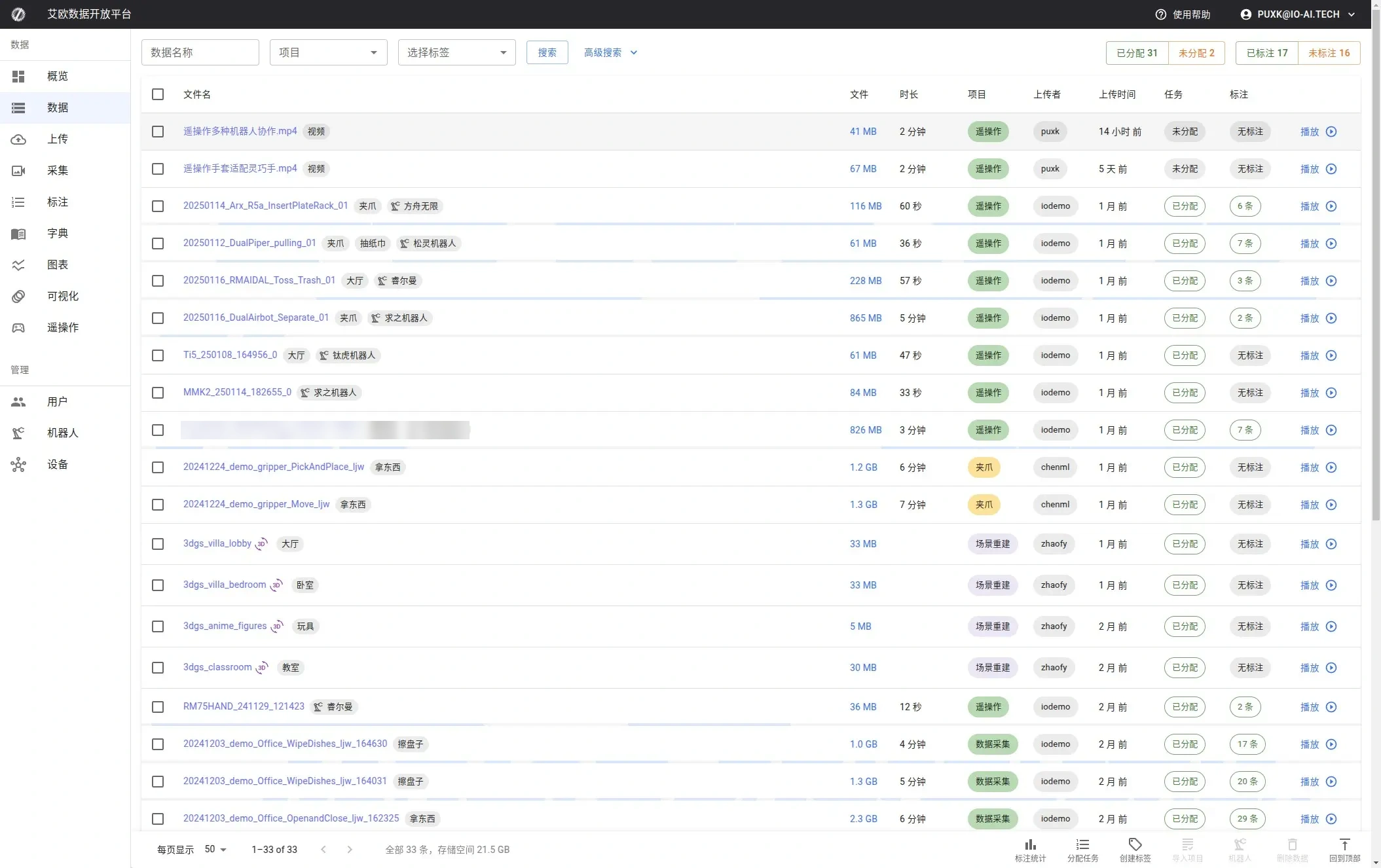
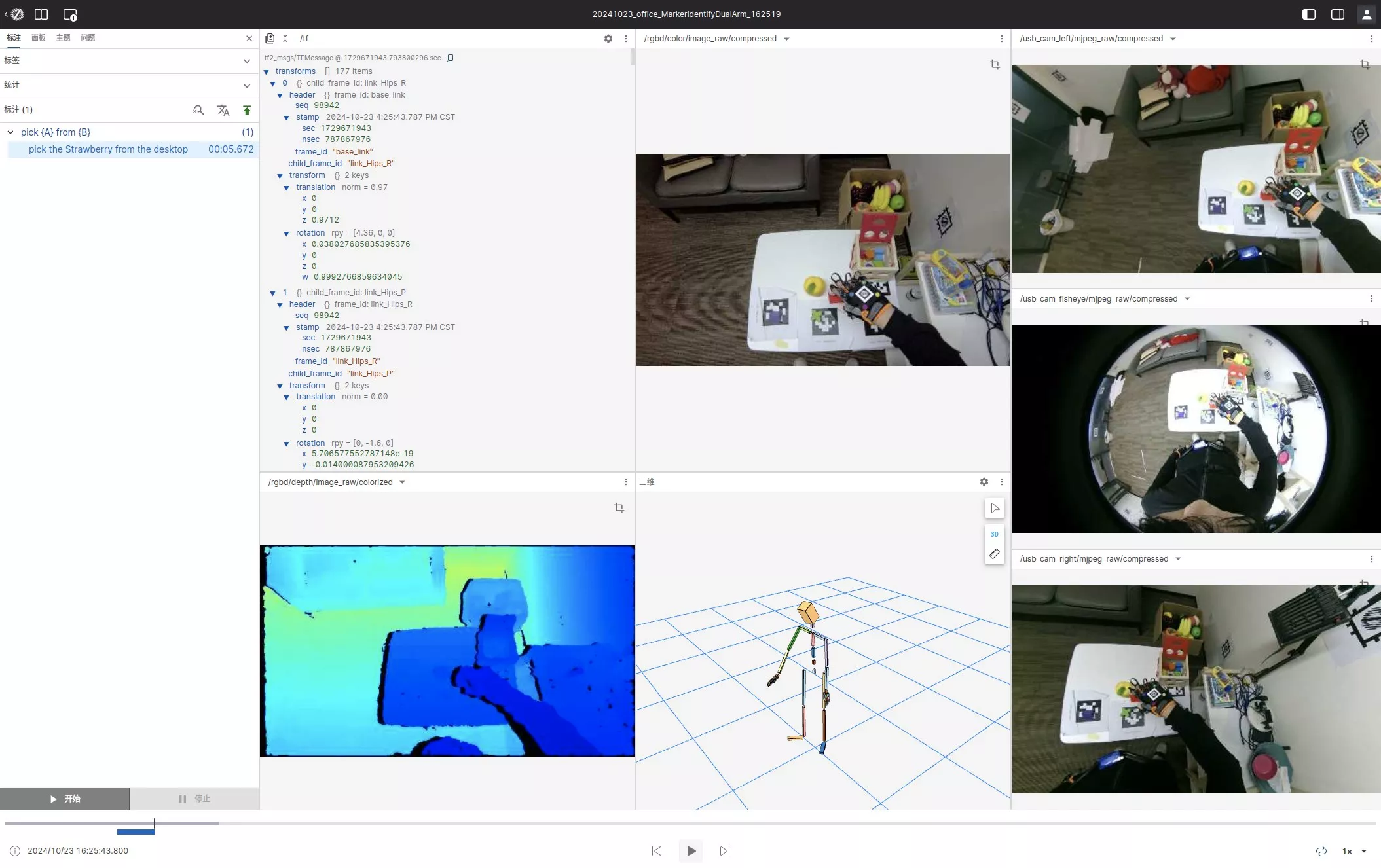
After entering the data detail, data is rendered as panels, and each panel corresponds to one camera or sensor Topic.
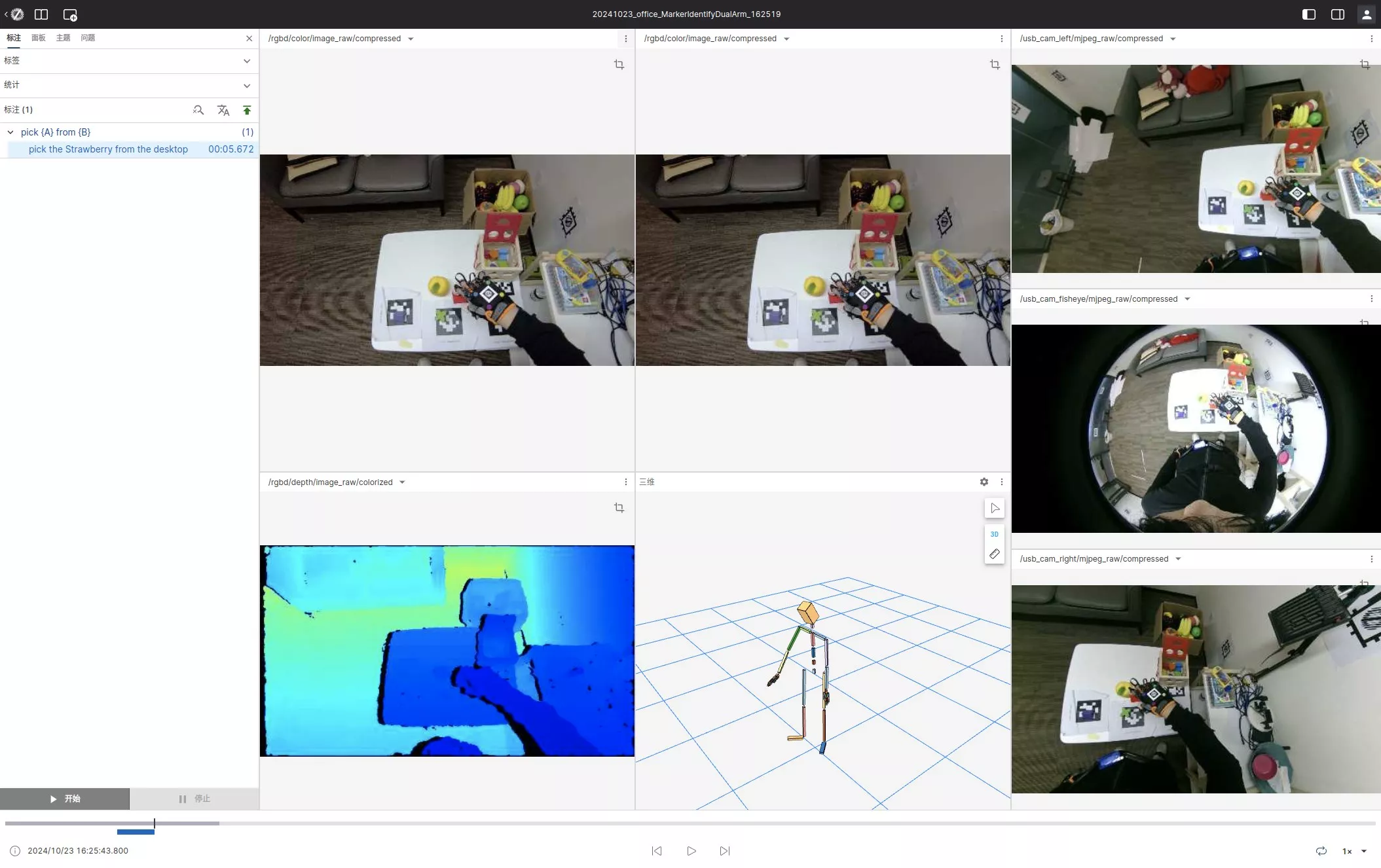
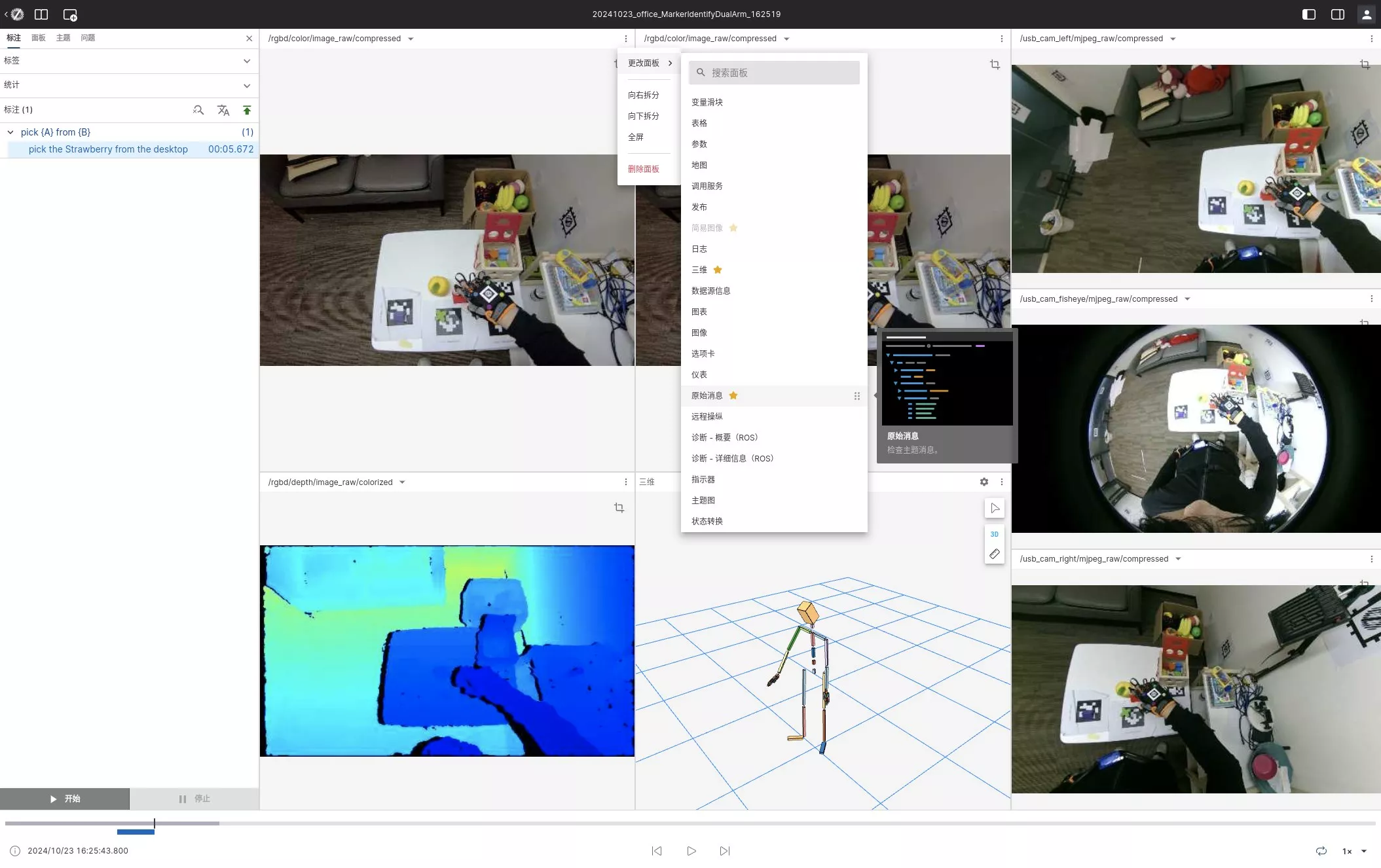
Panel Adjustment
| Operation | Method |
|---|---|
| Change rendered content | Click the settings button at the top-left of the panel and choose a panel type from the menu |
| Change data source | Choose the Topic message source to switch to from the settings menu |
Timeline
The annotation timeline shows completed annotation time segments grouped by skill and supports expanding or collapsing skill rows. The playback controls on the panel provide play, pause, forward, and backward to locate the start and end moments of an action.
Keyboard Shortcuts
| Shortcut | Action |
|---|---|
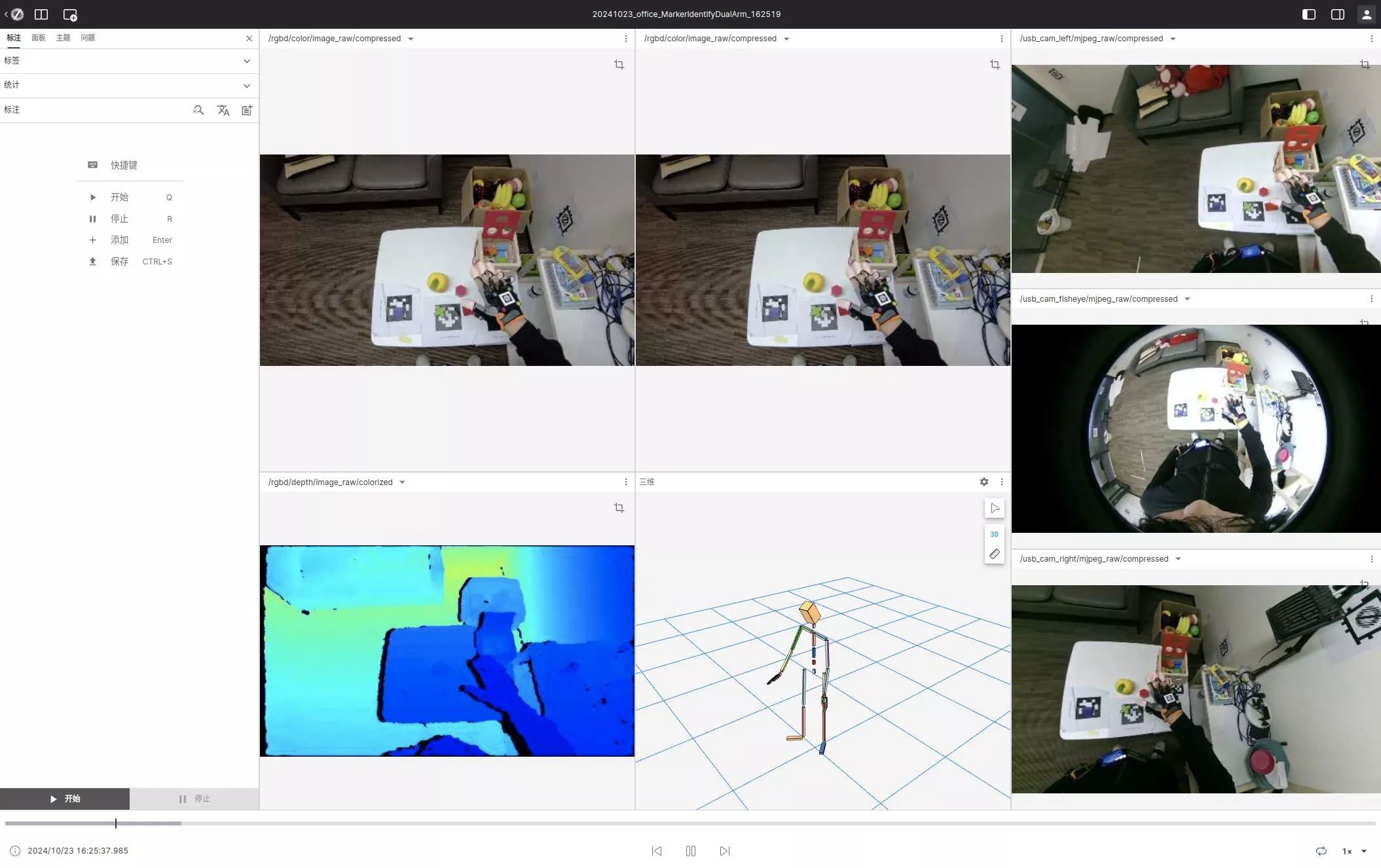
| Q | Mark the action start moment |
| R | Mark the action end moment |
| Enter | Add annotation |
| Ctrl+S | Save annotation |
| Space | Play or pause |
| ← | Backward |
| → | Forward |
| 1, 2, 3 | Apply the Nth predicted description |
Fine-grained Annotation
Fine-grained annotation marks one or more action time segments in a single data stream and suits a piece of data that contains multiple actions. For annotation task flows, see Create annotation task and Annotator guide.
Procedure
- Click the data name in the data list to enter Studio.
- Play the data and position the progress at the action start moment.
- Click "Start" or press Q to record the start timestamp.
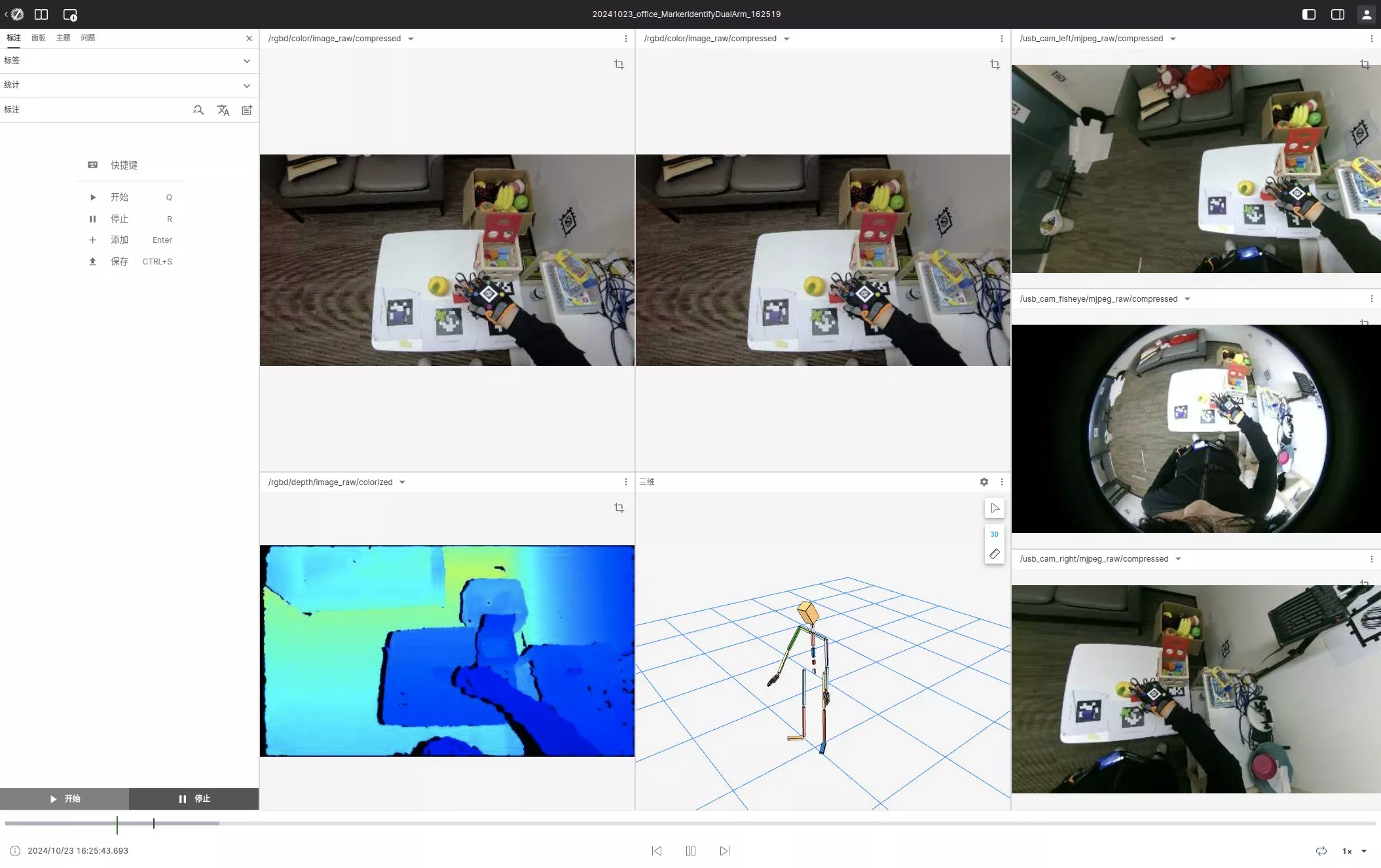
- Play to the action end moment, then click "Stop" or press R to record the end timestamp.
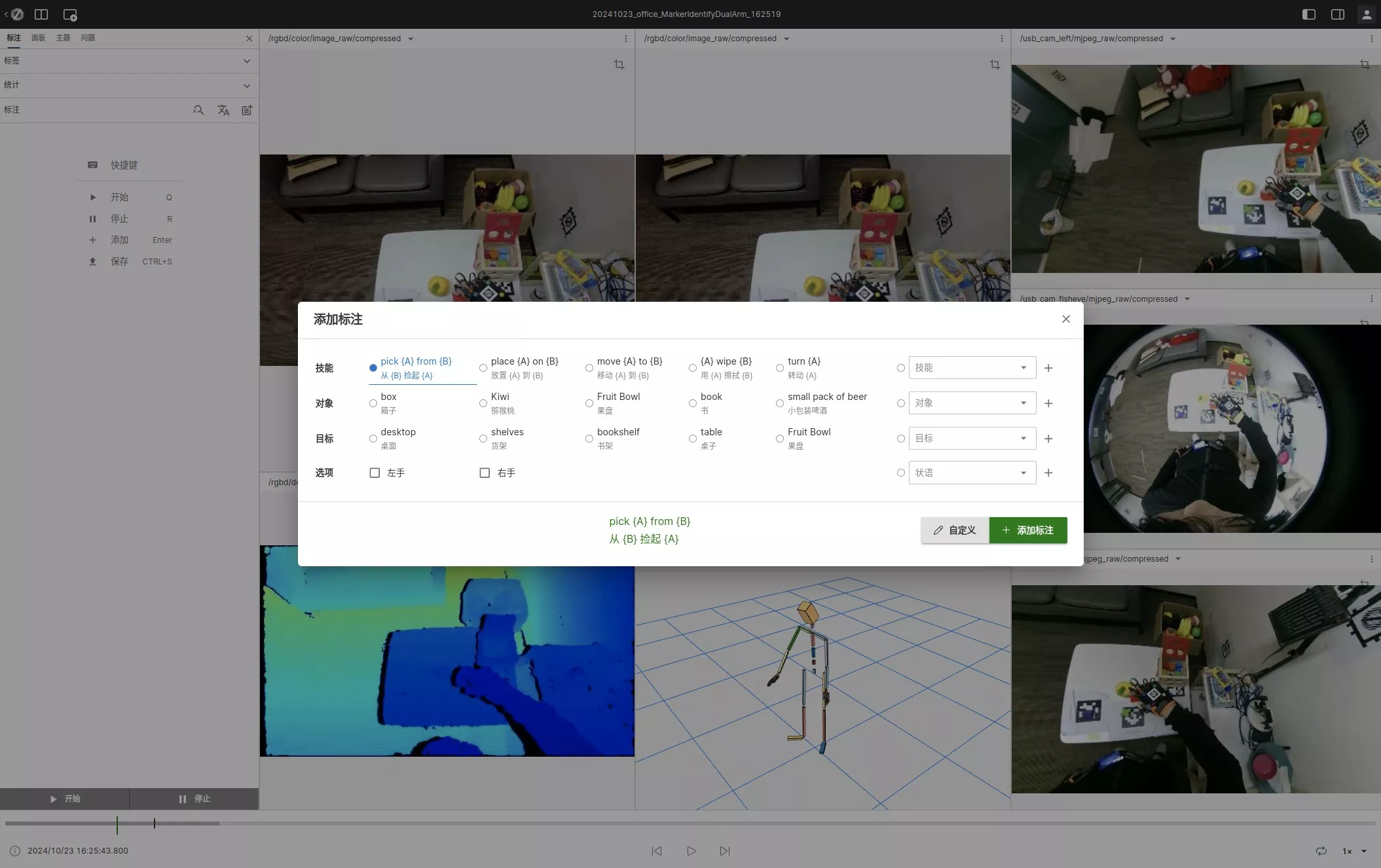
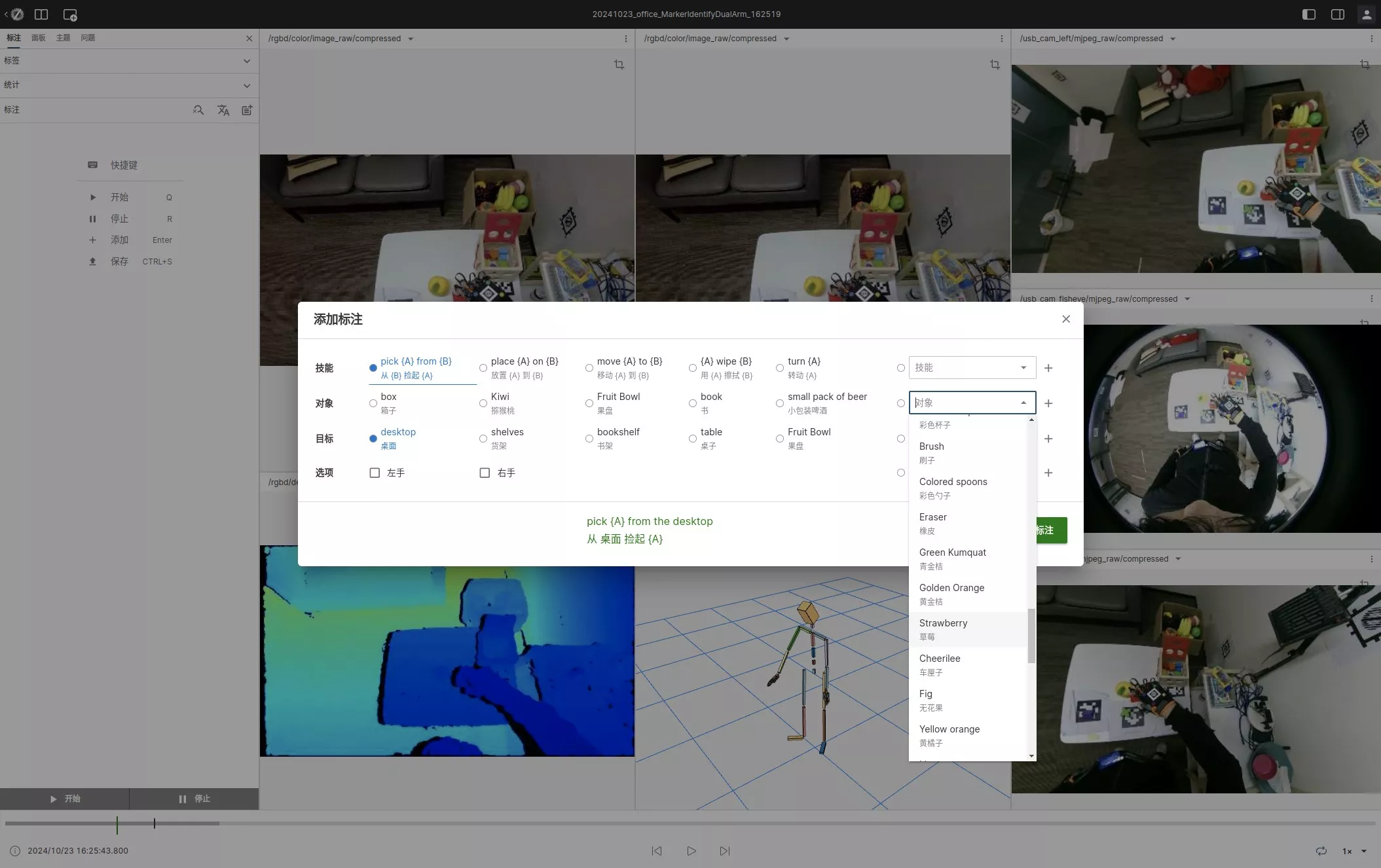
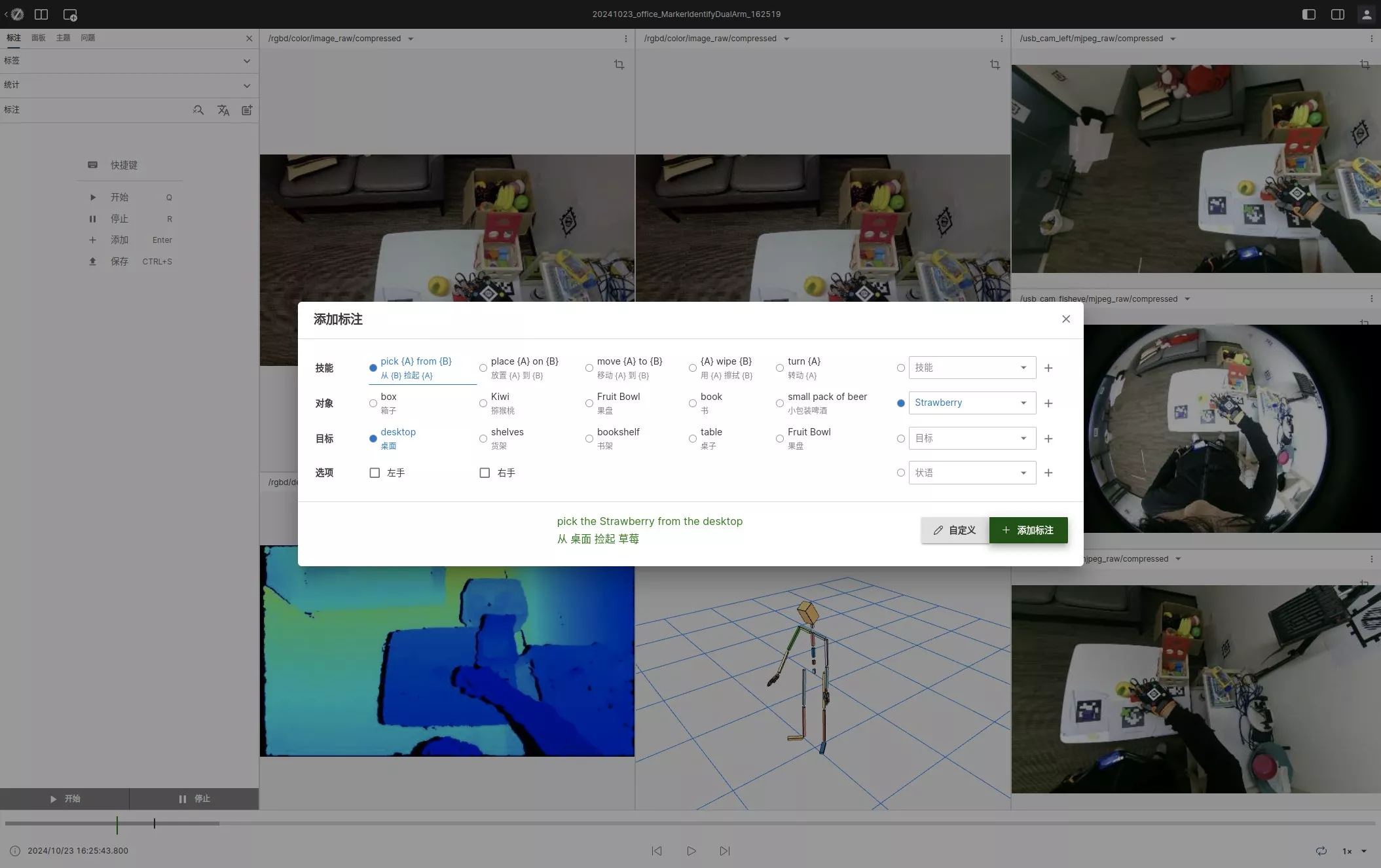
- Select the skill, object, target, position, and hand in the form, or fill in a custom description.
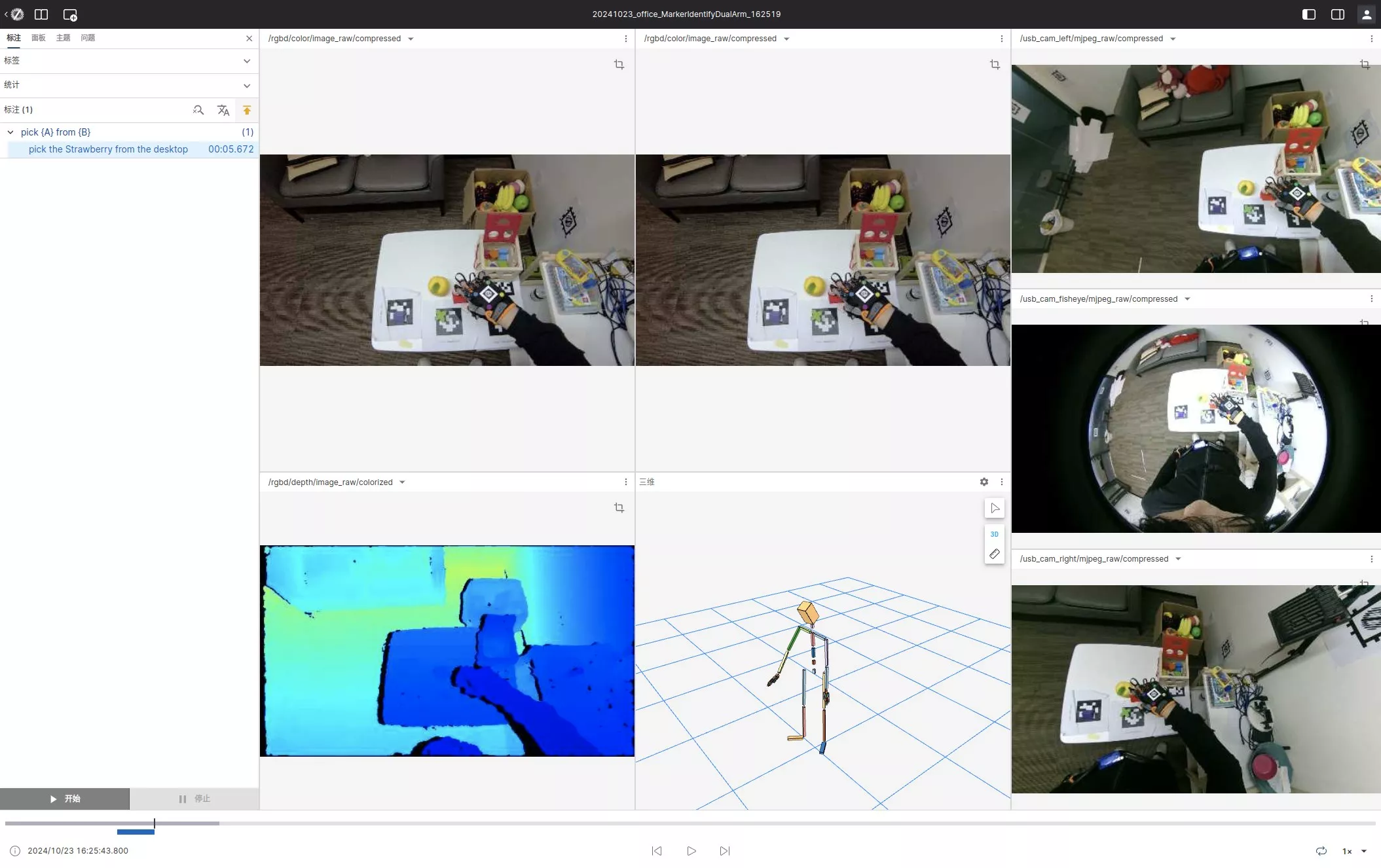
- Click "Add Marker" or press Enter to add the time segment to the annotation list.
- Repeat steps 2 through 6 until all actions are covered.
- Click the save button at the top-right or press Ctrl+S to upload the annotation to the server.
Unsaved annotations exist only in the current browser. Save before leaving the page, or the changes are lost.
Batch Annotation
Batch annotation is used for homogeneous datasets. The platform provides three modes; select one according to the table below.
| Mode | Action | Applicable scenario |
|---|---|---|
| Quick Annotation | Write the same description for all selected datasets | The datasets share the same action |
| Batch Copy Annotations | Copy a sample annotation to target datasets in proportion to the timeline | The action segmentation matches the sample |
| Batch Replace Annotations | Batch replace descriptions, objects, and targets by rule | The wording needs to be unified and corrected |
Quick Annotation Procedure
The same form opens from three places: Create Annotation Task at the bottom of the dataset list, Create Annotation Task on the task list, and Batch Annotation inside a task.
- Select Quick Annotation.
- Fill in the English description and the Chinese description. Delete existing annotations stays unchecked.
- After submit, the description is appended and existing annotations stay. Check Delete existing annotations to clear them before writing.
Batch Copy Annotation Procedure
- Select one piece of data with a completed annotation as the sample.
- Select the target datasets that need the annotation copied.
- Submit the copy, and the system generates target annotations in proportion to the timeline.
- Review the copy result and the failed items.
Batch Replace Annotation Procedure
- Set the replacement rules on the batch replace page, covering descriptions, objects, and targets.
- Submit the replacement, and the system rewrites the annotation wording of the selected datasets by rule.
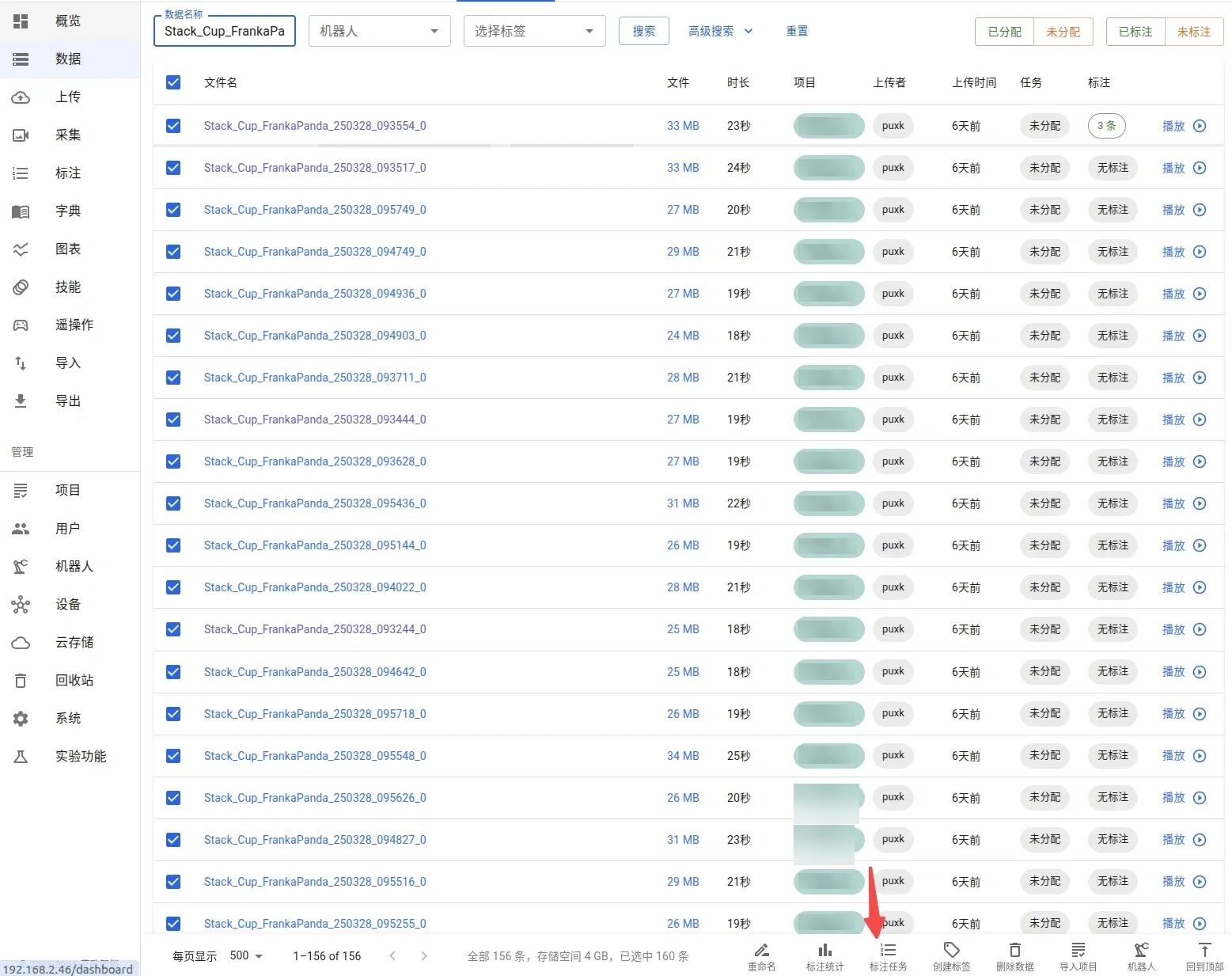
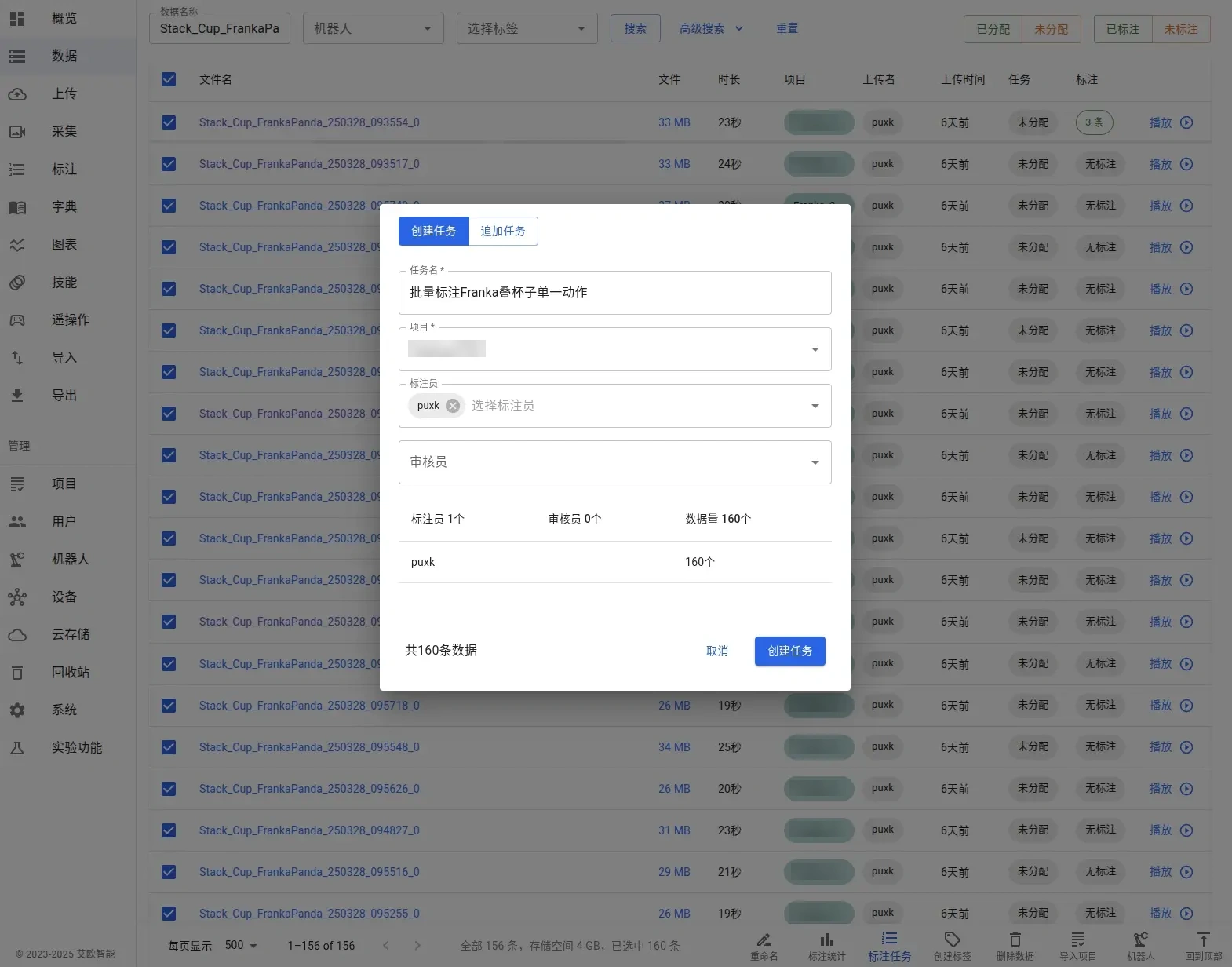
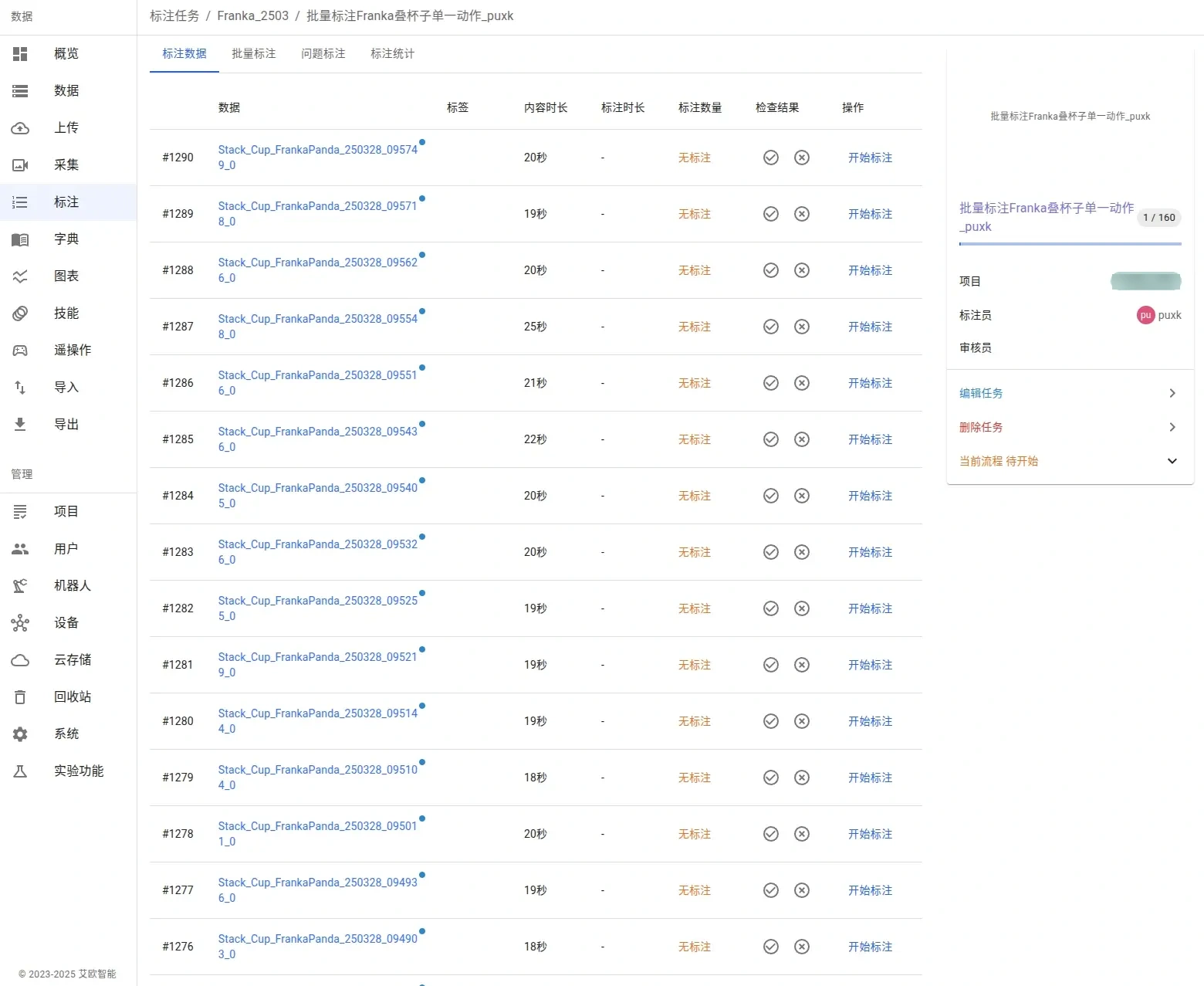
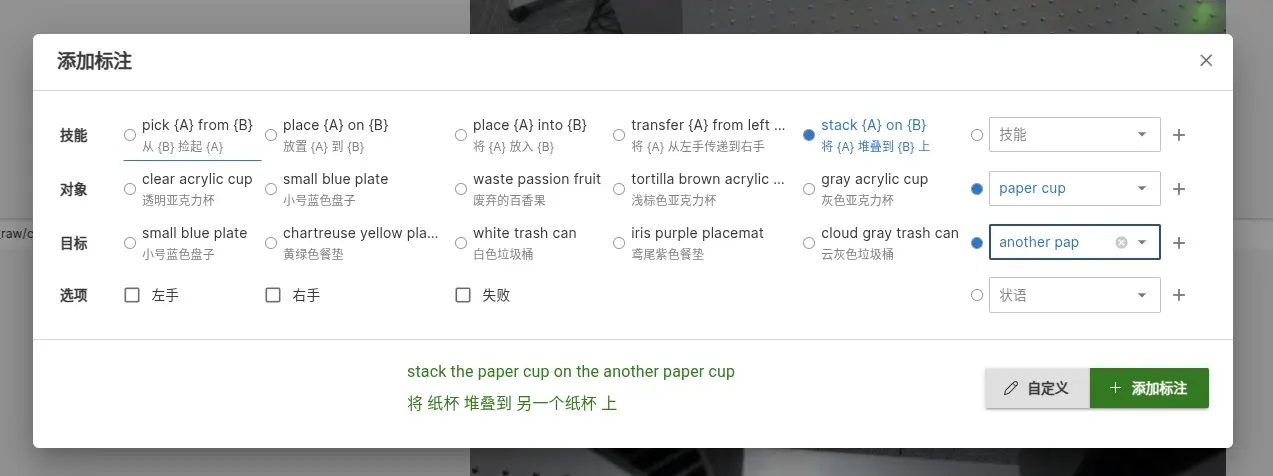

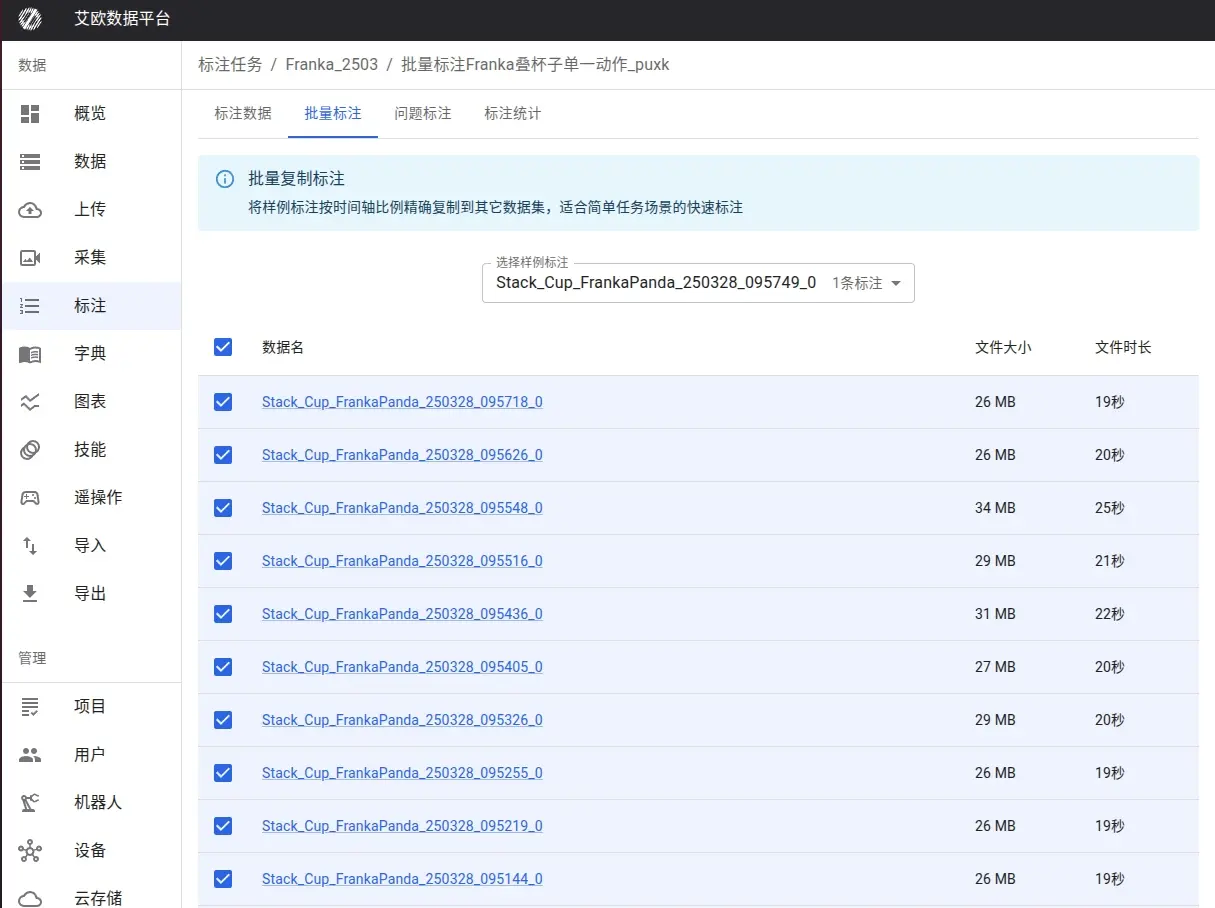
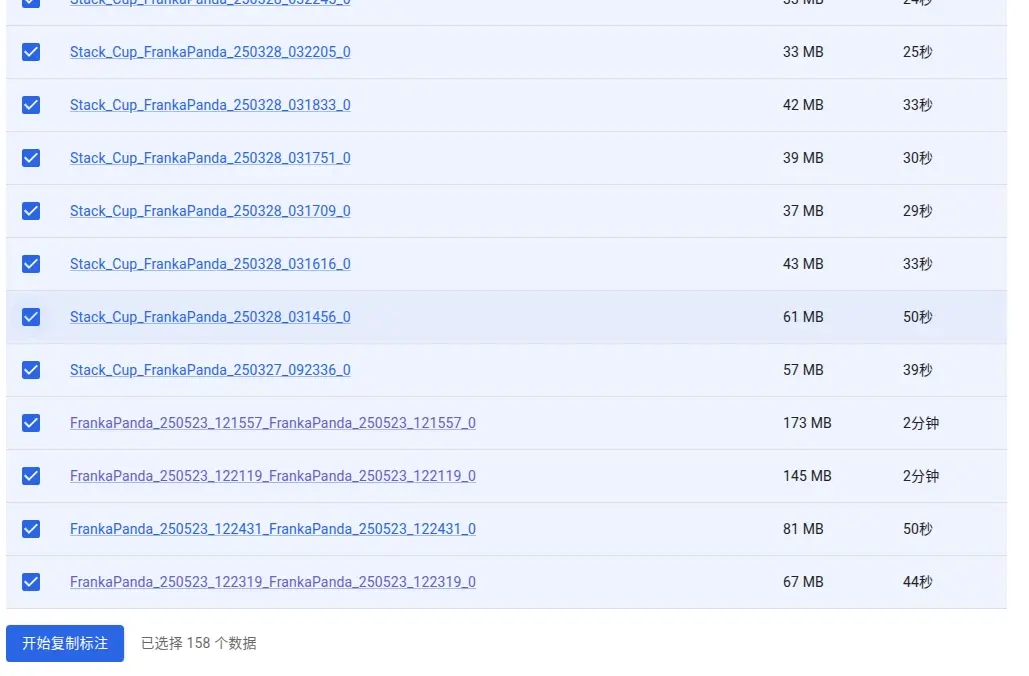
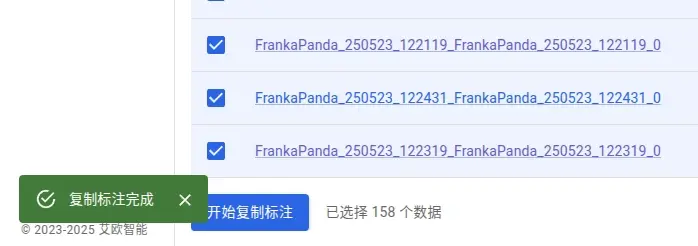
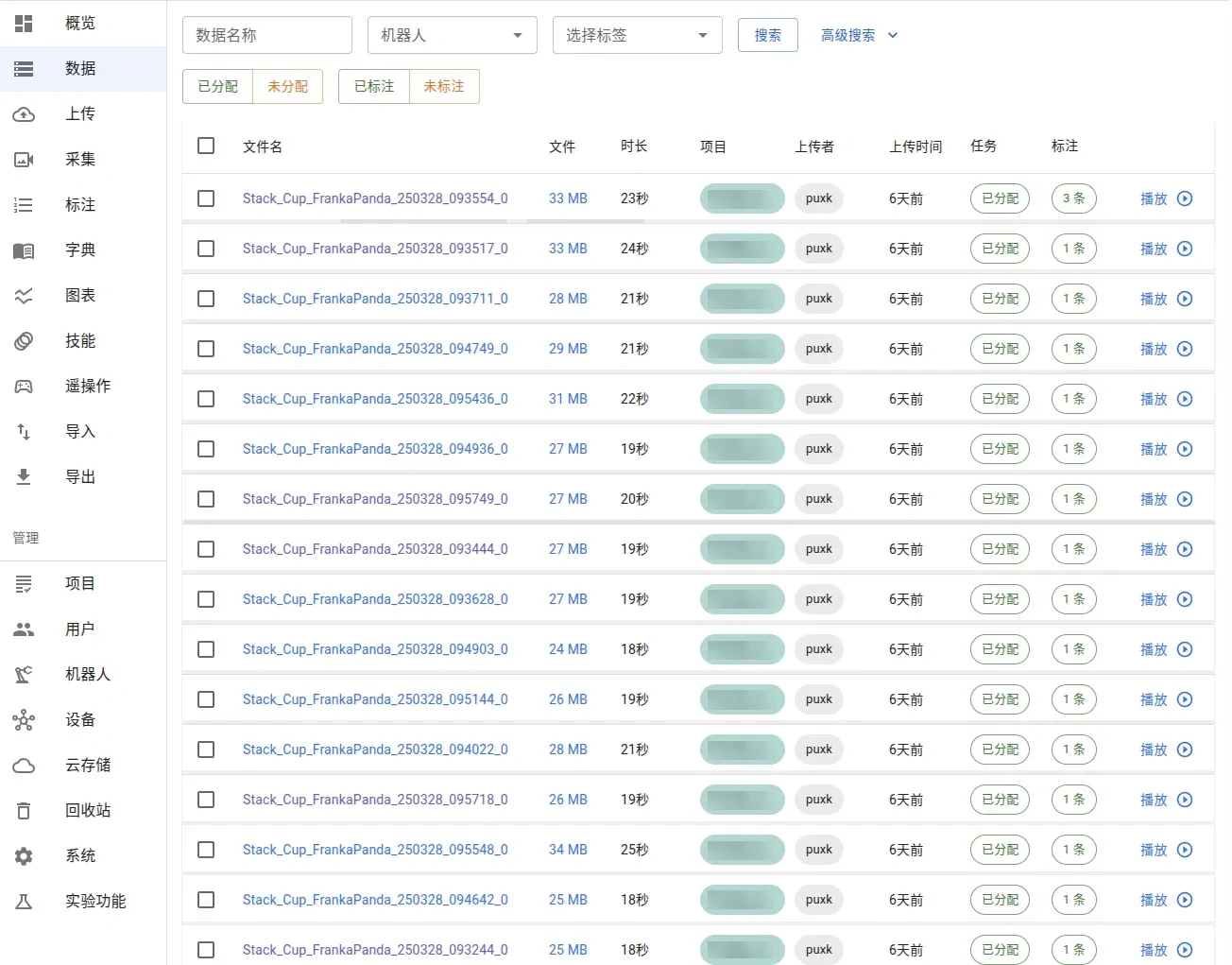
Image Item Annotation
Image annotation labels item names on camera view images. The entry is the image annotation page, reached from the annotation export page.
Procedure
- Select the dataset to annotate; the corresponding image loads at the top of the page.
- Drag on the image to draw a rectangular region, or click to mark a point.
- Fill in an item name for each region; the name comes from the object list in the dictionary.
- Repeat steps 2 and 3 to add all regions.
- Submit to save all item annotations.
The annotation object list comes from the dictionary; for how it is maintained, see Dictionary management.
Limitations
Annotation is constrained by the existing boundaries below.
| Item | Limit | Description |
|---|---|---|
| Time reference | Start and end timestamps required | An annotation without timestamps cannot be saved; frame number fields are optional and export as empty when missing |
| Quality score | 0–1; -1 means not scored | The form uses 0.5–5 stars with a step of 0.5, and the stored value is the star value divided by 5 |
| Image annotation types | BBOX, POINT, POLYGON, LINE, CIRCLE | Each record has only one type; the default is BBOX |
| Image annotation region | Rectangular region or single point | Drag to draw a rectangle, or click to mark a point |
| Skill and object values | Taken from the dictionary | Wording outside the dictionary cannot be used as a skill, object, or target |
| Unsaved annotations | Exist only in the current browser | Save before leaving the page, or the changes are lost |
| Data for batch annotation | Homogeneous datasets | Quick Annotation, Batch Copy Annotations, and Batch Replace Annotations apply by the same action or the same segmentation |
Related Pages
| Page | Purpose |
|---|---|
| Data management | Dataset search, preview, and batch actions |
| Data export | Export annotation results for training |
| Data format | MCAP structure and annotation data fields |
| Dictionary management | Maintenance of skill, object, target, and adverbial dictionaries |
| Data QC | Automatic quality check rules for ROS recordings |