Data Management
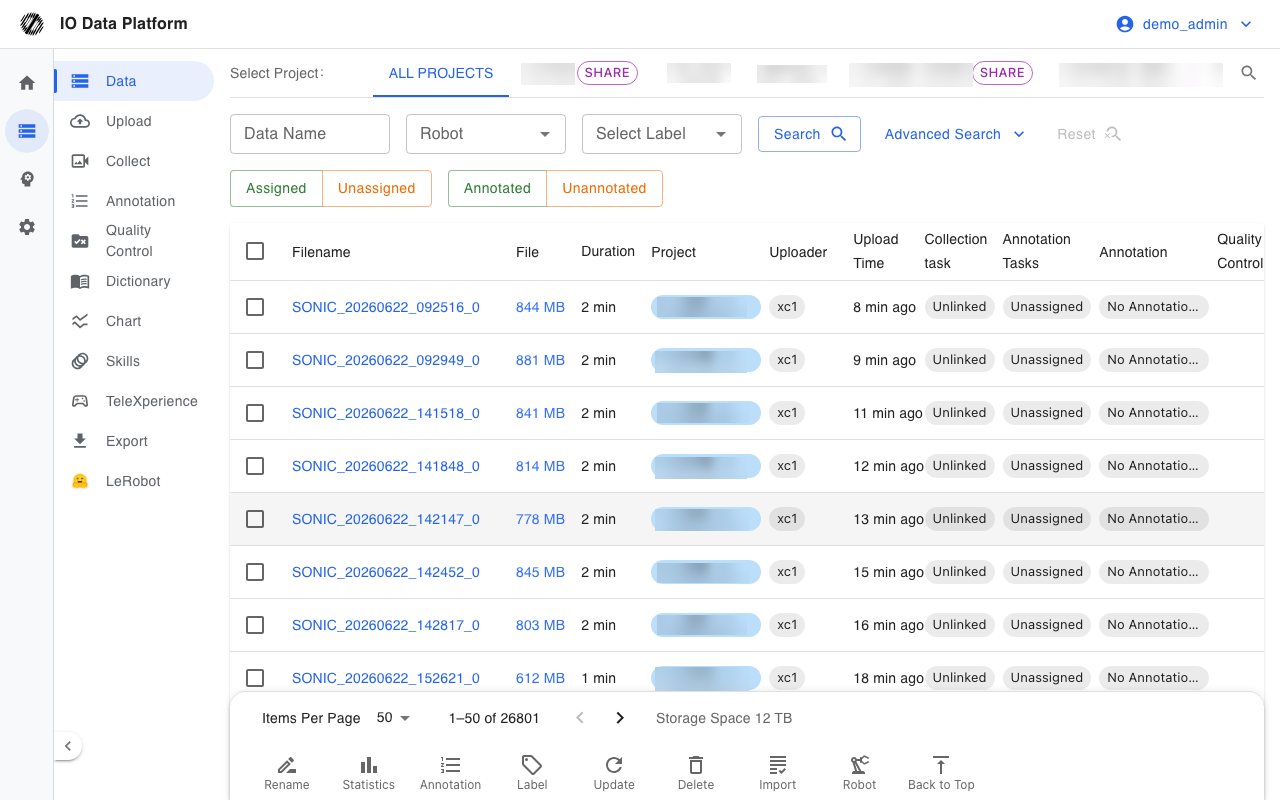
The Data Management page is the central place for all datasets on the platform and provides search, filtering, preview, and batch actions. Datasets are the input of annotation tasks; annotation, quality checks, and export happen on the Annotation Tasks, Data QC, and Dataset Export pages respectively.
Prerequisites
| Item | Description |
|---|---|
| Menu entry | Data → Data |
| Route | /dataset |
| Required permission | “Dataset List” |
| Related permissions | “Dataset Annotation” (start annotation), “Dataset Compute / Preprocess” (compute operations such as updating metadata), “Dataset Export” (open the export page) |
| Effective rules | Administrators are not limited by module permissions and have Read & write on everything; other roles follow the role default template, and user-level overrides take precedence over role defaults; modules with no configuration are set to Deny |
See Module Permissions for how to configure module permissions.
Data Browsing
Data Scope
The project selector at the top of the page sets the data scope of the list. The three options differ as follows.
| Scope | Visible datasets | Applicable roles |
|---|---|---|
| All projects | Datasets in every project the current account can access | Administrator; a project manager sees their own projects and public projects |
| Specific project | Only datasets in the selected project | All roles |
| Personal Space | Private datasets uploaded by the current account | All roles |
When the data volume is large, selecting a project first reduces the amount of data returned by a single query.
Search and Filtering
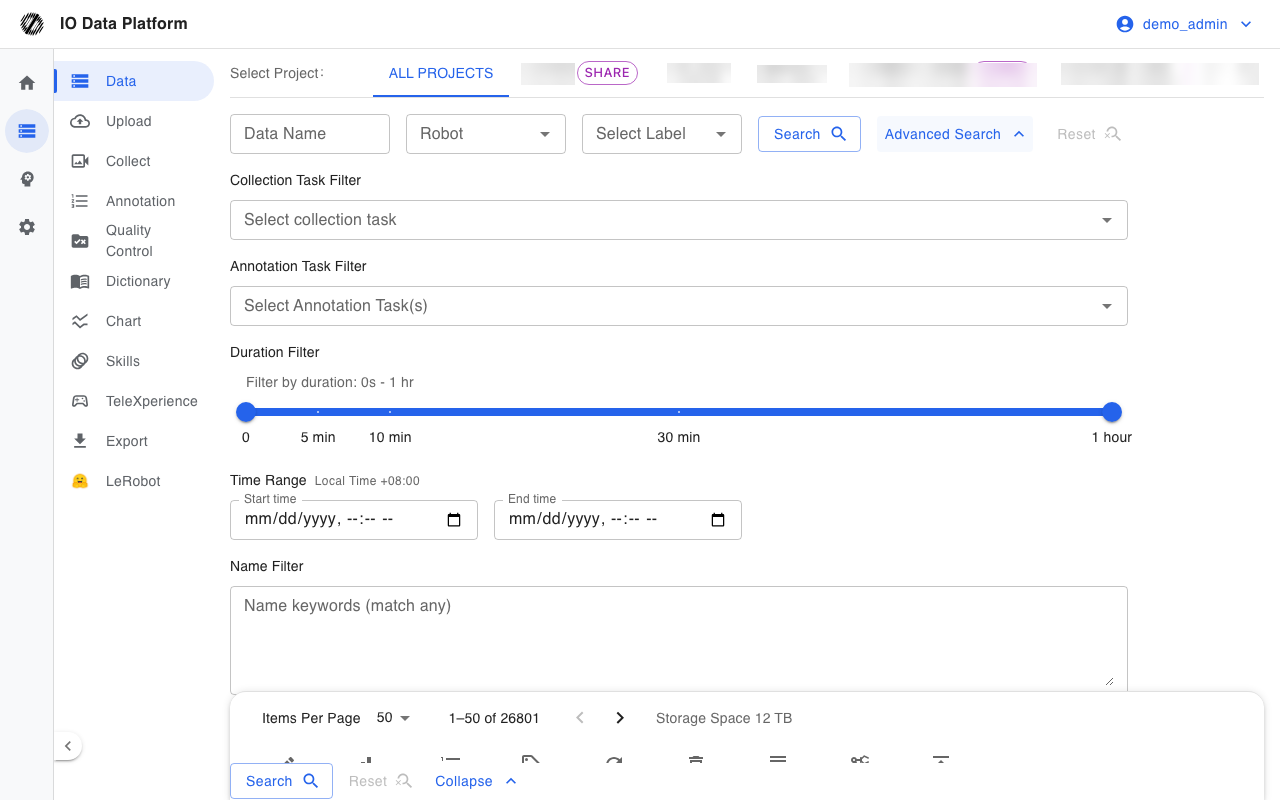
Filter conditions are written to URL query parameters, so a link that carries filters can be shared directly. Active Robot, Label, Uploader, QC status, and other filters appear as chips above the list and can be removed one by one.
| Filter | Description |
|---|---|
| Data Name | Matches by name, with fuzzy matching |
| Robot | Filters by the robot that captured the data |
| Label | Filters by data tag |
| QC status | Filters by aggregated QC result: passed, failed, not started, running, runtime error, or no matching rules (same aggregation as the list QC column) |
| Uploader | Filters by the uploading account |
| Project | Filters by project, with multi-select |
| Collector | Filters by collector, with multi-select |
| Collection task | Filters by the source collection task |
| Duration range | Filters by a data duration interval in seconds |
| Marker text | Searches the annotation text content |
List Fields
| Field | Description |
|---|---|
| Thumbnail | Dataset preview image |
| Name | Dataset name; click to open the details |
| Size | Disk space used by the files |
| Duration | Data duration |
| Upload Time | Ingestion time, sortable |
| Status | Whether an annotation task is assigned and whether annotation is complete |
| Label | Data classification tag |
The pagination control at the bottom of the list shows the page size and total count. When no row is selected, the bottom shows the total storage space of the current filter result.
Data Preview
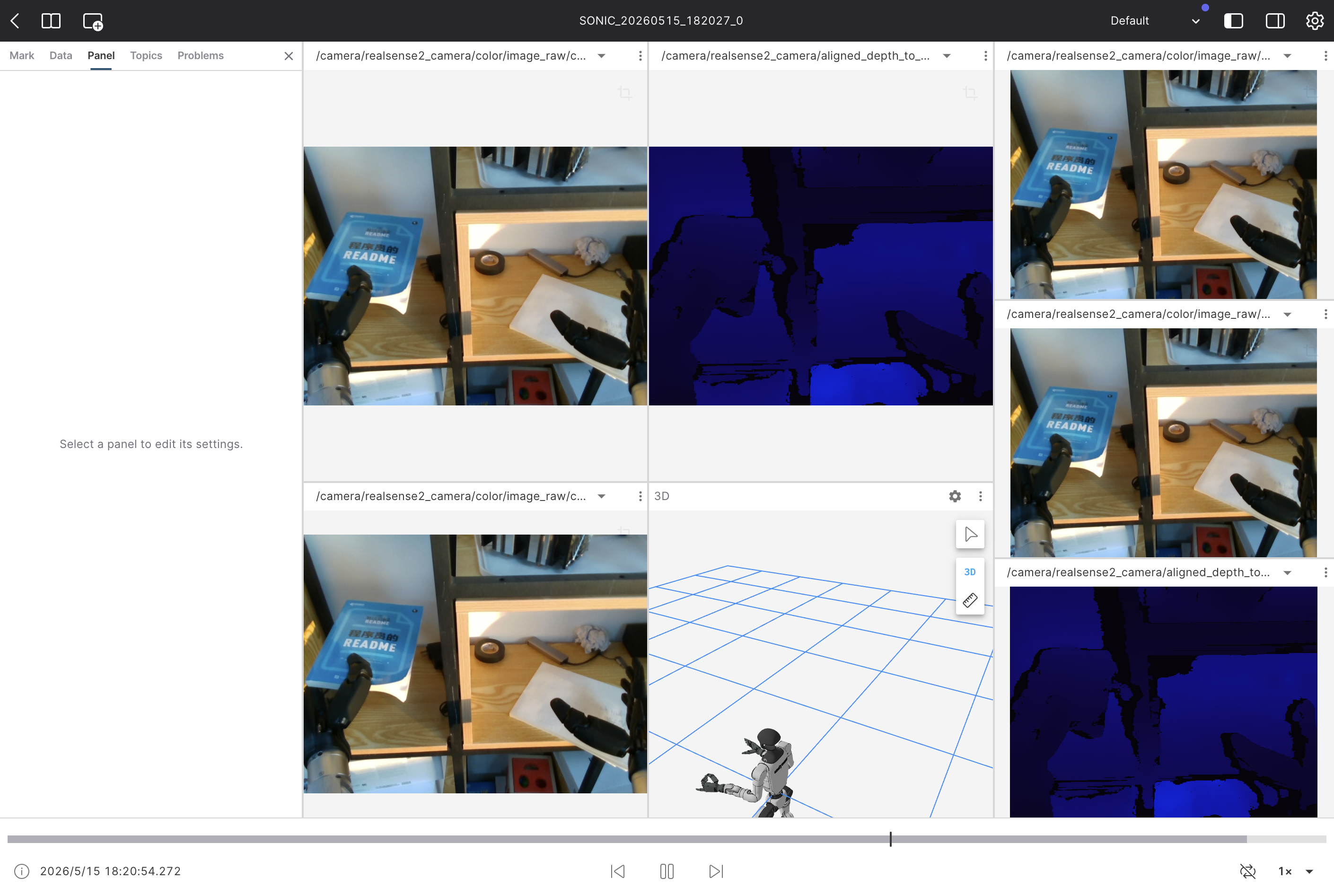
Click a dataset name or thumbnail to open the details, which show basic information, robot information, annotation statistics, and linked tasks, and play online content in the browser.
| Data type | Supported formats | Playback support |
|---|---|---|
| Video | MP4, AVI, MOV | Play, pause, speed control |
| Audio | MP3, WAV | Play, waveform display |
| MCAP | MCAP | 3D scene rendering, marker inspection |
Data Maintenance
Batch Actions
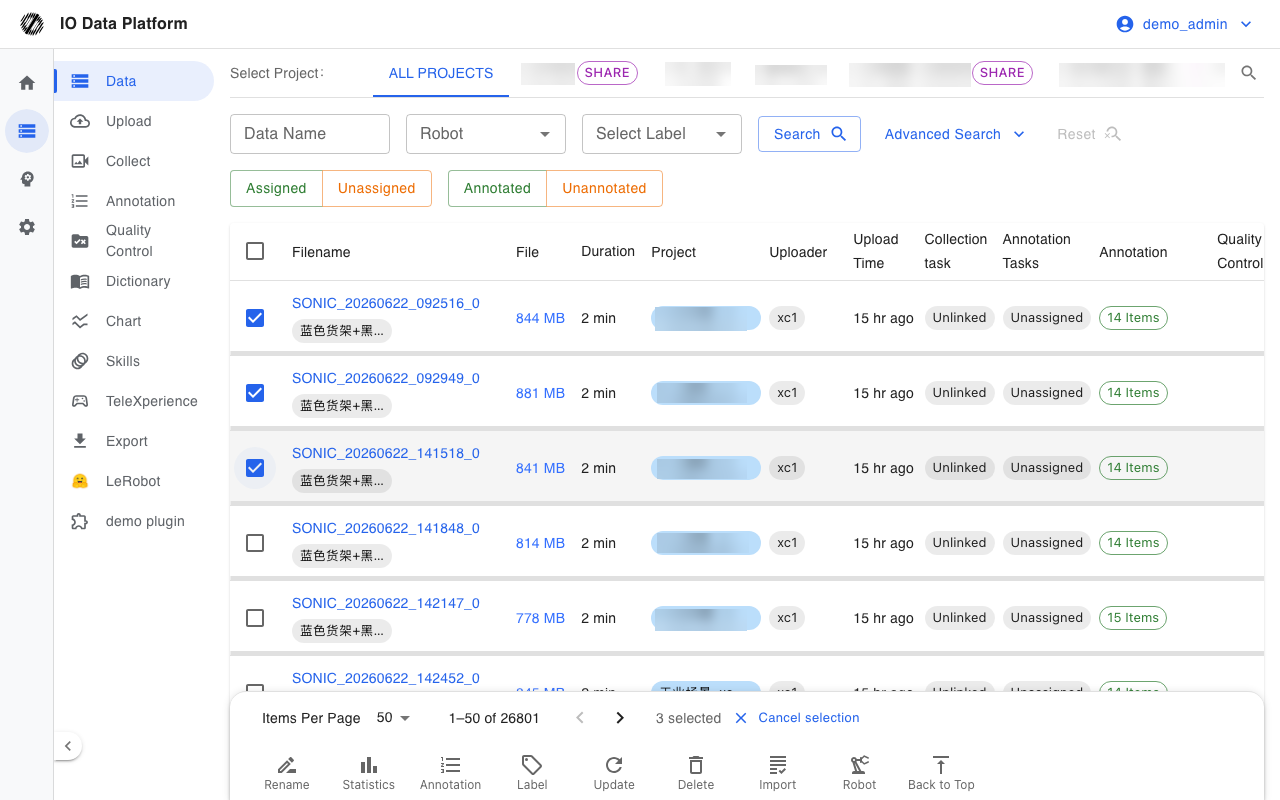
Select the target datasets in the list before acting. The bottom action bar offers the following actions.
| Action | Effect | Constraint |
|---|---|---|
| Rename | Renames datasets in bulk | Confirmed one by one |
| Statistics | Shows annotation statistics for the selected data | Read-only |
| Annotate | Creates an annotation task from the selected data | Requires “Dataset Annotation” |
| Label | Adds or removes data tags in bulk | Requires “Dataset Annotation” |
| Update | Re-extracts metadata or re-runs preprocessing | Requires “Dataset Compute / Preprocess” |
| Delete | Soft-deletes the selected data | Deleted items go to Trash and can be restored |
| Import | Imports the selected data into a project | Requires project membership |
| Robot | Links or unlinks a robot | Used for data provenance |
If the selected rows include open shared datasets, the batch action is rejected with the message “Selected items include open shared data (view/export only); secondary editing is not allowed”. Such datasets can only be viewed and exported.
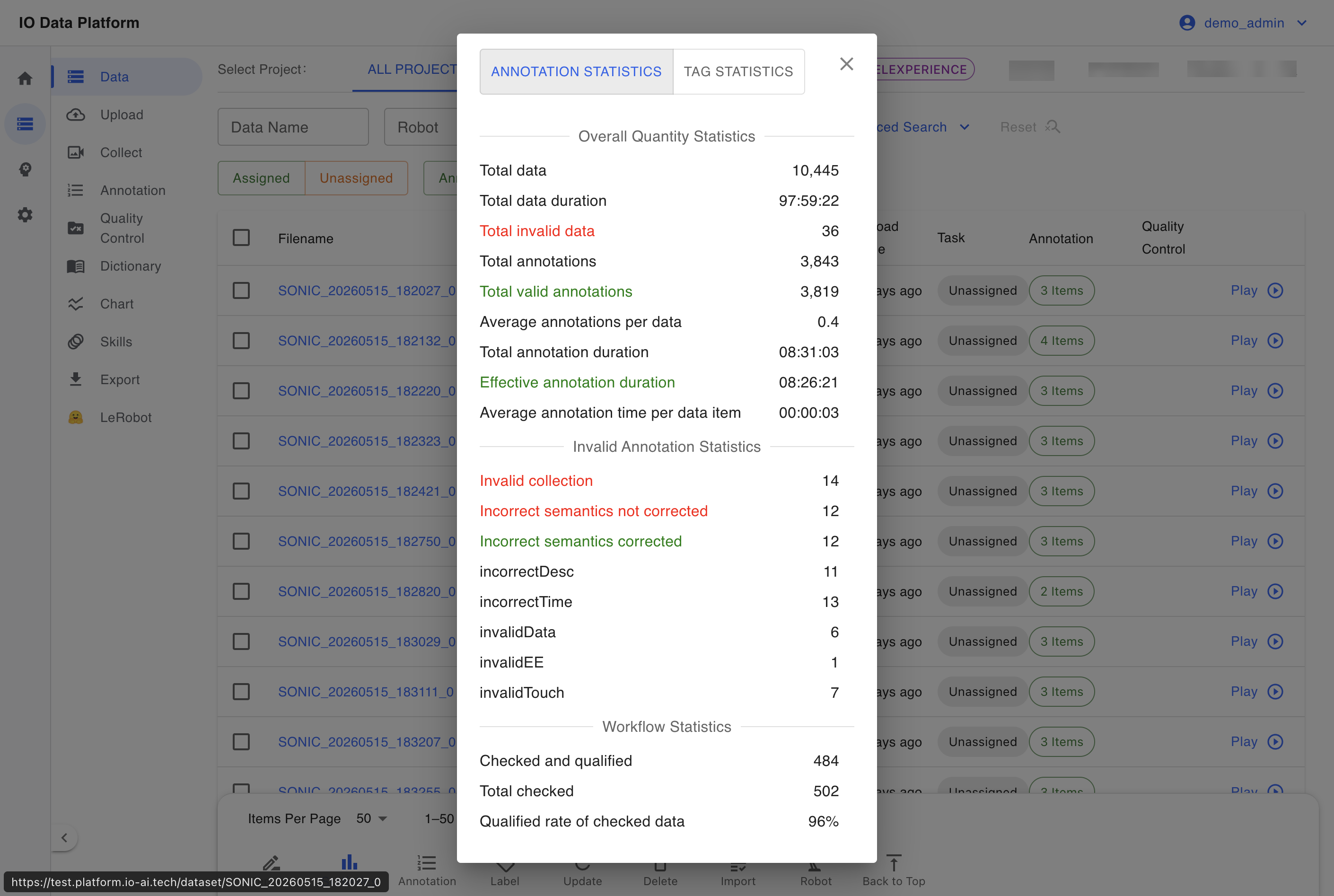
Statistics
Click “Statistics” at the bottom to see summary metrics for the selected datasets. The definitions are as follows.
| Metric | Meaning |
|---|---|
| Total data | Number of selected datasets |
| Total data duration | Combined duration of the selected datasets |
| Total annotations | Number of annotation entries |
| Total qualified annotations | Annotation entries that passed review and are not marked invalid |
| Average annotations per dataset | Total annotations ÷ total data |
| Total annotation duration | Combined duration covered by annotations |
| Average annotation duration per dataset | Total annotation duration ÷ total data |
| Total invalid data | Number of datasets marked invalid |
| Qualified check rate | Qualified checks ÷ total checks |
| Invalid collection | Annotations marked invalid due to problems in the collection step |
| Semantic errors, uncorrected / corrected | Counts of uncorrected and corrected annotations with semantic errors |
Metadata Update
Re-extract metadata when a file duration or size is wrong, metadata extraction failed after upload, or a file was modified by an external tool.
Path: select the dataset → “Update” at the bottom → choose metadata update → confirm. The dialog shows the processing status per item.
| Status | Meaning | Next action |
|---|---|---|
| Pending | Queued and waiting for processing | None |
| Processing | Reading the file and extracting metadata | Wait for completion |
| Completed | Metadata updated successfully | None |
| Failed | Corrupted file or wrong format | Permanent errors are not retried automatically; fix the file and submit again |
Accidental Deletion Recovery
Deletion is a soft delete; data goes to Trash and can be restored. A restore keeps the original annotations, linked annotation tasks, data tags and metadata, and operation and access logs.
When a file with the same name as a deleted dataset is uploaded again, the system detects the same-name record and offers two options.
| Option | Result | Use case |
|---|---|---|
| Restore existing dataset | Keeps all history, including annotations and task links | The original data was deleted by mistake |
| Create new dataset | Ignores history and creates a fresh record | The original data should be discarded |
Troubleshooting
| Symptom | Possible cause | Action |
|---|---|---|
| Target data is not found | Wrong project scope, no access permission, a keyword that is too narrow, or the data was deleted | Switch the project scope; check Trash to see whether it was deleted; loosen the keyword or use Advanced Search |
| The list loads slowly | Scope set to All projects, filters that are too broad, a large page size, or an unstable network | Select a specific project; add filters; reduce Items Per Page |
| A batch action partially fails | An individual file is corrupted, a dataset has no annotation data, or open shared data is included | Check the per-item error messages in the dialog and retry failed items individually |
| Metadata update fails | A corrupted file or an unsupported format | Fix the file and submit again; permanent errors are not retried automatically |
Related Pages
| Page | Purpose |
|---|---|
| Annotation Tasks | Task status, task details, batch annotation |
| Data Upload | Upload new data and convert video and audio to MCAP |
| Dataset Export | Export annotation results for training |
| Data QC | Automatic quality check rules for ROS recordings |
| Trash | Restore deleted data |