Data Upload
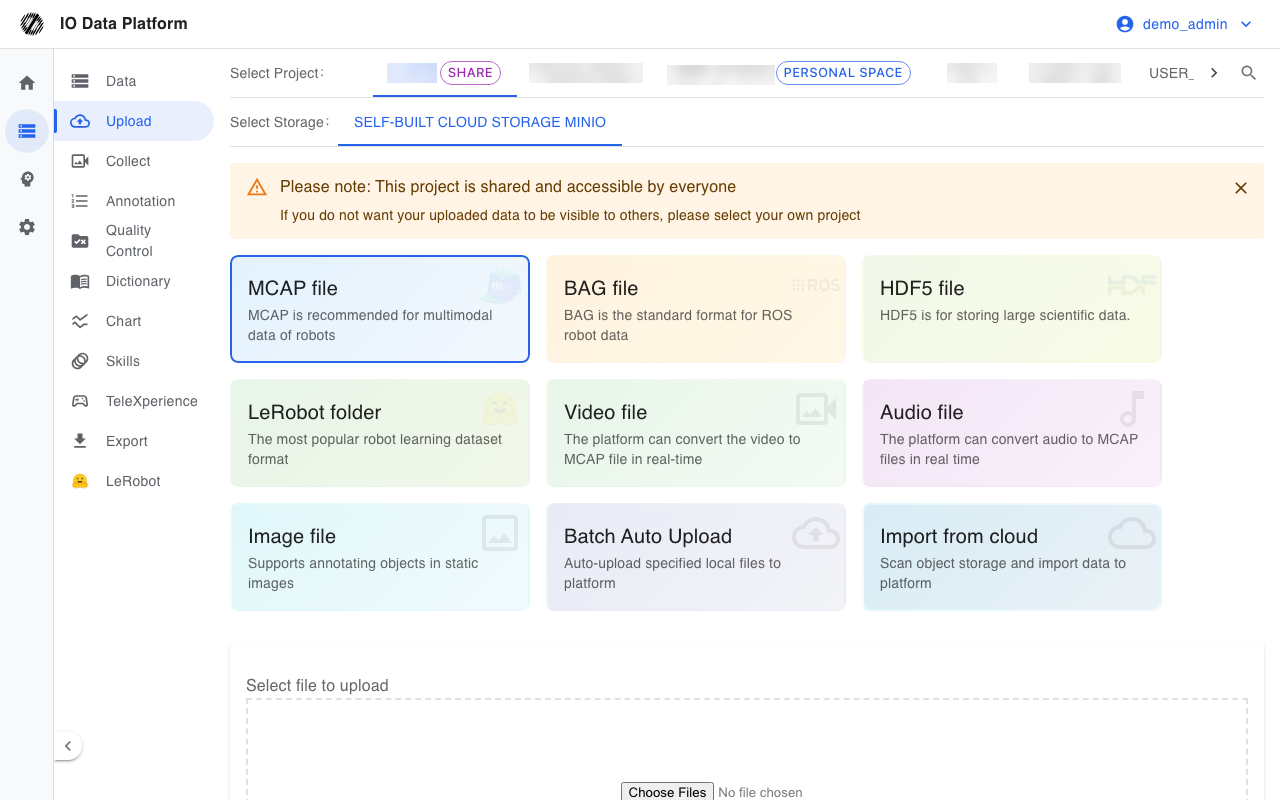
The Data Upload page imports local files or data in object storage into the platform. Datasets on the platform use MCAP as the baseline format: video and audio are converted to MCAP in the browser, BAG files are converted to MCAP by a backend service, and MCAP files and LeRobot directories are ingested as they are. After import, datasets are searched and previewed in one place on the Data Management page.
Prerequisites
The corresponding upload form appears only after an ingestion method, a project, and cloud storage are selected.
| Item | Description |
|---|---|
| Menu entry | Data → Upload |
| Route | /upload |
| Required permission | “Data Upload” |
| API check | The upload record write API validates “Dataset List” |
| Visible roles | Administrator, Project Manager, Collector |
| Project prerequisite | Prompts “Please select a project” when no project is selected |
| Cloud storage prerequisite | Prompts “Please Select Cloud Storage” when no cloud storage is selected; when there are no options, an administrator configures it on the Cloud page |
Data Ingestion
Ingestion Methods
The ingestion method cards at the top of the page determine the upload entry point and the conversion behavior.
| Ingestion method | Supported formats | Conversion behavior | Constraint |
|---|---|---|---|
| MCAP file | MCAP | Ingested as-is, no conversion | None |
| BAG file | BAG | The backend detects ROS1 or ROS2 and converts to MCAP | Conversion runs on the server |
| Video file | MP4, WebM (video containers the browser can decode) | Transcoded to MCAP in the browser | Requires Chrome 94+ or Edge 94+ |
| Audio file | MP3, WAV, AAC, Ogg | Converted to AudioData messages in the browser | Depends on the browser's audio decoding support, with no restriction on browser type |
| Image file | JPG, PNG | Ingested as-is for image annotation | None |
| HDF5 file | HDF5 | Select a robot type during upload; the dataset is processed by the preprocessing pipeline after ingestion | Requires an administrator to configure the preprocessing pipeline |
| LeRobot folder | LeRobot v2, v3 | Validates meta/info.json and then streams a tar package | The entire dataset folder must be selected |
| Meituan folder | Meituan capture folder (data + video) | Packaged, uploaded, and preprocessed to MCAP | Requires an administrator to configure the preprocessing pipeline |
| Lumos FastUMI folder | UMI, EGO | Packaged per session as .lumos | Requires an administrator to configure the preprocessing pipeline |
| zc0touch folder | A directory containing data.json | Each directory is packaged as .zc0touch | Requires an administrator to configure the preprocessing pipeline |
| SenseXperience folder | Device capture episode directory | Uploaded per episode directory | Shown only when the sensexperience object storage is configured |
| BVH File | BVH | Ingested as-is for motion-visualization annotation | Requires an administrator to configure the preprocessing pipeline |
| Batch Auto Upload | Depends on the script data type | A local script watches a directory and uploads automatically | See “Batch Upload Script” |
| Import from cloud | MCAP, HDF5, LeRobot | Scans object storage and imports | A project must be selected first |
Browser Prerequisites
Converting video to MCAP depends on the browser's MediaStreamTrackProcessor and HTMLVideoElement.captureStream (mozCaptureStream as the Firefox-prefixed fallback). The page checks whether these two interfaces exist when the video ingestion method is opened; this is a runtime capability check rather than a browser-version allowlist.
| Item | Value |
|---|---|
| Required interfaces | MediaStreamTrackProcessor; HTMLVideoElement.captureStream |
| Check method | Runtime check for the presence of those interfaces |
| Supported browsers | Chrome 94+, Edge 94+ (both interfaces present) |
| Unsupported browsers | Firefox does not provide MediaStreamTrackProcessor; Safari 18+ provides MediaStreamTrackProcessor but not HTMLVideoElement.captureStream |
| Check timing | When the video ingestion method is opened |
| Behavior when unsupported | Shows “Browser Incompatible” and blocks drag-and-drop and file selection |
| Workaround | Use Chrome 94+ or Edge 94+; or convert the file to MCAP first and upload it as an MCAP file |
Video Conversion Parameters
The following parameters appear after the video ingestion method is selected; conversion runs in the browser.
| Parameter | Value | Default | Constraint |
|---|---|---|---|
| Image quality | 20%, 50%, 70%, 100% | 70% | Higher quality means larger files and longer processing |
| Video Frame Rate | Auto, 10 FPS, 15 FPS, 30 FPS | Auto | Auto follows the original video frame rate |
| Contains Audio | Checked, unchecked | Checked | Determines whether the audio track is kept |
Audio Conversion Parameters
Audio files are converted to standard ROS AudioData messages, with no configuration required.
| Item | Value |
|---|---|
| Output message | ROS message type audio_common_msgs/msg/AudioData, written to the io_teleop/audio_data topic, with CDR message encoding |
| Message rate | Fixed at 10 Hz |
| Sample format | 16-bit signed little-endian PCM (s16le) |
| Metadata | Channels carry the sample rate, channel count, and encoding format (s16le) |
| Channel handling | Written channel by channel using the original channel count |
Upload and Import
Upload Queue and Progress
Uploads in the same batch appear as a list with a status per item. File size determines the upload mode and the available actions.
| Item | Value | Notes |
|---|---|---|
| Multipart upload threshold | 100 MB | Files above this size use multipart upload with 10 MB parts |
| Pause and resume | Multipart uploads only | Files below the threshold offer only cancel |
| Progress display | Upload speed, uploaded and total size, estimated time remaining | Refreshed per file |
| Leave confirmation | When a file is uploading or waiting | A confirmation appears when the page is closed or refreshed |
| Video processing timeout | 10 minutes | The conversion fails after the timeout |
Upload Status
The list shows a status per item. The values and follow-up actions are as follows.
| Status | Meaning | Next action |
|---|---|---|
| pending | The file is selected and waiting to start | None |
| uploading | Converting or uploading | None |
| paused | Multipart upload is paused | Click Resume |
| success | Upload succeeded and the dataset was created | Click “View Dataset” |
| error | Processing or upload failed | Check the cause and retry |
| cancelled | The upload was canceled | Upload again |
Duplicate Upload and Same-Name Validation
The upload record write API deduplicates by source address; records with the same name in the same project follow the DATASET_REUPLOAD_RECOVER system setting.
| Match | Handling | Result |
|---|---|---|
| The source address matches an existing dataset | Reuse the existing record | Merges the upload information, creates nothing, and shows “File Already Exists” |
| An undeleted dataset with the same name exists in the project | Reuse the existing record | Creates nothing |
| A dataset with the same name was deleted and the recovery switch is on | Restore | Keeps the original annotations, task links, and data tags |
| A dataset with the same name was deleted and the recovery switch is off | Reject | Shows “A dataset with the same name in this project was deleted. Current system settings prohibit restoring and re-uploading.” |
| No same-name record | Create | Creates a new dataset and appends a suffix when needed |
Batch Upload Script
“Batch Auto Upload” provides a script that runs on the robot terminal, watches a specified directory, and uploads new files automatically. The script is generated from the current project and cloud storage.
| Item | Value |
|---|---|
| Data type | Single file (mcap, bag, hdf5), folder (AgiBot data format), folder (LeRobot data format), folder (Meituan capture format), folder (Lumos FastUMI), folder (zc0touch) |
| Parent directory levels | 0 (default), 1, 2 |
| Script commands | upload (runs in the foreground), install (installs as a systemd service), uninstall (removes the service) |
| Permission requirements | upload runs as a regular user; install and uninstall require root |
Parent directory levels avoid same-name conflicts: level 0 uses the file name directly, level 1 adds the immediate parent directory as a prefix, and level 2 adds two parent directory levels as a prefix. For example, episode_1.mcap becomes 2025-01-01_10-30_episode_1.mcap in level 2 mode.
Import from Cloud
“Import from cloud” scans object storage and imports existing data.
| Item | Value |
|---|---|
| Data type | MCAP, HDF5, LeRobot |
| Run mode | Test (scan and preview only), Import (scan and ingest) |
| Counters | Found, to import, already imported, imported |
| Per-item status | to_import, already_imported |
Constraints and Limits
| Item | Value | Scope |
|---|---|---|
| Project and cloud storage | Both required | All ingestion methods |
| Multipart upload threshold | 100 MB | Single file |
| Part size | 10 MB | Single file |
| Video processing timeout | 10 minutes | Video ingestion method |
| Video conversion browsers | Chrome 94+, Edge 94+ | Video ingestion method |
| Hidden file exclusion | Files whose names start with “.” are excluded from packaged uploads | Folder ingestion methods |
| Empty file blocking | Files with a size of 0 cannot be uploaded | Single file |
| HDF5 robot type | Required when the preprocessing pipeline defines a robot type | HDF5 ingestion method |
Troubleshooting
| Symptom | Possible cause | Action | Owner |
|---|---|---|---|
| Shows “Please select a project” | No owning project is selected | Select a project in the project selector | Uploader |
| Shows “Please Select Cloud Storage” | No target cloud storage is selected | Select cloud storage; when there are no options, contact an administrator to configure it | Uploader, Administrator |
| Video ingestion shows “Browser Incompatible” | The browser lacks MediaStreamTrackProcessor or HTMLVideoElement.captureStream | Use Chrome 94+ or Edge 94+; or convert to MCAP first and upload | Uploader |
| Video processing times out | The video duration or resolution is too high | Lower the quality or frame rate and retry | Uploader |
| The upload fails and shows a reason | Network interruption, a corrupted file, or insufficient storage | Multipart uploads can resume; fix a corrupted file first; contact an administrator to expand storage when space runs out | Uploader, Administrator |
| Shows “Cannot upload empty file” | The selected file has a size of 0 | Use a valid file | Uploader |
| LeRobot packaging validation fails | meta/info.json is missing or the directory structure does not match | Complete the LeRobot directory structure and upload again | Uploader |
| Shows “File Already Exists” | The source address duplicates an existing dataset | Check the existing record on the Data Management page | Uploader |
| Shows that same-name data in the project was deleted | The system setting prohibits restoring and re-uploading | Contact an administrator to change the recovery setting, or use a different file name | Administrator |
Related Pages
| Page | Purpose |
|---|---|
| Data Management | Search, preview, and batch-operate on datasets after upload |
| Annotation Tasks | Create annotation tasks for uploaded data |
| Dataset Export | Export annotation results for training |
| Module Permissions | Configure module permissions such as “Data Upload” |
| Data format | Definitions of the MCAP and ROS data model |