Module permissions configure the access level for each user by feature module, on top of the role. The role sets the visible range in the sidebar, and module permissions decide whether a user can enter a feature page and call its APIs.
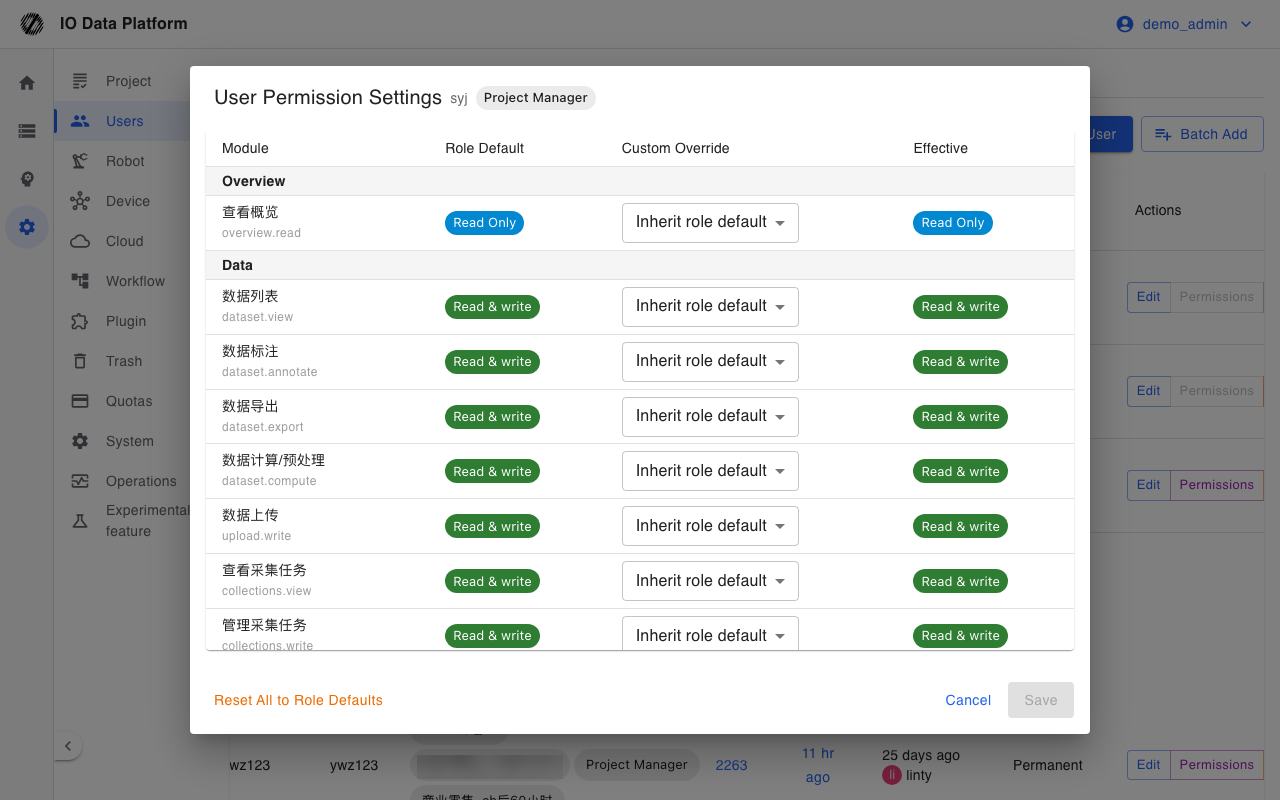
Configuration
| Item | Content |
|---|
| Single user | Manage → Users → the "Permissions" row action for that user |
| Batch configuration | Manage → Users → select users → "Batch actions → Batch Set Permissions" |
| Permissions | Viewing the permission matrix requires "View Users", and modifying requires "Manage Users" |
| Role scope | Administrators can modify any user; other roles can modify only users whose role rank is strictly lower |
| Administrator exception | An administrator's effective permissions are always read/write on everything and are not configured in the user permission dialog |
Permission Levels
When configuring a user, each module takes one of the following four values.
| Level | Meaning |
|---|
| Inherit role default | Writes no user override and keeps the value from the role default template |
| Deny | The page cannot be entered and the API denies access |
| Read Only | Can view but cannot change |
| Read & write | Can view and operate |
Effective Rules
| Order | Rule |
|---|
| 1 | The user-level override takes precedence |
| 2 | With no override, the value from the role default template applies |
| 3 | With no override and no role default, the value is "Deny" |
| Administrator | Bypasses the rules above and always has read/write on every module |
The platform writes the role default templates during initialization. When viewing a user's permission matrix, the dialog lists three columns at once: "Role Default", "Custom Override", and "Effective".
Certain permissions satisfy the requirements of others, so they do not need to be granted again.
| Granted read/write permissions | Requirements met |
|---|
| Dataset Annotation, Perform Annotation, Review Annotation | The read-only requirement of Dataset List |
| Perform Annotation, Review Annotation | The read-only requirement of View Annotation Tasks |
| Perform Annotation, Review Annotation | The read/write requirement of Dataset Annotation |
Configuration Steps
To configure a single user:
- Find the target user in the user list and click "Permissions".
- Set the "Custom Override" for each module in the dialog.
- Click "Save" to submit the changes; click "Reset All to Role Defaults" to clear every override for that user.
To configure in bulk:
- Select the target users in the user list.
- Click "Batch actions" and choose "Batch Set Permissions".
- Select the module and the value, then click "Confirm".
Skipped users are reported with the reason in the result message.
Permission Reference
There are 50 configurable module permissions across 6 groups. The interface shows them by group, and the permissions in each group are listed below.
Overview
| Permission | Scope |
|---|
| View Overview | Metrics and recent activity on the Overview page |
Data
| Permission | Scope |
|---|
| Dataset List | List, search, and preview on the data management page |
| Dataset Annotation | Start annotation and maintain data tags |
| Dataset Export | Open the dataset export page |
| Dataset Compute / Preprocess | Compute operations such as updating metadata |
| Data Upload | Upload data and import external datasets |
| View Collection Tasks | View the list and progress of collection tasks |
| Manage Collection Tasks | Create, edit, and delete collection tasks and change their status |
| View Dictionaries | View annotation definitions such as skills, objects, and tags |
| Manage Dictionaries | Maintain annotation definitions |
| View Charts | View analysis charts |
| View Skills / Actions | View the skill library and action data |
| Manage Skills / Actions | Maintain the skill library and action data |
| View Teleoperation | Read device registration and activation records |
| Manage Teleoperation | Register and delete robot devices |
Annotation Tasks
| Permission | Scope |
|---|
| View Annotation Tasks | View the task list and task details |
| Perform Annotation | Claim tasks and submit annotation results |
| Review Annotation | Review annotation results and mark them as passed or returned |
| Manage Annotation Tasks | Create tasks, assign people, and change task status |
QC & Export
| Permission | Scope |
|---|
| View QC | View QC rules and QC reports |
| Run QC | Start QC jobs |
| QC Rule Management | Maintain QC rules |
| View Export List | View the export history |
| Create Export Job | Start an export |
Model
| Permission | Scope |
|---|
| View Training | View training jobs and metrics |
| Create Training Job | Start training |
| View Inference | View inference services and test results |
| Manage Inference Jobs | Deploy and take inference services offline |
System Management
| Permission | Scope |
|---|
| View Projects | View the project list and project details |
| Manage Projects | Create, edit, and delete projects and maintain members |
| View Users | View the user list and permission matrix |
| Manage Users | Create users, assign roles, and configure module permissions |
| View Robots | View robot models and maintenance records |
| Manage Robots | Register and maintain robot models |
| View Devices | View the device list and monitoring data |
| Manage Devices | Register devices, dispatch tasks, and take over remotely |
| View Cloud Storage | View cloud storage connections |
| Manage Cloud Storage | Create and maintain cloud storage connections |
| View Workflows | View matching rules, action rules, and workflows |
| Manage Workflows | Maintain workflow configuration |
| View Plugins | View installed plugins |
| Manage Plugins | Install, enable, and disable plugins |
| View Trash | View soft-deleted data |
| Restore / Empty Trash | Restore or permanently delete data |
| View Quotas | View quotas and usage for export, training, and inference |
| Manage Quotas | Adjust quotas |
| View System Settings | View system parameters and branding settings |
| Edit System Settings | Edit system parameters and branding settings |
| View Ops Monitor | View system logs, task queues, and audit records |
| Manage Ops Monitor | Perform operations actions |
Constraints and Limits
| Item | Value and description |
|---|
| Operator rank | Administrators can modify any user; other roles can modify only users whose role rank is strictly lower |
| Grant ceiling | Cannot grant a permission above one's own effective level; lowering a level and "Reset to role default" are always allowed |
| Administrator target | Administrator accounts have no override; batch settings skip them and give the reason |
| Unconfigured default | When a module has neither an override nor a role default, the value is "Deny" |
| Cache | Effective permission results are cached for 5 minutes; a permission change immediately invalidates the cache for that user or role |
| Scope | Module permissions constrain page access and API calls; sidebar entries are filtered by role and do not change with module permissions |
Troubleshooting
| Symptom | Possible cause | Resolution | Owner |
|---|
| Permissions do not change after saving | The permission data in the active login session is not refreshed | Have that user sign in again | Administrator |
| Message "Cannot grant the level for the module" | The granted level is above the operator's effective level | Have an administrator perform it, or use a value no higher than one's own level | Administrator |
| Message "Cannot modify permissions for a user with role X" | The target's role rank is not lower than the operator's | Have a higher-ranked role perform it | Administrator |
| Batch settings show "Skipped N users" | The target includes an administrator, or a target's rank is not lower than the operator's | Have an administrator perform it | Administrator |
| A page redirects to the home page | The module permission is set to Deny | Grant the matching permission in user permissions | Administrator |
| The API returns 403 | The matching permission is missing | Grant the matching permission in user permissions | Administrator |
Audit
Permission changes are written to the permission audit record, which includes the operator, the target user, the before and after values, and the source address; a denied module access is recorded as well.
For business operations such as users and projects, see "Operations → Logs → Operation logs".
Related Pages