Dataset Export
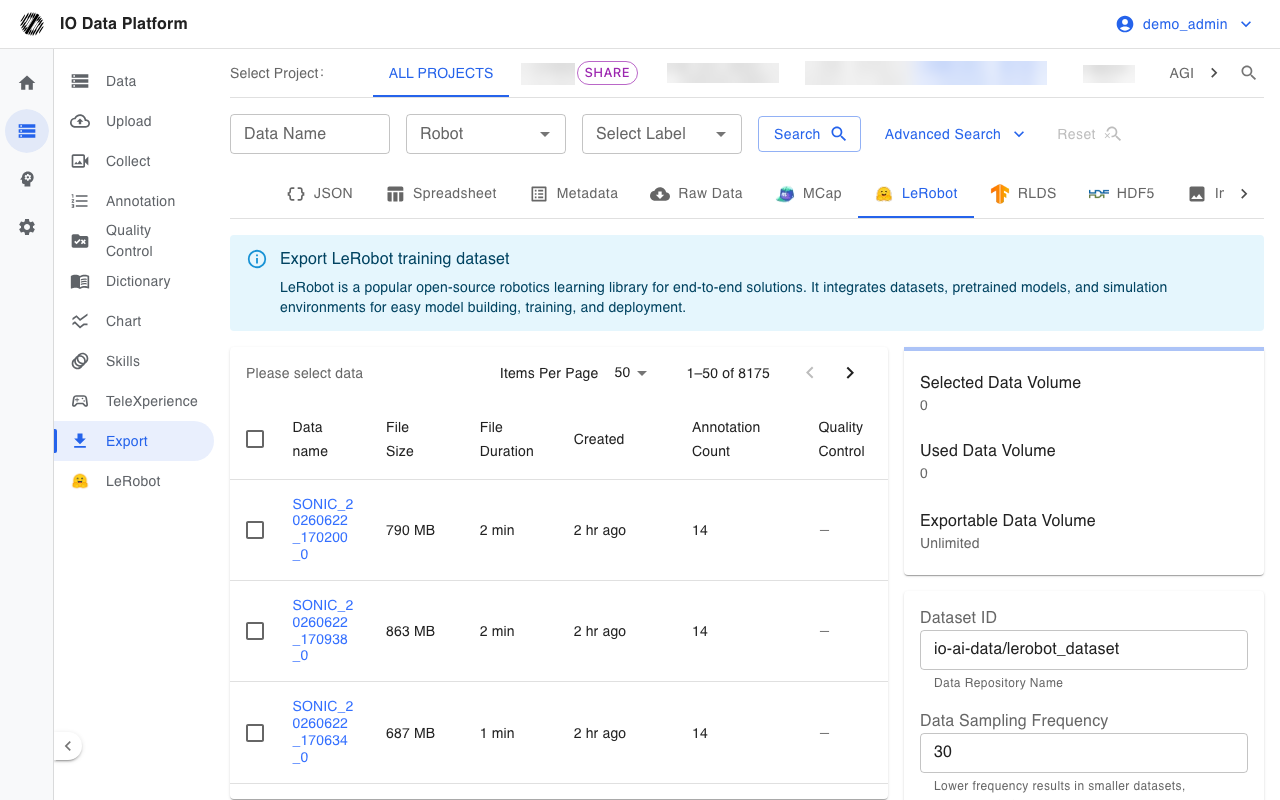
The export page converts annotated datasets in the platform into the formats required for training and Quality Control. Exports select datasets as the unit of work, and each target format has its own tab. Conversion exports run in a background queue, and their results are recorded in the export history.
Prerequisites
| Item | Content |
|---|---|
| Menu entry | Data → Export |
| Route | /export |
| Page module permission | "View Export List" |
| Required permission | "Create Export Job" |
| Visible roles | Administrator, Project Manager |
| Dataset permissions | The export permission of each selected dataset is checked before export; datasets without permission are dropped |
| Quality Control prerequisite | "Block export for QC-failed datasets" is on by default; datasets that failed Quality Control are blocked |
| Cloud storage prerequisite | Conversion exports require a configured "System Export Data Storage Location" cloud storage connection |
Export Formats
Format Overview
Tabs at the top of the page list every export format. "Export Quota Management" is visible only to administrators. Conversion exports are written to the background queue and recorded in the export history, while direct exports download in the browser.
| Tab | Route | Output | Quota used |
|---|---|---|---|
| JSON | /export/json | Annotation result JSON, optionally with download links for the source files | No |
| Spreadsheet | /export/csv | Annotation result CSV | No |
| Metadata | /export/metadata | Dataset metadata CSV | No |
| Raw Data | /export/raw-data | List of download links for the source files | No |
| MCap | /export/mcap | MCAP file and an annotation JSON of the same name | Yes |
| LeRobot | /export/lerobot | LeRobot dataset tar.gz | Yes |
| RLDS | /export/rlds | RLDS episode dataset | Yes |
| HDF5 | /export/hdf5 | Grouped and compressed HDF5 tar.gz | Yes |
| Image Annotation | /export/annotations | Image annotation files | No |
| Timestamp Alignment | /export/aligns | Timestamp alignment result CSV | Yes |
| Frame Drop | /export/framedrops | Frame drop detection result CSV | Yes |
| MCap Segmentation | /export/splits | MCAP split by annotation time ranges | Yes |
| Export Quota Management | /export/quota | Export quota records | No, administrators only |
Conversion Export Parameters
Parameters are set separately for the LeRobot, HDF5, and RLDS formats.
| Parameter | Type | Required | Default | Range | Description |
|---|---|---|---|---|---|
| Dataset ID | Text | Yes | io-ai-data/lerobot_dataset | Repository name format | Repository name of the exported dataset |
| Data sampling rate | Number | Yes | 30 | 1–60 Hz | A lower rate yields a smaller dataset; 10–30 is recommended |
| Image format | Single select | Yes | MP4 | MP4, JPG | MP4 saves about 80% of the storage compared with JPG |
| Strictly match model input/output | Checkbox | No | Off | Checked, unchecked | When checked, observations and instructions are trimmed one-to-one; ignored once an adapter mapping is configured |
| Auto-blur faces | Checkbox | No | Off | Checked, unchecked | Detects faces in the frame and blurs them |
| Enable subtasks | Checkbox | No | On | Checked, unchecked | When checked, each annotation becomes a subtask inside an episode; supported only in v3.0. Admins can change the default to off in system settings |
| LeRobot version | Single select | Yes | v3.0 | v3.0, v2.1 | Fixed at v3.0 in subtask mode |
| Adapter mapping | Form or JSON | No | Empty | Leave blank to use default rules | Maps fields for non-default data formats |
Export results are packed as tar.gz and can be used directly in training pipelines such as LeRobot, SmolVLA, ACT, and Diffusion, or as input for Model Training.
| Parameter | Type | Required | Default | Range | Description |
|---|---|---|---|---|---|
| Group count | Number | Yes | 10 | 1–100 | Number of MCAP files contained in each HDF5 file |
| Data refresh rate | Number | Yes | 30 | 1–60 Hz | Number of data samples per second; affects file size and training accuracy |
Export results are grouped and named by source file and then compressed into tar.gz. For the format and data structure, see HDF5 Dataset.
RLDS (Reinforcement Learning Datasets) was proposed by Google Research and uses TensorFlow Datasets (TFDS) as its storage and read layer; Open X-Embodiment datasets are organized in the RLDS episode format. The table below lists the export parameters on this tab.
| Parameter | Type | Required | Default | Range | Description |
|---|---|---|---|---|---|
| TFDS dataset name | Text | Yes | embodiflow_rlds | Letters, numbers, and underscores | Used for the builder and output directory names |
| Dataset version | Text | Yes | 1.0.0 | Semantic version | For example, 1.0.0 |
| Data sampling rate | Number | Yes | 30 | 0–120 Hz | 0 keeps the original joint command rate |
The RLDS list shows only annotated datasets whose extension is MCAP or SenseXperience. RLDS is a separate export tab and serves a different purpose from LeRobot Studio.
Direct Exports
Direct exports download in the browser and do not enter the background queue.
| Format | Action | Export range | Extra options |
|---|---|---|---|
| JSON | Download All JSON, Export selected, Upload JSON to import | Up to 10000 datasets per run | Include unannotated data; include file download links (valid for 24 hours) |
| Spreadsheet | Download All Spreadsheets, Export selected | Up to 10000 datasets per run | None |
| Metadata | Download all metadata CSV, Export selected | Up to 10000 datasets per run | Field selection: Data ID, Data name, Project, Uploader, Created, Updated, Data Tags |
| Raw Data | Export Download Links, Export selected | Up to 1000 datasets per run | Output format: CSV, JSON |
Metadata export includes the name, project, uploader, time, and data tags of the selected datasets. Raw Data export generates download links from the cloud storage paths linked to each dataset, and the output fields are download link (valid for 2 hours), dataset name, project name, uploader, and creation time. "Upload JSON to import" re-imports an exported JSON file into the platform to modify annotation data in bulk.
Image Annotation Export
Image Annotation export lists the image annotation entries in a project and exports them after filtering by annotation type. The API of this page checks the module permission "Dataset Annotation", which is a different permission key from conversion exports. Lightweight annotation is done on the separate annotation tool page (/annotate).
The table below shows the filters the export page provides. These values are not the same set as the type enum stored with annotation data (the storage side uses BBOX, POINT, POLYGON, LINE, and CIRCLE; see Data Annotation).
| Annotation type | Meaning |
|---|---|
| BBOX | Rectangle |
| POINT | Point |
| POLYGON | Polygon |
| POLYLINE | Polyline |
| KEYPOINT | Keypoint |
| SEGMENTATION | Segmentation |
| Export format | Output |
|---|---|
| CSV | Image paths and annotation coordinates |
| YOLO | Annotation txt files and class definitions |
| COCO | JSON for object detection and segmentation |
| Pascal VOC | VOC XML |
| TAR | Full package of image files and annotation files |
A single export accepts up to 10000 annotation entries, or 1000 by default when none is specified.
Quality Control Exports
| Format | Output | Scope |
|---|---|---|
| Timestamp Alignment | CSV, each row based on the main camera timestamp and containing the alignment time of each topic | MCAP and compatible datasets |
| Frame Drop | CSV, each row containing a topic, start and end timestamps, and a suspected frame drop interval | MCAP and compatible datasets |
| MCap Segmentation | MCAP split by the time range of annotated actions, together with the matching annotation information | Only MCAP and SenseXperience datasets |
Quality Control exports enter the background queue and consume export quota.
Export Jobs
Create an Export
- Select an export format tab at the top of the page.
- Set the project and filters in the search bar; the list refreshes with the conditions and writes them to the URL query parameters.
- Select the datasets to export in the list.
- Set the parameters for that format in the parameter panel on the right.
- Click "Start Export"; conversion exports enter the background queue.
- Wait in the export history until the status becomes "Completed", then download the files.
Dataset Filters
| Filter dimension | Description |
|---|---|
| Project | Sets the data scope of the list |
| Data name | Matches by name |
| Duration range | Filters by the duration interval in seconds; default 0–3600 |
| Belonging project | Filters by project |
| Collector | Filters by collector |
| Collection task | Filters by the source collection task |
| Marker text | Searches annotation text content |
The list shows only annotated datasets by default. The MCap and JSON tabs provide an "Include unannotated data" option; when checked, those datasets are exported as well.
Export Records and Status
Records of conversion exports appear below each format tab and refresh automatically every 5 seconds. A record includes the export time, export quantity, total source data duration, file size, export duration, export parameters, and error message.
| Status | Meaning | Available actions |
|---|---|---|
| pending | Job created, waiting to run | None |
| processing | Running | View progress |
| completed | Finished successfully; files generated | Download Data, Copy link, Training |
| failed | Failed | View the error message and export again |
Download links are valid for 24 hours. Only records whose status is "Completed" can be downloaded, and non-administrators can download only the export files they created.
Export Quota Management
Export quota is consumed by the number of datasets: each exported dataset counts as one. Administrators have no quota limit. Other users fall back to the global EXPORT_MAX_COUNT setting when no personal quota is configured, and the default is 10 when that setting is unset. The "Export Quota Management" entry is visible only to administrators.
| Column | Meaning |
|---|---|
| User | Account and role that owns the quota |
| Total Quota | Upper limit of datasets that can be exported |
| Used | Number of datasets consumed |
| Remaining Quota | Total Quota minus Used |
| Status | Normal, Low Balance (remaining no more than 20% of the total), Exhausted |
| Notes | Grant description |
| Granted At | Time the quota was created |
Management actions include Grant Quota, Edit Quota, and Delete Quota. After a quota is deleted, the account falls back to the global setting.
Constraints and Limits
| Item | Value | Scope |
|---|---|---|
| JSON and Spreadsheet selection limit per run | 10000 datasets | Direct exports |
| Metadata selection limit per run | 10000 datasets | Direct exports |
| Raw Data selection limit per run | 1000 datasets | Direct exports |
| Image Annotation limit per run | 10000 entries, 1000 by default | Image Annotation |
| Download link validity | 24 hours | Conversion exports and Raw Data |
| Quota consumption unit | Number of datasets | Conversion exports |
| Quality Control block | On by default | All exports |
| Adapter mapping validation | Rejects job creation when the configuration is invalid | LeRobot |
Troubleshooting
| Symptom | Possible cause | Resolution | Owner |
|---|---|---|---|
| Message that none of the datasets have export permission | The selected datasets do not belong to the current account or are not authorized for export | Switch to accessible datasets, or have an administrator adjust dataset permissions | Operator, administrator |
| Message of insufficient export quota | The used count plus the current selection exceeds the total quota | Reduce the selection, or have an administrator increase the quota | Operator, administrator |
| Message that export is blocked because Quality Control failed | The selected datasets failed Quality Control | Resolve them in Data QC first, or have an administrator turn off the block setting | Operator, administrator |
| Message that the upload credential is invalid or missing | The page stayed open too long and the upload credential expired | Refresh the page and export again | Operator |
| Message that MCap Segmentation supports only the specified formats | The selected datasets are not MCAP or SenseXperience | Remove the datasets with unsupported formats | Operator |
| Message that RLDS supports only the specified formats | The selected datasets are not MCAP or SenseXperience | Remove the datasets with unsupported formats | Operator |
| Message that the adapter mapping is invalid | The adapter mapping configuration is not valid | Fix the mapping as prompted and export again | Operator |
| Export record status is failed | The data volume is too large, the storage connection failed, or the conversion raised an error | Check the error message and retry in batches, or contact an administrator | Operator, administrator |
| Message on download that the record does not exist or is not finished | The record is not finished, or the file was cleaned up | Confirm the status is "Completed" and retry | Operator |
Related Pages
| Page | Purpose |
|---|---|
| Data Management | View and manage datasets to export |
| Annotation Tasks | Check annotation task progress |
| Data QC | Quality Control rules and the export block policy |
| LeRobot Studio | Preview LeRobot data in the platform |
| Model Training | Train models with exported data |
| HDF5 Dataset | HDF5 format and data structure |