User Management
The user management page creates accounts, assigns roles and projects, configures module permissions, sets expiration times, and imports accounts in bulk. The role sets the visible menu range, and module permissions narrow the specific operation capabilities by feature on top of that.
Prerequisites
| Item | Content |
|---|---|
| Menu entry | Manage → Users |
| Route | /users |
| View permission | "View Users" |
| Manage permission | "Manage Users" (create, edit, disable, delete, batch actions, module permission configuration) |
| Role scope | Administrators can view and manage all users; other roles can view only the users they created, and users in their projects whose role is neither administrator nor project manager |
| Effective rules | Administrators are not subject to module permissions and have read/write on everything; for other roles, user-level overrides take precedence over the role default, and a module with no configuration is set to Deny |
For how to configure module permissions, see Module Permissions.
Account Viewing
List and Filters
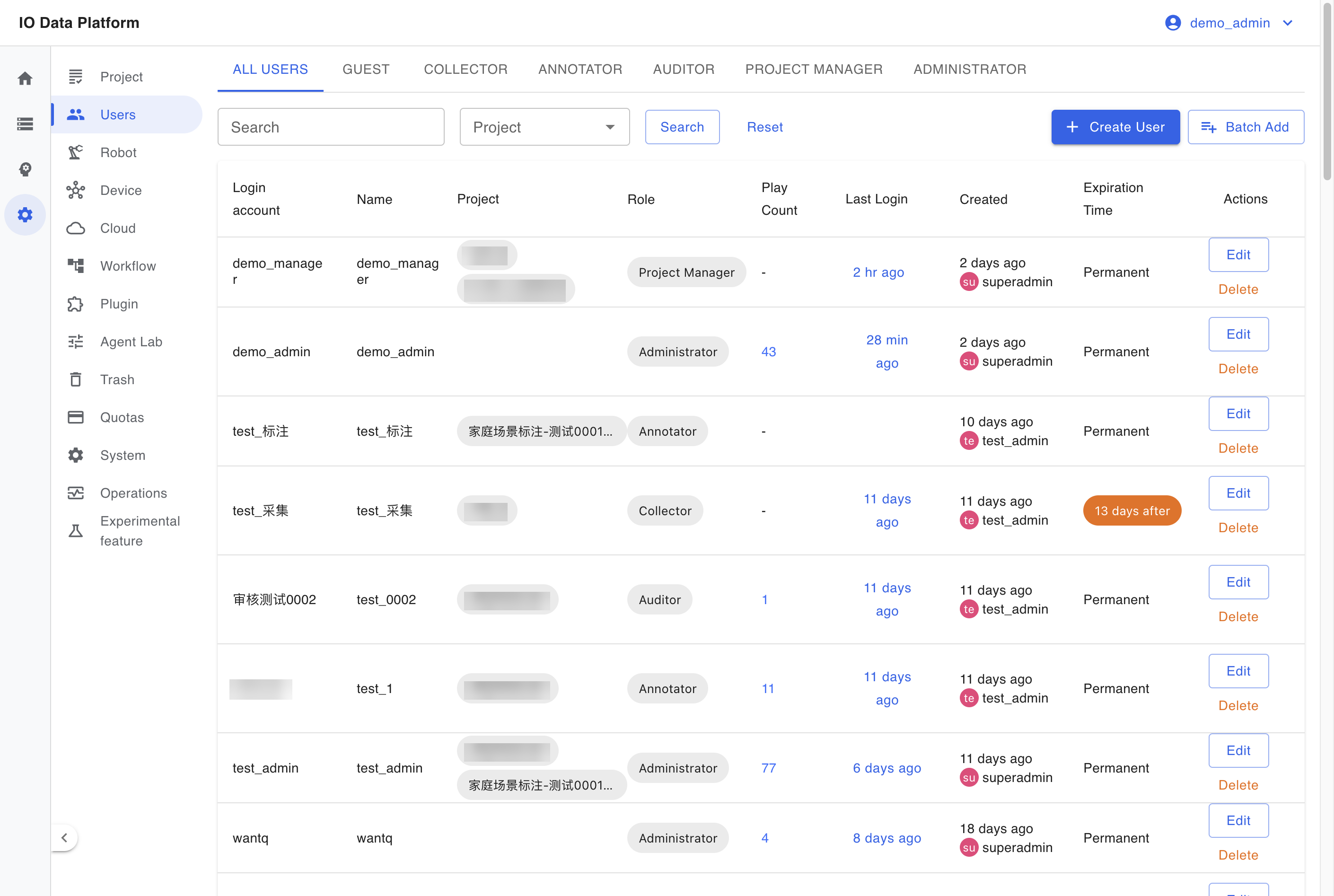
Tabs at the top filter by role, and the default shows all users. The list supports search by username or name and filtering by project, and the filter conditions are written to the URL query parameters.
| Field | Description |
|---|---|
| Login account | Name used to sign in |
| Name | Display name of the user |
| Project | Projects the user belongs to |
| Role | Guest, Collector, Annotator, Auditor, Project Manager, Administrator |
| Play Count | Number of data accesses; visible only to administrators |
| Last Login | Most recent sign-in time; click to view the login records |
| Created | Account creation time and creator |
| Expiration Time | Account expiration time; shows "Permanent" when unset |
| Actions | Edit, Permissions, Disable, Delete |
The login records dialog lists the sign-in method, login time, logout time, IP address, and login device.
Account Status
| Status | Trigger | Result |
|---|---|---|
| Normal | No expiration time is set, or the expiration time is later than now | Can sign in normally |
| Disabled | The row action "Disable" sets the expiration time to now | Cannot sign in; the account is kept and can be restored by editing |
| Expired | The expiration time is earlier than now | Cannot sign in |
| Deleted | The row action "Delete" | Soft-deleted and moved to Trash; the login session is revoked |
The row of the current login account cannot be disabled or deleted and does not take part in batch selection; the row of an administrator account cannot be edited or deleted by a non-administrator operator.
Account Maintenance
Create and Edit
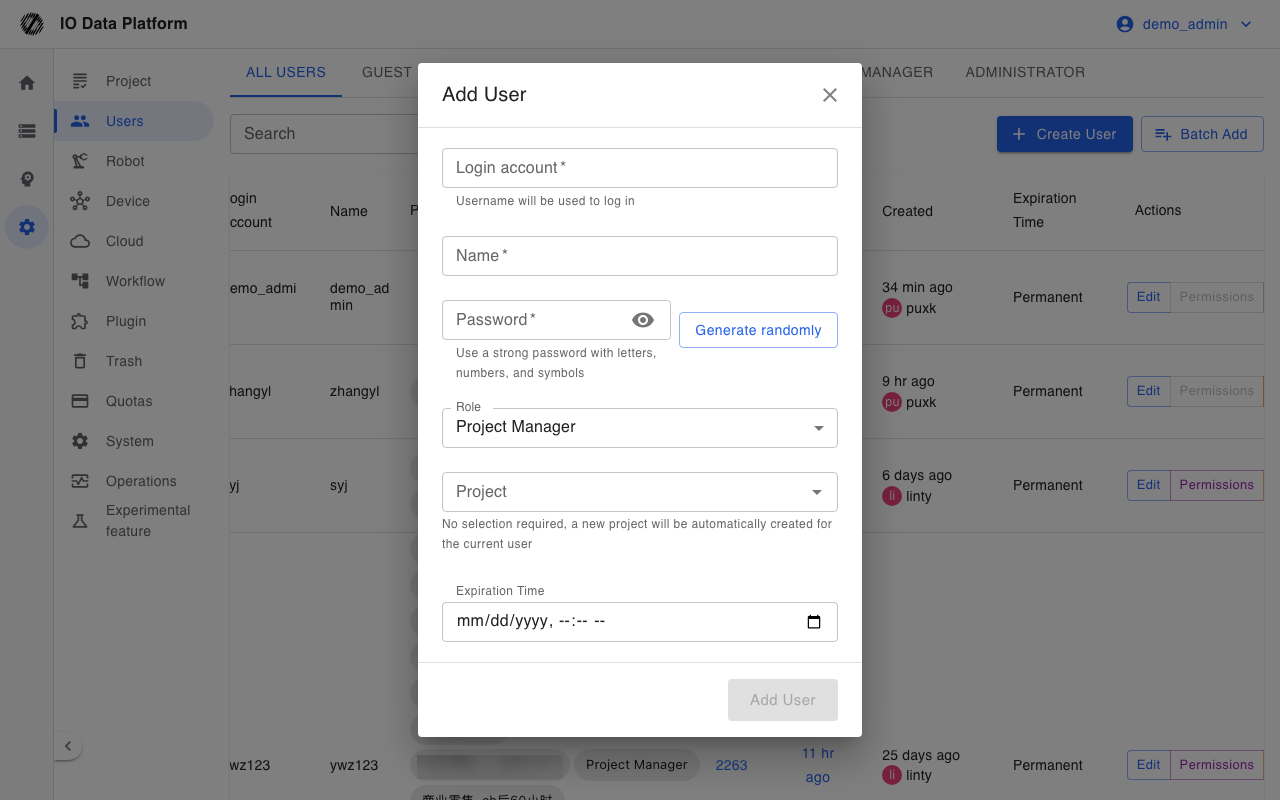
Creating a user fills in the following fields.
| Field | Required | Values and constraints |
|---|---|---|
| Login account | Yes | 3–30 characters, no whitespace, unique across the platform |
| Name | Yes | Display name of the user; cannot be blank |
| Password | Yes | At least 6 characters at creation; can be generated randomly |
| Role | Yes | Administrators can assign any role; other roles cannot create administrator accounts |
| Project | Depends on role | Administrators and project managers may leave it unselected; other roles must select one |
| Expiration Time | No | Must be later than now at creation; blank means permanent |
Editing a user can change the name, role, password, project membership, and expiration time, and can also clear the expiration time. A project manager can adjust a user's project membership, but any newly added project must be within the manager's own membership scope.
Batch Add
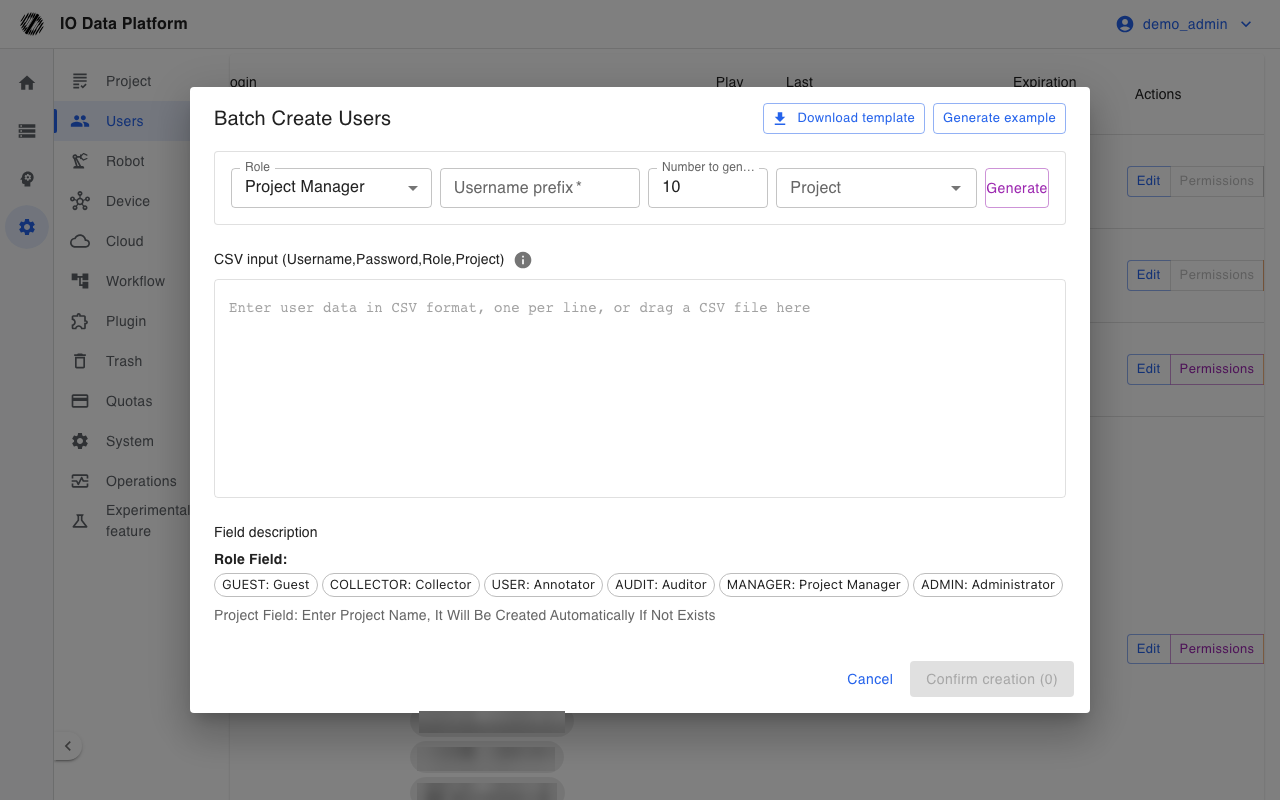
"Batch Add" creates accounts in bulk from a CSV, and is available to administrators and project managers. The CSV columns are fixed as username, password, role, and project, and rows can be produced by pasting content, dragging a CSV file, or generating by prefix and count. The generated count ranges from 1 to 500.
| Item | Administrator | Project manager |
|---|---|---|
| Assignable roles | Project Manager, Collector, Annotator, Auditor | Collector, Annotator, Auditor |
| Project column | Can be blank; a project is created automatically by name | Required, and it must be a project the operator has joined |
| Username already exists | Skipped and counted as existing | Skipped and counted as existing |
After creation, the created accounts and initial passwords can be copied or downloaded.
Batch Actions
Select users and run an action in "Batch actions". The selectable range excludes the current login account; for a non-administrator operator, administrator accounts are excluded as well.
| Action | Effect | Required permission |
|---|---|---|
| Batch Set Permissions | Sets the permission level of the same module for the selected users | "Manage Users" |
| Batch disable | Sets the expiration time of the selected users to now | "Manage Users" |
| Batch delete | Soft-deletes the selected users | "Manage Users" |
Batch disable skips already expired users and reports the skipped count in the result.
Constraints and Limits
| Item | Value | Description |
|---|---|---|
| Username length | 3–30 characters | No whitespace, unique across the platform |
| Password length | At least 6 characters | Checked on create and on change |
| Batch generation count | 1–500 | Generated randomly by "Batch Add" |
| Account seats | Determined by the license | Creation is rejected when the limit is exceeded |
| Deletion | Soft delete | The data moves to Trash and can be restored |
| Role hierarchy | Administrator 100 > Project Manager 50 > Auditor = Collector 20 > Annotator 10 > Guest 5 | Modifying another account requires a strictly higher role rank |
| Project membership | An account can belong to one or more projects | Determines the accessible data scope |
Troubleshooting
| Symptom | Possible cause | Resolution | Owner |
|---|---|---|---|
| Create shows "The same username already exists" | The login account is duplicated | Use a different login account | Administrator |
| Create shows "The same username has been disabled" | A same-named account was soft-deleted | Use a different login account, or have an administrator restore the account in Trash | Administrator |
| Create shows "User quota reached" | The license user limit is reached | Stop creating, or contact the platform provider to expand capacity | Administrator |
| A project manager's creation is rejected | An administrator role was assigned, or the project column was left blank | Use an allowed role and fill in a project the operator has joined | Project manager |
| The target user does not appear in the list | The target is not in the operator's projects, or its role rank is not allowed | Have an administrator view it, or add the operator to the matching project first | Administrator |
| A user cannot sign in | The account is expired or disabled | Edit the user to extend or clear the expiration time | Administrator |
| Batch Set Permissions shows "Skipped N users" | The target includes an administrator, or a target's role rank is not lower than the operator's | Have an administrator perform it, or select users with a lower rank | Administrator |
| The user cannot be found after deletion | The account moved to Trash | Restore it on the "Users" tab of Trash | Administrator |
Related Pages
| Page | Purpose |
|---|---|
| Module Permissions | Configure read/write levels for users by module |
| Project Management | Project creation, members, and visible scope |
| Trash | Restore deleted users |
| System Settings | Registration channels and system parameters |
| Ops Monitor | Login logs and operation logs |