Collector Guide
A collector registers robot devices, runs the collection tasks assigned to the account, uploads collected data, and updates task status through the state machine. For collection task field definitions and status transitions, see Collection tasks; this page covers the collection procedure only.
Roles and Prerequisites
Roles
| Role | Can collect | Notes |
|---|---|---|
| Collector | Yes | Module permissions for collection and devices are granted by default |
| Administrator | Yes | Not restricted by module permissions |
| Project Manager | Yes | Creates and assigns collection tasks |
| Auditor | No | Device registration and data upload permissions are not granted by default |
| Annotator | No | Same as above |
Prerequisites
| Item | Requirement |
|---|---|
| Permissions | View Collection Tasks, Manage Collection Tasks, Data Upload, Manage Teleoperation (Manage Teleoperation is used for device registration) |
| Account | Created by an administrator with the Collector role assigned |
| Task relationship | The current account is the task's collector or the task creator |
| Device | Registered and selectable on the teleoperation control end |
| Browser | Latest Chrome or Edge |
Task Status and Transitions
Collection tasks share the six statuses of annotation tasks. For the allowed next status from each status and the roles that can set it, see Statuses and transitions in Collection tasks.
Status Transitions Available to Collectors
| Current status | Collection action | Result |
|---|---|---|
| Pending Start | Start collection | In Progress |
| In Progress | Collection complete | Pending Check |
| Pending Check | Roll back status and collect again | In Progress |
| Unqualified | Resubmit | Pending Check |
Qualified is set by the auditor, project manager, or administrator; Submit Data is set by the project manager or administrator.
Procedure
- Open the platform URL and sign in with the account assigned by the administrator.
- Register a robot device: in the sidebar, select Manage → Device, select Robot device registration, enter the device unique ID and notes, optionally select the associated robot and project, then select Register Device.
- On the teleoperation control end, select the device and activate it.
- In the sidebar, select Data → Collect to view the collection tasks assigned to the account.
- Open a task and review the collection requirements and assigned devices on the Overview tab.
- In the task sidebar, change the status from Pending Start to In Progress.
- On the teleoperation end, connect the assigned device and run the collection according to the collection steps.
- When the collection is complete, set the status to Pending Check and wait for review.
- After the task is set to Submit Data, select Go to Upload in the task sidebar, or complete the upload on the teleoperation control end; once the upload succeeds, the data is automatically linked to the task.
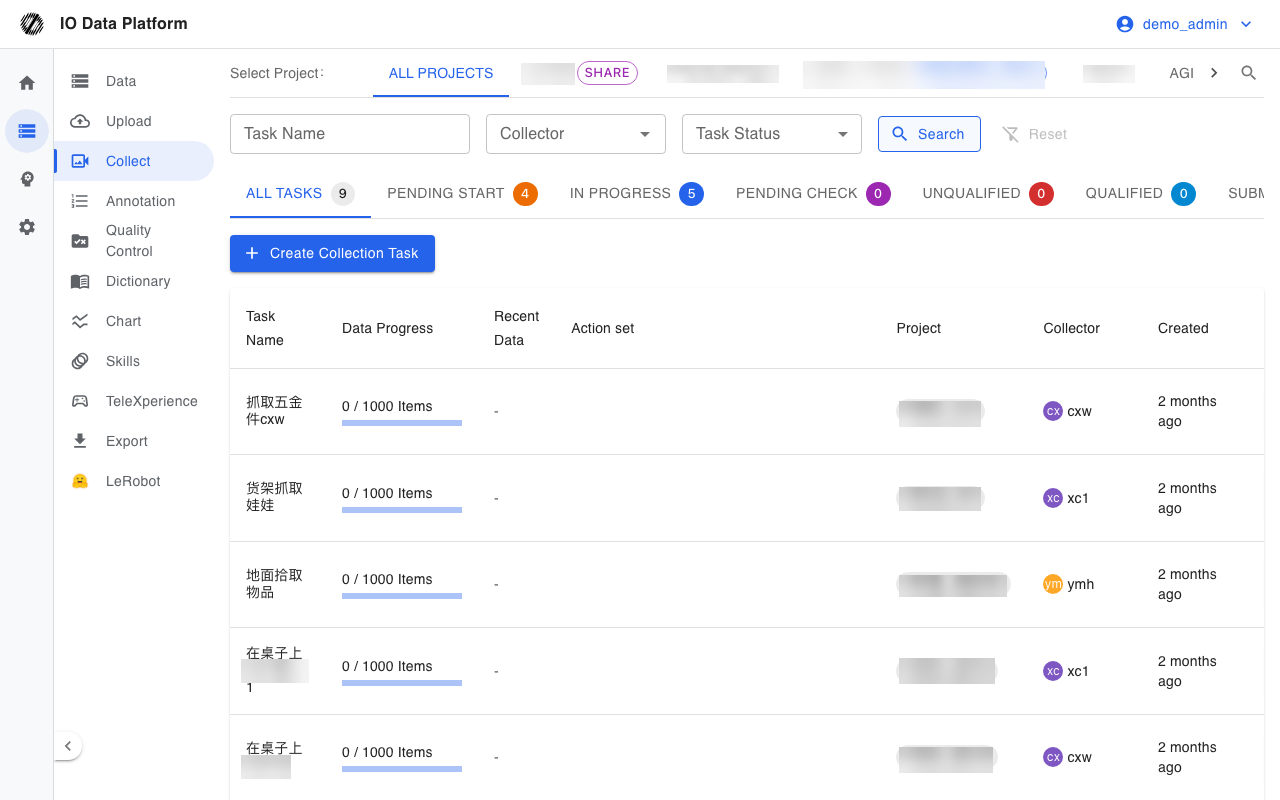
Verification
| Check | Expected result |
|---|---|
| Device | The device appears in the device list and can be selected and activated on the teleoperation control end |
| Task status | In Progress after starting collection; Pending Check after submission |
| Task visibility | The list shows only tasks where the current account is the collector or creator |
| Collection requirements | The task overview shows the quantity, average duration, initial scene, and collection steps |
| Data linkage | Uploaded data is linked to the corresponding collection task and appears on the Collect Data tab of the task details |
Error Handling
| Symptom | Possible cause | Action | Owner |
|---|---|---|---|
| Collection entry missing from the sidebar | View Collection Tasks is not granted | Have the administrator grant View Collection Tasks | Administrator |
| Collection task list is empty | The current account is not assigned as a collector and is not the task creator | Have the project manager assign the collector in the task | Project Manager |
| Message "Device name cannot be empty" | The device unique ID is missing | Enter the device unique ID | Collector |
| Message "Device name can only contain letters, numbers, and hyphens" | The ID contains other characters | Use letters, numbers, underscores, or hyphens | Collector |
| Message "Device name must be 3-128 characters" | The ID length is out of range | Adjust it to 3 to 128 characters | Collector |
| No selectable device on the teleoperation control end | The device is not registered or not activated | Register it on the device page first, then activate it on the control end | Collector |
| Status cannot be changed | The target status is not an allowed next status, or the role lacks permission | Choose an allowed next status from the status table | Collector |
| Upload page reports an incompatible browser | The browser does not support video or audio conversion to MCAP | Switch to the latest Chrome or Edge | Collector |
Related Pages
| Page | Purpose |
|---|---|
| Collection tasks | Fields and statuses of collection tasks |
| Device management | Device registration, Agent installation, and resource monitoring |
| Data upload | Upload collected data |
| Create collection task | Project managers create and assign collection tasks |
| Permissions | Roles and module permissions |