Device Management
The Device Management page registers compute devices on the robot side, installs the Agent monitoring program, shows device resources and video streams, and opens remote takeover. Models are registered on the Robots page, and each device links to a model through the Associated robot field.
Prerequisites
| Item | Content |
|---|---|
| Menu entry | Manage → Device |
| Route | /devices |
| Required permission | View Devices (device list and device details) |
| Related permissions | Manage Devices (edit devices), View Teleoperation (read device registration and activation records), Manage Teleoperation (register and delete devices) |
| Visible roles | Administrator, Project Manager, Collector |
| Effective rules | Administrators are not limited by module permissions and have read & write on everything; other roles follow the role default template, user-level overrides take precedence over role defaults, and modules without configuration are denied |
| Dependencies | Robot-side devices need the Agent installed and network access; remote takeover needs the connection password enabled during installation |
See Module Permissions for how module permissions are configured.
Device Onboarding
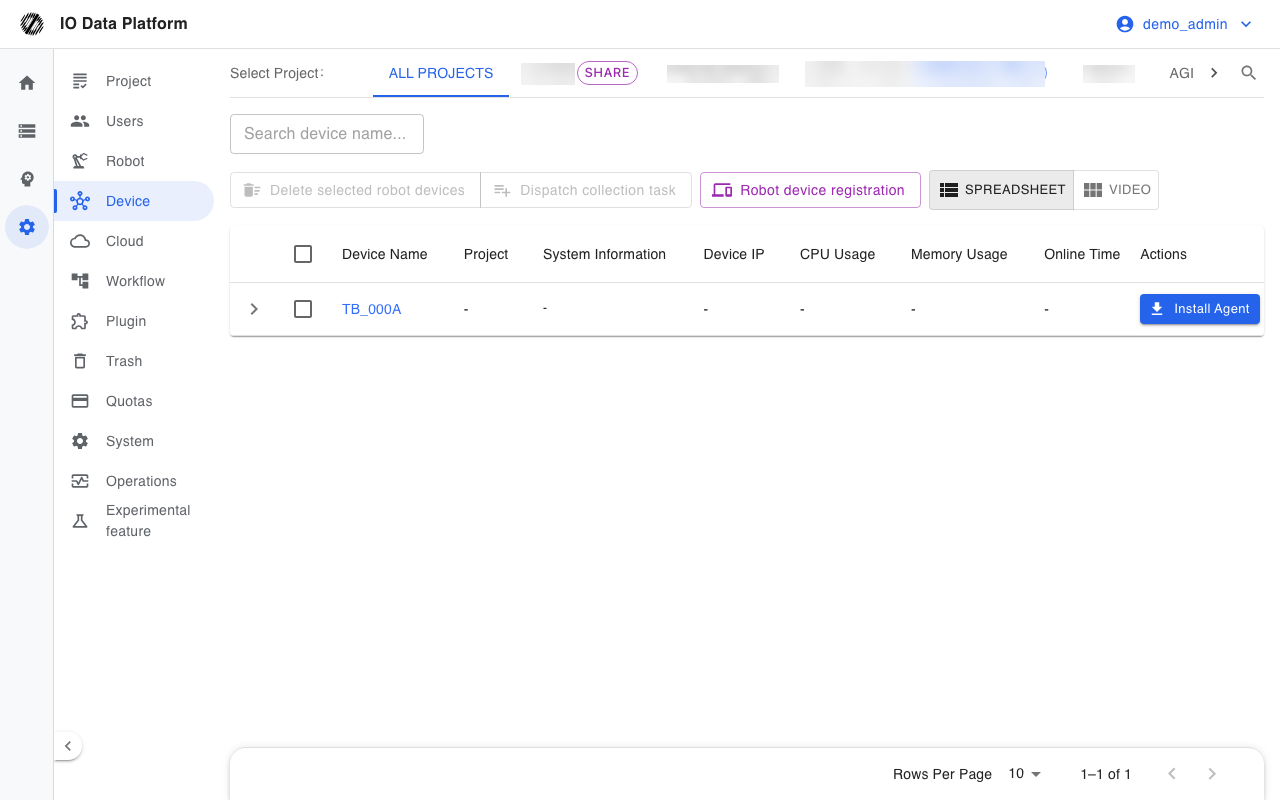
A device registers, then installs the Agent to establish the connection. Batch actions run registration, deletion, or collection task dispatch on the selected devices.
Device Registration
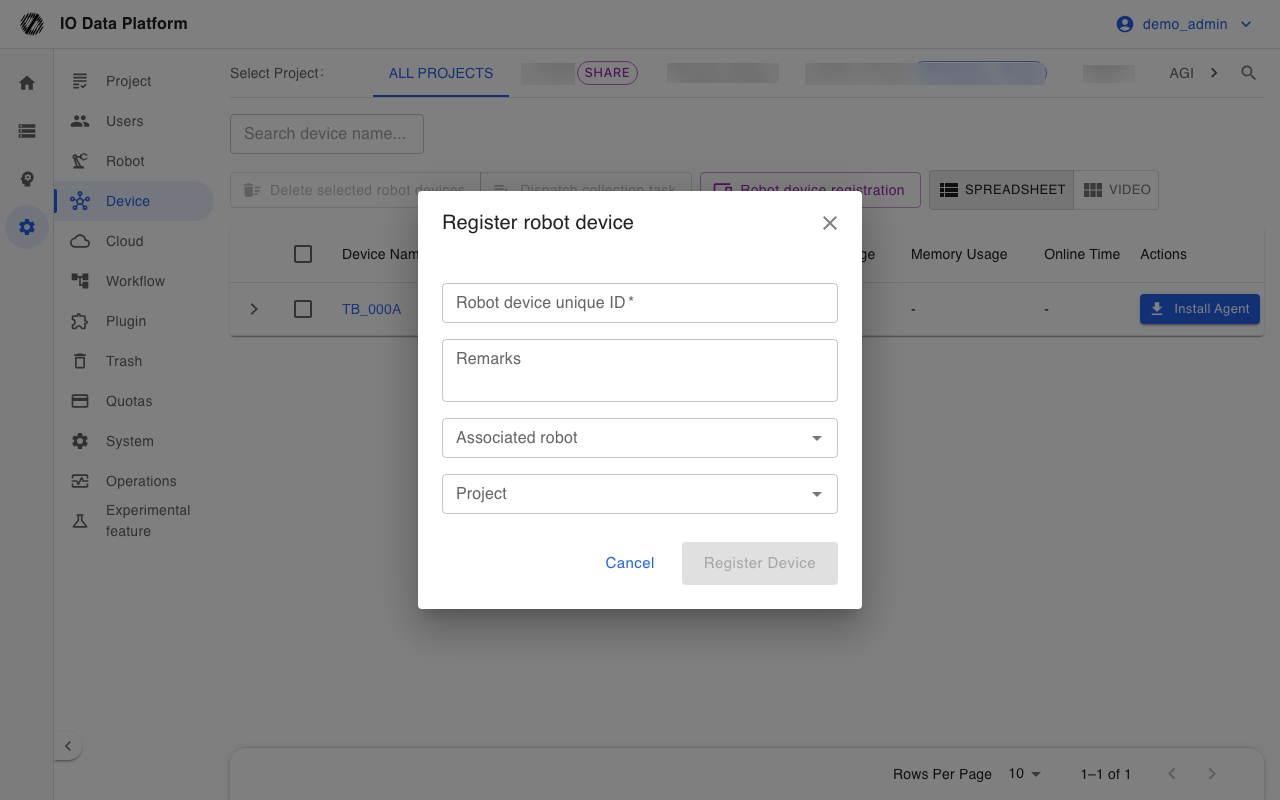
Submit the Robot device registration dialog with the fields below.
| Field | Type | Required | Values and description |
|---|---|---|---|
| Robot device unique ID | Text | Yes | Device identifier; letters, digits, underscores, and hyphens only; 3–128 characters; must be unique |
| Remarks | Text | No | Device purpose, location, and similar information |
| Associated robot | Select | No | Links to a model registered on the Robots page |
| Project | Select | No | Places the device in a project; non-administrators need edit permission on the project |
After a successful registration, the system generates a unique Agent ID for Agent installation and identification. If a device name was deleted earlier and created by the same account, registration restores the original record and keeps the original Agent ID.
Agent Installation
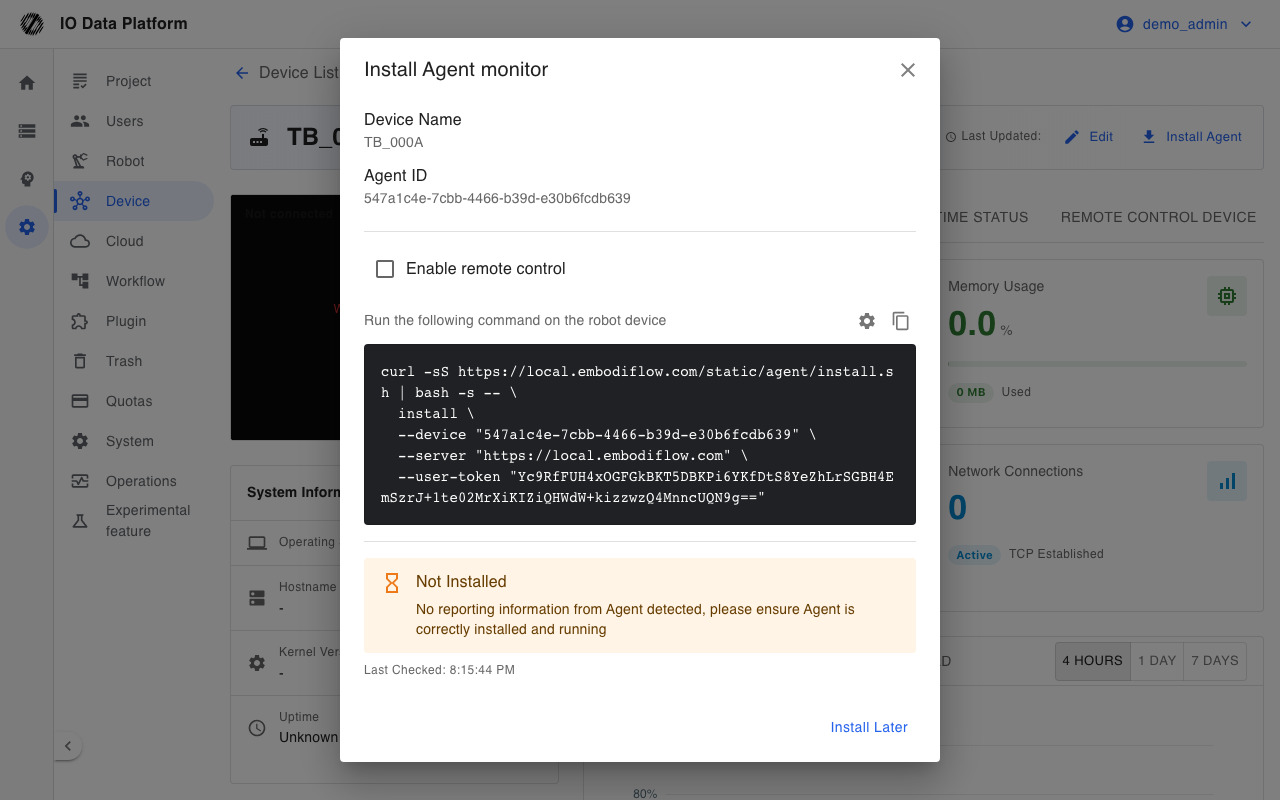
The installation dialog shows one installation command, and the install script downloads and deploys the matching binary on the device.
| Platform | Architecture | Binary file name |
|---|---|---|
| Linux ROS2 Foxy | x64 | embodiflow-agent-foxy-amd64 |
| Linux ROS2 Foxy | ARM64 | embodiflow-agent-foxy-arm64 |
| Linux ROS2 Humble | x64 | embodiflow-agent-humble-amd64 |
| Linux ROS2 Humble | ARM64 | embodiflow-agent-humble-arm64 |
| Linux ROS2 Iron | x64 | embodiflow-agent-iron-amd64 |
| Linux ROS2 Iron | ARM64 | embodiflow-agent-iron-arm64 |
| Linux ROS2 Jazzy | x64 | embodiflow-agent-jazzy-amd64 |
| Linux ROS2 Jazzy | ARM64 | embodiflow-agent-jazzy-arm64 |
| Linux ROS1 Noetic | x64 | embodiflow-agent-noetic-amd64 |
| Linux ROS1 Noetic | ARM64 | embodiflow-agent-noetic-arm64 |
| Linux (no ROS detected) | x64 | embodiflow-agent-lite-amd64 |
| Linux (no ROS detected) | ARM64 | embodiflow-agent-lite-arm64 |
The Agent supports Linux only. The install script downloads the binary for the distribution and architecture, and uses the lite build when no ROS is detected (status monitoring reports only, without ROS or WebRTC). The custom settings are listed below.
| Parameter | Default | Range | Description |
|---|---|---|---|
| Polling interval (seconds) | 300 | ≥ 1 | Interval at which the Agent reports monitoring data |
| Video frame rate (FPS) | 10 | ≥ 1 | WebRTC streaming frame rate |
| ROS_DOMAIN_ID | Empty | 0–232 | Isolates different ROS 2 networks |
| ROS image topic | Empty | Topic name | The Agent picks an image topic automatically when left empty |
| Maximum video width | Empty | > 0, in pixels | Limits the video stream width to control bandwidth |
| Enable remote control | Off | On, Off | Requires a connection password when enabled |
| Connection password | Empty | At least 8 characters | Password entered for remote takeover |
| Verbose logging | Off | On, Off | Outputs more detailed logs |
The dialog polls the reporting status every 3 seconds. It shows Installed and stops polling once a report within the last 10 minutes is found, and marks the device as Not installed when nothing is detected for 5 minutes.
Batch Actions
| Action | Effect | Constraint |
|---|---|---|
| Delete selected robot devices | Soft deletes the selected devices | Requires Manage Teleoperation; runs one by one and reports the success and failure counts |
| Dispatch collection task | Assigns a collection task to the selected devices | Devices must be registered; a collection task must be selected |
| Robot device registration | Opens the registration dialog | Requires Manage Teleoperation |
Device Monitoring and Remote Control
Device List
| Column | Description |
|---|---|
| Device Name | Opens device details; devices without a token show Not activated after the name |
| Project | Shown in the All projects view; select to filter by project |
| System Information | Host name, operating system, and platform |
| Device IP | IP address of each network interface |
| CPU Usage | Percentage, shown as a progress bar |
| Memory Usage | Percentage, shown as a progress bar |
| Online Time | Time of the latest report |
| Actions | Devices with no reports show Install Agent |
The list polls monitoring data every 5 seconds to refresh the online status. The search box matches by device name, and the view switches between the table and the video view.
Device Details
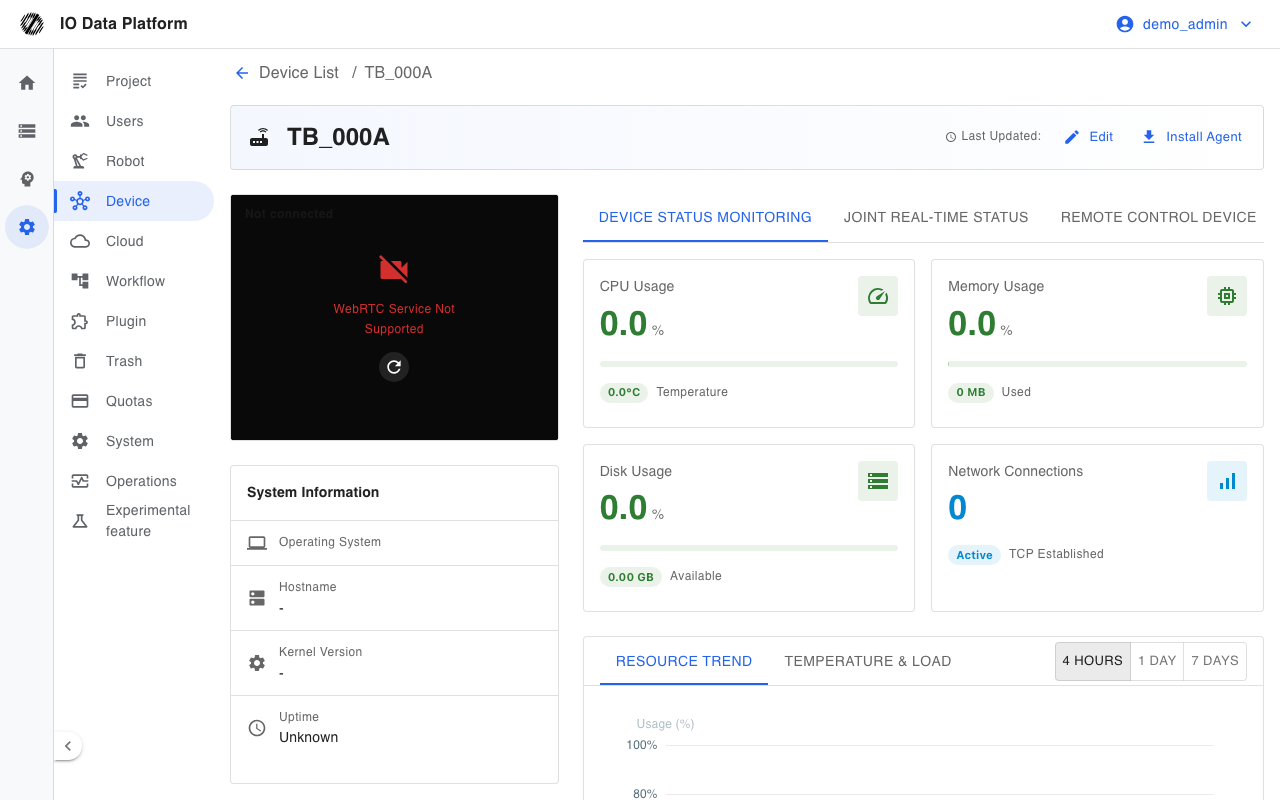
Device details have three tabs, and the left sidebar always shows the video player and system information.
| Tab | Route | Content |
|---|---|---|
| Device status monitoring | /devices/{AgentID} | Resource metric cards, trend charts, system information |
| Joint real-time status | /devices/{AgentID}/states | Real-time joint status |
| Remote control device | /devices/{AgentID}/control | SSH terminal |
| Sidebar item | Content |
|---|---|
| Video player | Real-time device video stream |
| System Information | Operating system, host name, kernel version, uptime |
The top of the page provides two entries: edit and install Agent.
Resource Monitoring
| Metric card | Content |
|---|---|
| CPU usage | Usage, temperature |
| Memory usage | Usage, used amount |
| Disk usage | Usage, available amount |
| Network connections | Active TCP connection count |
| View | Chart content | Time range |
|---|---|---|
| Resource trends | CPU, memory, and disk usage | 4 hours, 1 day, 7 days |
| Temperature and load | CPU temperature and load | 4 hours, 1 day, 7 days |
The Agent reports data at the polling interval and writes it to a Redis stream; device details refresh every 10 seconds. History is retained by record count, and the retention period is controlled by the system parameter Device monitoring data retention (hours). When it is not configured, the code retains data for 168 hours.
Video Stream
| Item | Description |
|---|---|
| Location | Left sidebar of device details |
| Channels | Connected at the same time, up to 3 |
| Transport | WebRTC; the frame rate comes from the video frame rate parameter set during installation |
| Full screen | Supported |
| Status | The player shows a prompt when not connected, and can be refreshed manually |
Remote Takeover
| Item | Description |
|---|---|
| Entry | Device details → Remote control device |
| Prerequisite | Remote control enabled and a connection password set during installation; the WebRTC connection is ready |
| Authentication | Enter the connection password set during installation, at least 8 characters |
| Connection status | Not connected, Connecting, Authenticating, Encrypted connection, Closed, Locked, Connection Failed |
| Authentication failure | Shows the remaining attempts; locks the session after excessive failures and displays an unlock countdown |
| Disconnect | Manual disconnect is available once the connection is ready |
Constraints and Limits
| Item | Value | Description |
|---|---|---|
| Device ID character set | Letters, digits, underscores, hyphens | 3–128 characters, globally unique |
| Agent ID | UUID | Generated by the system, globally unique |
| Agent supported platforms | Linux ROS2 Foxy, Humble, Iron, Jazzy and ROS1 Noetic, x64 and ARM64; the lite build is used when no ROS is detected | Other operating systems are not supported |
| Installation status polling | 3 seconds | Detection inside the installation dialog |
| Report detection window | 10 minutes | Reports older than this window do not count as installed |
| Installation status timeout | 5 minutes | A timeout is treated as not installed |
| Device list refresh | 5 seconds | Online status polling |
| Device details refresh | 10 seconds | Resources and system information |
| Connection password length | At least 8 characters | Required when remote control is enabled |
| Video channels | 3 | Left sidebar of device details |
Troubleshooting
| Symptom | Possible cause | Action | Owner |
|---|---|---|---|
| Device registration is rejected | The ID contains invalid characters, exceeds the length limits, or is registered by another account | Change the ID to follow the character set and length rules | Administrator |
| The device still shows as not installed after installation | The Agent is not started, the server address is wrong, the network is unreachable, or the 5-minute detection window has passed | Confirm the Agent process and server address on the device, restart it, and reopen the installation dialog | Operations, Collector |
| The list shows the device as offline | The device is powered off or disconnected, the Agent stopped reporting, or the reporting interval is too long | Check the device and Agent status, restore the network, and wait for the next report | Operations |
| Trend charts have no data | The page is opened before the first report, or history exceeds the retention period | Wait for the Agent to report, or raise the retention parameter | Administrator |
| The video stream cannot connect | The WebRTC service is faulty, the device image topic has no data, or the network is unreachable | Confirm the WebRTC service and the device image topic, then refresh the player | Operations |
| Remote takeover cannot connect | Remote control was not enabled during installation, the password is shorter than 8 characters, or WebRTC is not ready | Reinstall the Agent with remote control enabled and wait for WebRTC to become ready | Administrator, Operations |
| Remote takeover reports that the session is locked | Consecutive authentication failures are excessive | Retry after the lock countdown ends | Administrator |
Related Pages
| Page | Purpose |
|---|---|
| Robots | Model registration and dataset association |
| Collection task | Assign collection tasks to devices |
| Data Management | View data collected by devices |
| Module Permissions | Configure module permissions for roles and users |
| Operations Monitoring | WebRTC rooms and device session status |