Roles and Prerequisites
Target Roles
All platform roles share the sign-in and navigation steps in this page. For the operation scope of each role, see Permissions.
| Role | Default landing page after sign-in |
|---|
| Administrator | Overview, or the default homepage configured in the system |
| Project Manager | Overview, or the default homepage configured in the system |
| Collector | Collection task page |
| Annotator | Annotation task page |
| Auditor | Annotation task page |
| Guest | No default landing page; the system reports that the current account does not have access permission |
Prerequisites
| Item | Requirement |
|---|
| Account | Created by an administrator with a role assigned; the platform does not offer self-registration |
| Browser | The latest version of Chrome or Edge |
| Network | Access to the platform address; for on-premises deployment, open ports according to the site network policy |
| Permissions | The module permission for the target feature is Read Only or Read & write |
| Project membership | An administrator has added the account to the target project |
Procedure
First Sign-in
- Open the platform address to reach the sign-in page.
- Enter the account and password.
- Select Stay logged in as needed.
- Select Sign In.
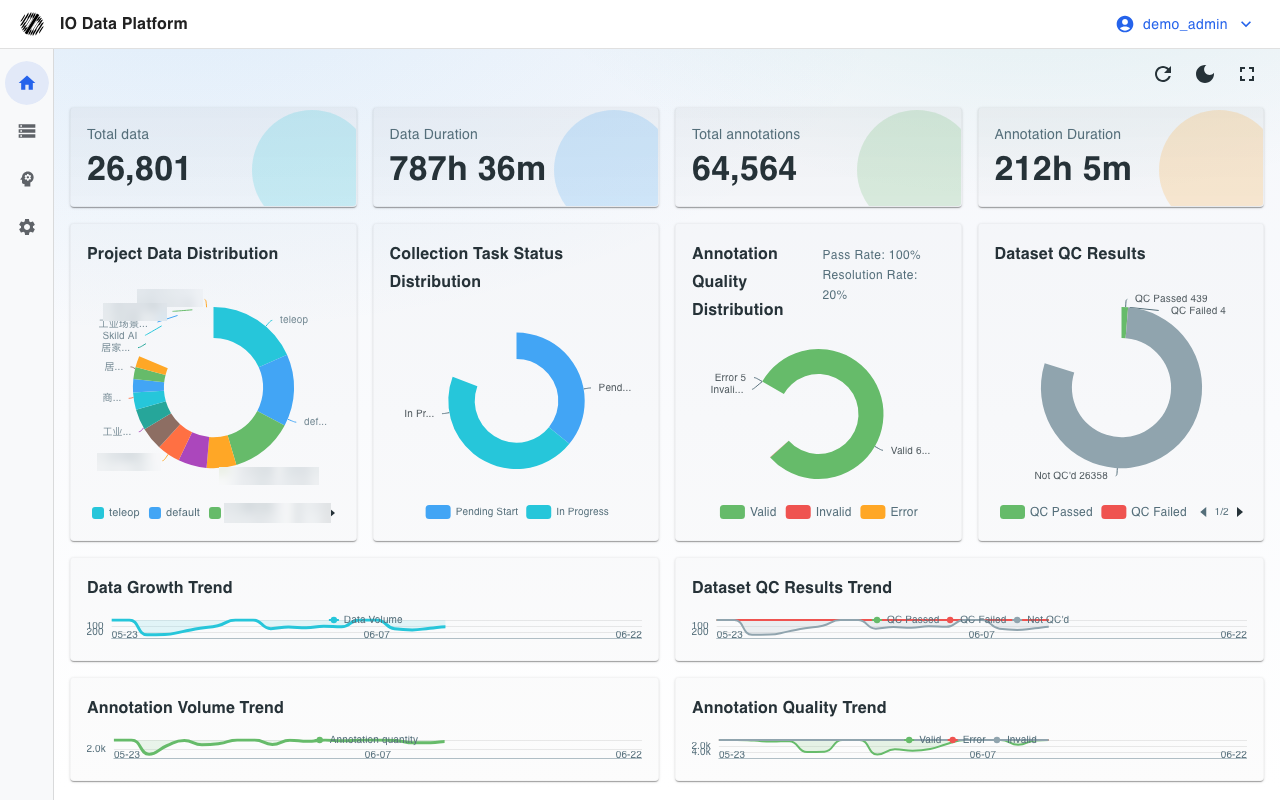
- After a successful sign-in, the system redirects to the default landing page for the role, as shown below.
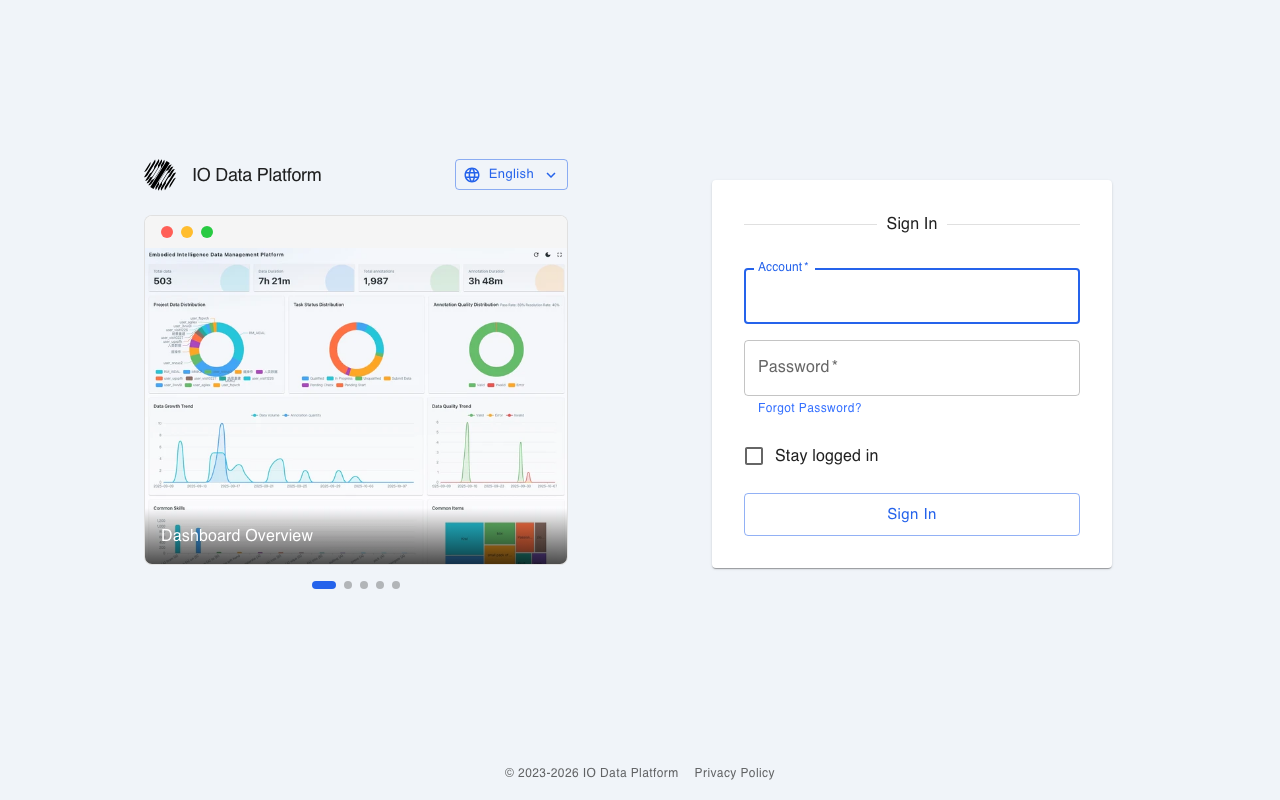
To reset a forgotten password, select Forgot Password? on the sign-in page and enter the email bound to the account to receive a reset link. If the account has no bound email, contact an administrator to reset it.
Interface Layout
| Area | Contents |
|---|
| Left menu | First-level groups and second-level entries filtered by role |
| Top bar | Site navigation and language switching |
| User menu at the top right | Feedback, Manual, Select Theme, Change password, Switch language, Logout |
| Main area | The list or detail page of the current entry |
The left menu is divided into four groups: Overview, Data, Model, and Manage. The role determines which entries are visible; see Permissions.
Minimal End-to-End Procedure
The steps below confirm that an account can reach its target feature.
- After sign-in, confirm that the default landing page loads.
- Select the entry for the role from the left menu, as listed below.
- On the entry page, confirm that the list or form loads.
- Select Logout from the user menu at the top right to return to the sign-in page.
| Role | First entry | Path |
|---|
| Administrator | Manage → Project | /projects |
| Project Manager | Manage → Project | /projects |
| Collector | Data → Collect | /collections |
| Annotator | Data → Annotation | /tasks |
| Auditor | Data → Annotation | /tasks |
Verification
| Check | Expected result |
|---|
| Sign-in redirect | After sign-in, the default landing page for the role opens |
| Menu visibility | The left menu matches the role matrix in Permissions |
| Entry availability | The selected entry loads its list or form without a 403 message |
| Session exit | Logout returns to the sign-in page; opening a page that requires authentication redirects back to the sign-in page |
Error Handling
| Symptom | Possible cause | Resolution | Owner |
|---|
| Incorrect account or password message | The account or password was entered incorrectly | Re-enter; if it still fails, reset the password via Forgot Password? | This role |
| After sign-in, the current account does not have access permission | The account role is Guest | Contact an administrator to change the role | Administrator |
| The left menu is missing the target entry | The role cannot see the entry, or System Settings hides it | Check Permissions; an administrator adjusts the role or the entry visibility setting | Administrator |
| The menu is visible but the page redirects | The module permission for the target module is None | An administrator grants the permission in module permissions; it takes effect after signing in again | Administrator |
| The entry loads but is empty | The account does not belong to any project | An administrator adds the account to a project | Administrator |
| Password reset emails do not arrive | The account has no bound email | An administrator resets the password | Administrator |
Related Pages