Data Import
Data import is used to batch import data from external systems to the platform. Mainly supports two scenarios: importing MCap files from local IO-AI Agent devices, and importing LeRobot format datasets.
Typical use cases:
- Offline Collection Data Import: Batch import data from local collection devices
- External Dataset Import: Import LeRobot format datasets
- Data Migration: Migrate data from other systems to platform
Data Ingestion Overview
Data can enter the platform via IO Agent, LeRobot packages, or local upload; after ingestion or transcoding it appears in Data Management for annotation and export.
Quick Start: Import Data from IO-AI Agent
What is IO-AI Agent?
IO-AI Agent is software running on local devices, used to manage collected MCap files. Through data import functionality, these files can be batch imported to the platform.
Import Steps
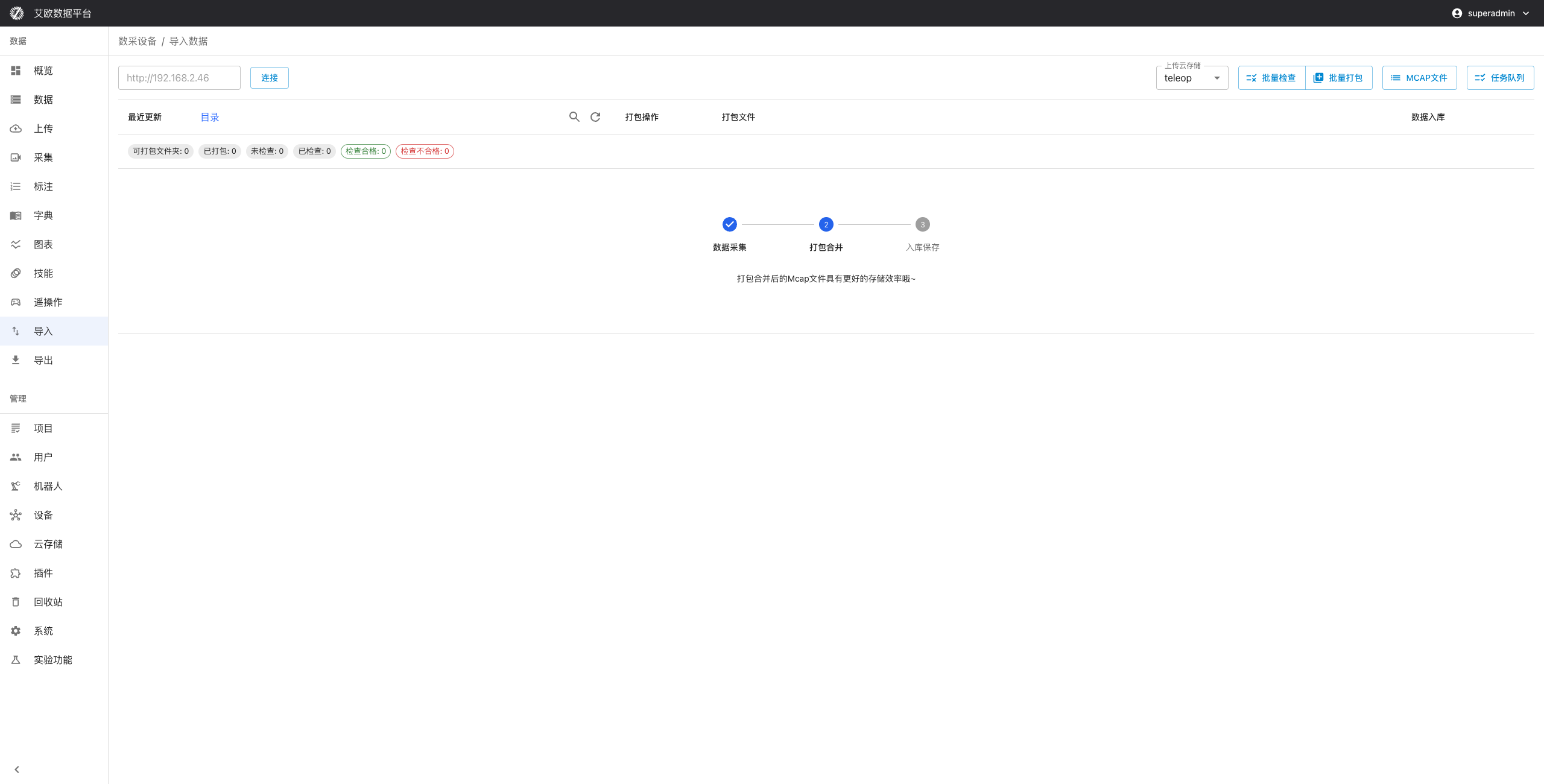
Step 1: Configure Agent Address
- On import page, enter IO-AI Agent service address
- System will automatically detect Agent service status
- After connection succeeds, can browse files on Agent device
Step 2: Select Files to Import
- Browse MCap files on Agent device
- Display file size, creation time and other metadata
- Support search and filter files by name
- Check files that need to be imported
Step 3: Select Storage Method
Each file can choose two storage methods:
-
Cloud: Download file and upload to cloud storage (recommended)
- File will be downloaded from Agent device
- Then uploaded to configured cloud storage
- Suitable for data that needs long-term storage
-
Local: Only create dataset record, file remains on Agent device
- Don't download file, only create metadata
- File access depends on Agent device being online
- Suitable for temporary data or saving storage space
Step 4: Start Import
- Click "Cloud" or "Local" button to start import
- System will display import progress
- After import completes, files will appear on Data Management page
Batch Import
Batch Operations:
- Can check multiple files for batch import
- Support batch select all files
- Batch import will process one by one in order
Import Queue:
- Import tasks will join queue, execute in order
- Can view import status of each file
- Support canceling ongoing import tasks
LeRobot Format Import (New in 3.4.0)
What is LeRobot Format?
LeRobot is a popular robot learning framework. If you have LeRobot format datasets, you can directly import them to the platform.
Supported Formats:
- LeRobot standard folder structure
- Includes images, videos and annotation data
- Support compressed package (tar.gz) format import
Format Requirements:
- Comply with LeRobot standard folder structure
- Include necessary metadata file (
meta/info.json) - Annotation data format is correct
Import Steps
- Select Data Source: Select LeRobot format folder or compressed package
- Format Validation: System automatically identifies format and validates data integrity
- Data Parsing: Extract metadata and annotation information
- Create Dataset: Automatically create dataset and associate annotations
- Complete Import: After import completes, can view in data page
LeRobot Import Notes:
- Before import, ensure folder structure complies with LeRobot standards
- Support batch import of multiple folders
- Import process automatically validates data integrity
Import Management
How to View Import Progress?
Task Status:
- Pending: Task created, waiting for execution
- Processing: Downloading or uploading files
- Completed: File successfully imported, dataset created
- Failed: Error occurred during processing, can view error information
Progress Information:
- Real-time display of each file's processing status
- Display upload progress percentage
- Display number of processed files and total number
- Display estimated remaining time
Import Task Queue
Queue Functions:
- Display list of all import tasks
- Support filter by status (pending, processing, completed, failed)
- Support search specific tasks
- Display task creation time and processing progress
Task Operations:
- View Details: View task details and included files
- Cancel Task: Cancel ongoing tasks
- Retry Task: Retry failed tasks
- Delete Task: Delete completed tasks
Error Handling
Common Error Types:
- Network Error: Download or upload failed, support retry
- Format Error: File format incorrect, need to check file
- Storage Error: Cloud storage configuration issue, need to check configuration
- Data Error: Data corrupted or format incompatible
Error Recovery:
- Auto Retry: Temporary errors can auto recover
- Manual Retry: Failed tasks can be re-executed
- Error Logs: Record detailed error information for troubleshooting
Common Questions
What to Do When Agent Connection Fails?
Possible Causes:
- Address Error: Check if Agent service address is correct
- Network Unreachable: Confirm if browser can access Agent address
- Service Not Started: Confirm if IO-AI Agent software is running
- Firewall Blocking: Check firewall settings
Solution:
- Directly access Agent address in browser, confirm if accessible
- Check if Agent software is running normally
- Confirm network connection is normal
- If problem persists, contact technical support
What to Do When Import Speed is Slow?
Possible Causes:
- Network Bandwidth: Insufficient network bandwidth affects download and upload speed
- File Size: Large files need more time
- System Load: May be slower when system is busy
Optimization Recommendations:
- Check network connection, ensure sufficient bandwidth
- Large files recommend batch import
- Avoid system peak hours for import
- Using "Local" storage method can skip upload step
What to Do When Import Fails?
Handling Steps:
- View error information to understand failure reason
- Take corresponding measures based on error type:
- Network error: Check network connection then retry
- Format error: Check if file format is correct
- Storage error: Check cloud storage configuration
- Click "Retry" button to re-import
- If problem persists, contact technical support
How to Know if File Has Been Imported?
Check Method:
- On import page, imported files will show "Completed" status
- Search file name on Data Management page, confirm dataset has been created
- View import history records, confirm import success
Duplicate Import:
If file already exists, system will detect and prompt. Can choose:
- Skip: Don't duplicate import
- Overwrite: Re-import and overwrite existing data
Applicable Roles
Administrator
You can:
- Centrally import offline collection data
- Standardize data entry process
- Monitor import progress
- Handle issues during import process
- Configure Agent connection and cloud storage
Project Manager
You can:
- Import project-related data
- Manage import tasks
- Monitor import progress
- Ensure data quality
Collector
You can:
- Import data from collection devices
- Batch import data from collection tasks
- View import status and progress
- Handle import errors
Related Features
After completing data import, you may also need:
- Data Management: View and manage imported data
- Data Upload: Manually upload single files
- Annotation Tasks: Create annotation tasks for imported data