Plugin Management
How to extend platform functionality and integrate third-party systems?
Typical scenarios:
- Need to add features not available in the platform, extend platform capabilities
- Need to integrate internal systems, achieve data interoperability
- Need to customize data processing logic to meet specific requirements
- Need to quickly validate new features, develop as plugins first
Plugin management is designed to solve these problems. Through installing, enabling/disabling and uninstalling plugins, or integrating third-party systems, it extends platform functionality, supporting permission types and project scope settings.
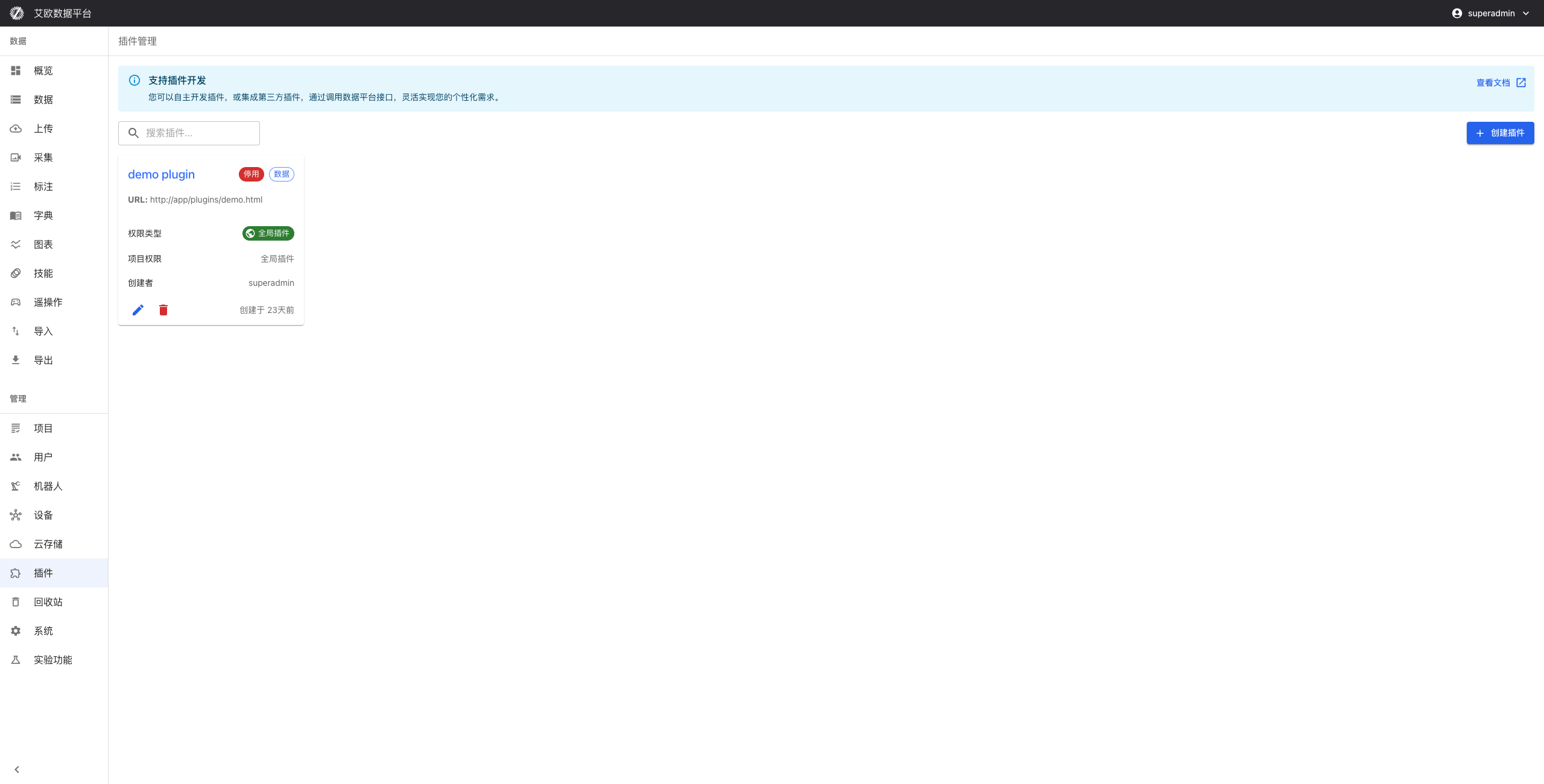
Quick Start: Install Your First Plugin
Step 1: Select Plugin
- Go to Plugin Management page
- View available plugin list
- Select plugin to install
- View plugin description and features
Step 2: Install Plugin
- Click "Install" button
- Configure plugin parameters (if needed)
- Set permission types and project scope
- Confirm installation
Step 3: Enable Plugin
- After installation completes, plugin is disabled by default
- Click "Enable" button to enable plugin
- Verify plugin functionality
- Start using plugin
Plugin Management
How to Install Plugins?
Installation Steps:
- Go to Plugin Management page
- Select plugin to install
- Click "Install" button
- Configure plugin parameters:
- Permission Type: Set permissions needed by plugin
- Project Scope: Select projects plugin applies to (global or specific projects)
- Confirm installation
After Installation:
- Plugin will appear in plugin list
- Default is disabled
- Need to manually enable to use
How to Enable/Disable Plugins?
Enable Plugin:
- Find plugin to enable in plugin list
- Click "Enable" button
- Plugin starts running
- Verify plugin functionality
Disable Plugin:
- Find plugin to disable in plugin list
- Click "Disable" button
- Plugin stops running
- Plugin configuration will be retained
Use Cases:
- Enable: Enable plugin when needed
- Disable: Disable plugin when temporarily not needed, retain configuration
- Switch: Can switch between different plugins
How to Uninstall Plugins?
Uninstallation Steps:
- Find plugin to uninstall in plugin list
- Ensure plugin is disabled
- Click "Uninstall" button
- Confirm uninstallation operation
⚠️ Note: Uninstalling plugins will delete plugin configuration and data, please operate with caution.
Plugin Configuration
How to Configure Plugin Permissions?
Permission Types:
- Data Access Permissions: Control which data plugins can access
- API Call Permissions: Control which APIs plugins can call
- System Operation Permissions: Control which system operations plugins can perform
Configuration Method:
- Set permissions in plugin configuration
- Select needed permission types
- Set permission scope
- Save configuration
How to Set Project Scope?
Project Scope:
- Global: Plugin applies to all projects
- Specific Projects: Plugin only applies to selected projects
Setting Method:
- Select project scope in plugin configuration
- If selecting specific projects, select projects to apply
- Save configuration
Usage Recommendations:
- General features set as global
- Project-specific features set as specific projects
- Test plugins can be set as specific projects first
Third-Party System Integration
How to Integrate Third-Party Systems?
Integration Methods:
- API Integration: Integrate third-party systems through API interfaces
- Data Synchronization: Synchronize data from third-party systems
- Feature Extension: Extend functionality of third-party systems
Integration Steps:
- Prepare API keys or configuration information for third-party systems
- Create integration plugin in Plugin Management
- Configure connection parameters
- Test connection
- Enable integration
How to Manage Integration Configuration?
Configuration Management:
- Connection Configuration: Configure connection information for third-party systems
- Synchronization Settings: Set data synchronization frequency and methods
- Permission Configuration: Configure access permissions for integrated systems
Management Method:
- Manage integration settings in plugin configuration
- Update connection parameters
- Adjust synchronization settings
- Test integration functionality
Common Questions
What to Do When Plugin Installation Fails?
Troubleshooting Steps:
- Check if plugin file is complete
- Check if plugin version is compatible
- View error logs to understand failure reason
- Contact plugin developer for help
How to Update Plugins?
Update Method:
- Find plugin to update in plugin list
- Click "Update" button
- Upload new version plugin file
- Wait for update to complete
What to Do When Plugins Affect System Performance?
Optimization Methods:
- Disable unnecessary plugins
- Check plugin configuration, optimize parameters
- Contact plugin developer to optimize performance
- Consider using lighter alternatives
Applicable Roles
Administrator
You can:
- Install and manage all plugins
- Configure plugin permissions and project scope
- Integrate third-party systems
- Monitor plugin operation status
Project Manager
You can:
- Install project-specific plugins
- Configure project-specific plugin settings
- Manage project plugin usage
Related Features
After completing plugin management, you may also need:
- System Settings: Configure system-related settings
- Project Management: Manage project plugins
- Workflow Management: Use plugins to extend workflows