Annotation Tasks
Annotation task management is the core workflow of the platform. From data to annotation, to review and export, each step requires clear status tracking and collaboration mechanisms.
Typical workflow:
- Create Task: Project manager selects data, assigns to annotators and reviewers
- Execute Annotation: Annotators complete annotation work
- Quality Review: Reviewers check annotation quality
- Data Submission: After review passes, submit for training
The platform ensures the entire process proceeds orderly through status management and progress tracking.
Quick Start: Understand Task Status
Task Status Description
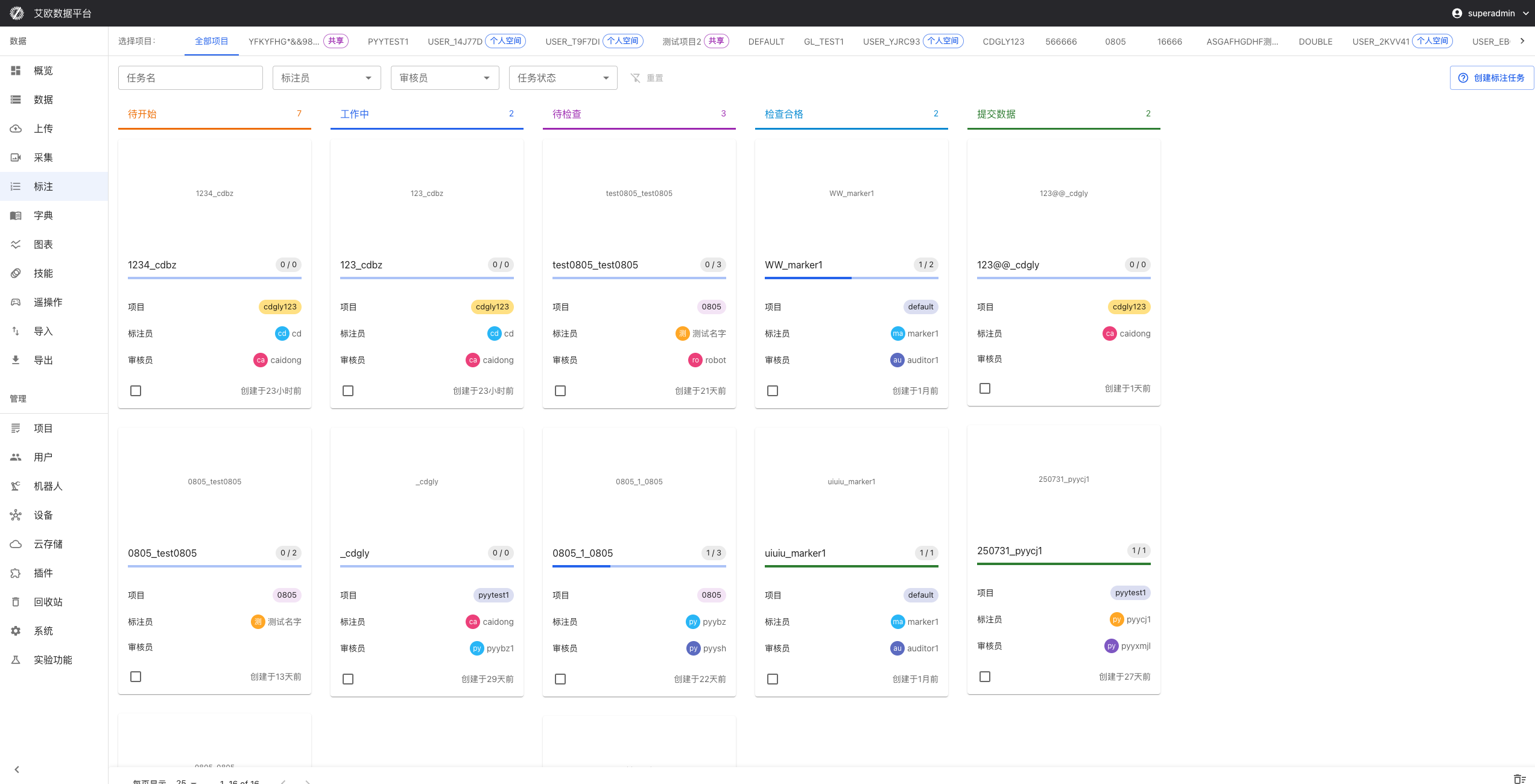
Tasks go through five main states in their lifecycle:
Status Details:
- Pending: Task created, annotator hasn't started work
- In Progress: Annotator is performing annotation
- Pending Review: Annotation completed, waiting for reviewer to review
- Review Passed: Review passed, annotation quality meets requirements
- Data Submitted: Submitted for model training
How to View Tasks?
Task List View:
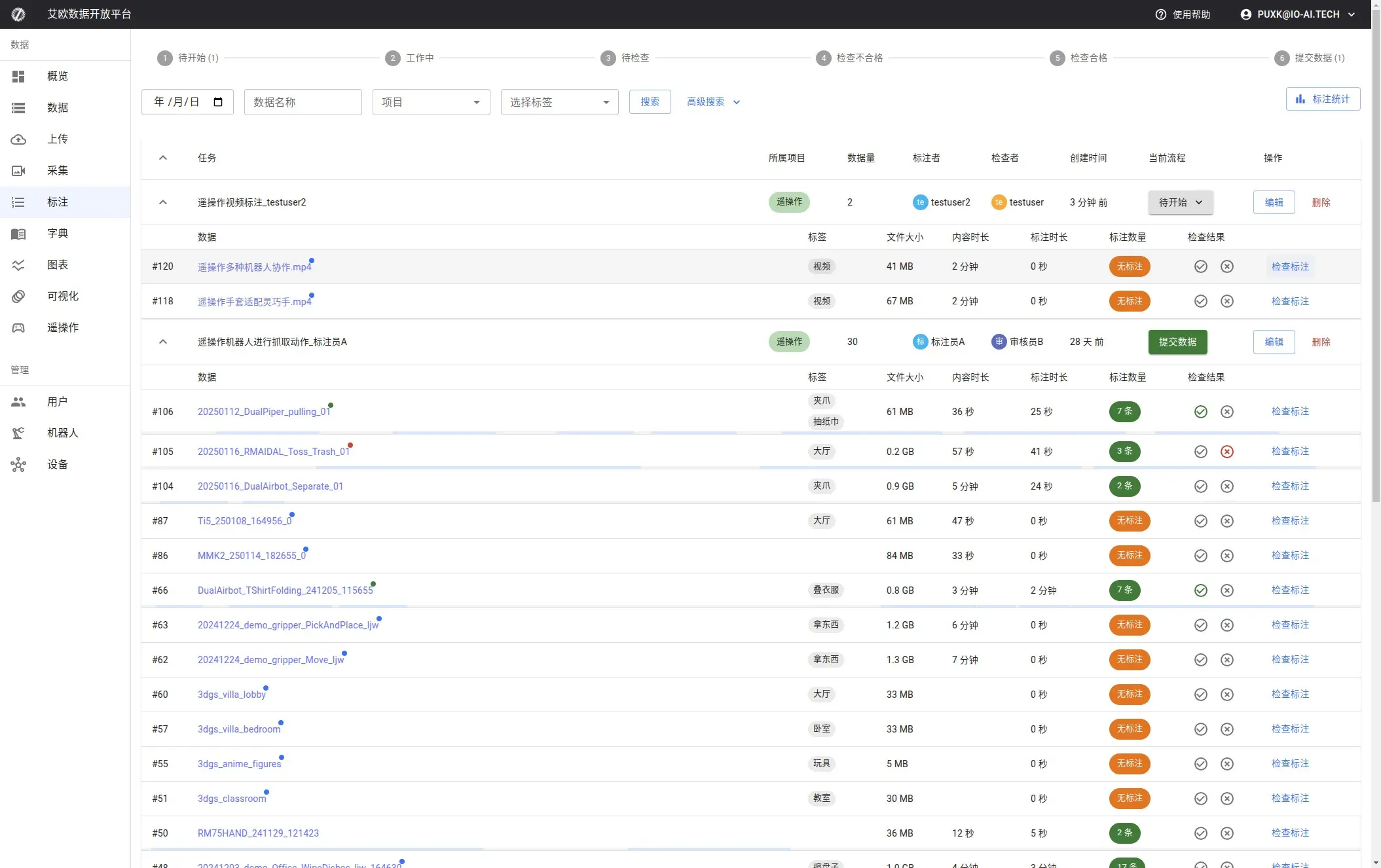
Page provides two view modes:
- Horizontal View: Grouped by status, each status in one column, suitable for viewing overall distribution
- Vertical View: All tasks in unified list, suitable for search and filtering
Filtering and Search:
- Filter by Status: Click status label, only show tasks in that status
- Filter by Project: Select specific project, view project-related tasks
- Search Tasks: Enter task name or description keywords
Create and Assign Tasks
How to Create Annotation Tasks?
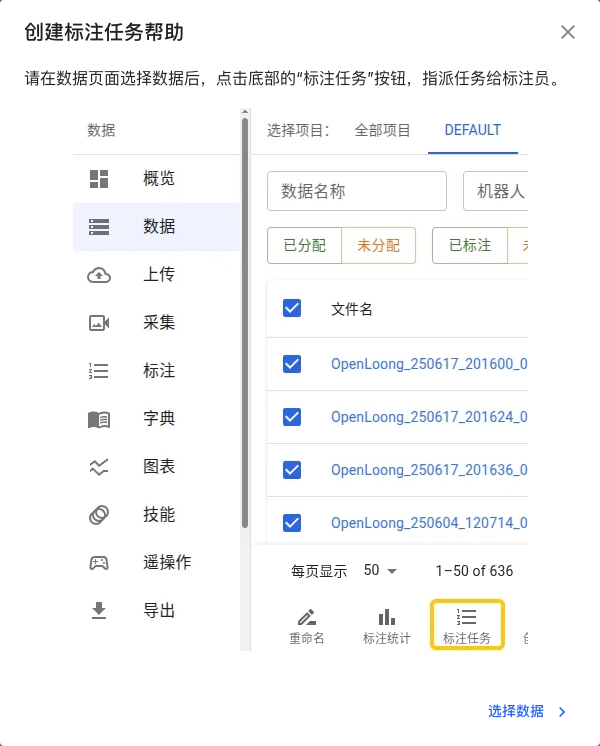
Prerequisites: Select datasets to annotate on Data Management page.
Creation Steps:
- On Data Management page, check datasets that need annotation
- Click "Annotate" button in bottom operation bar
- Fill in task information:
- Task Name: Clearly describe task content (e.g., "Grasping Action Annotation - Batch 1")
- Task Description: Additional notes and requirements (optional)
- Annotator: Select personnel responsible for annotation
- Reviewer: Select personnel responsible for review
- Project: Select project task belongs to
- Completion Time: Set task deadline (optional)
- Confirm creation
💡 Recommendation: Before creating task, use filter function to confirm data status first, avoid re-assigning already annotated data.
How to Assign Tasks to Annotators?
Assignment Methods:
- Assign During Creation: Directly specify annotator when creating task
- Adjust Later: Project managers can edit tasks, reassign annotators
Assignment Recommendations:
- Reasonably assign based on annotator workload
- Consider annotator's professional field and skill matching
- Set reasonable completion time to avoid task backlog
Batch Task Operations
Batch Selection:
- Check multiple tasks in task list
- Support cross-page selection (will display selected count at bottom after selection)
- Can filter by status, project and other conditions before batch operations
Batch Delete:
- Select tasks to delete
- Click "Delete" button in bottom operation bar
- Confirm delete operation
Batch delete operations are irreversible, please operate with caution. Deleting tasks will not delete associated datasets, only removes task-dataset associations.
Batch Assignment (In Development):
- Support batch reassigning tasks to annotators
- Support batch modifying task attributes
Task Details Page
Page Structure
Each task has a detailed details page, including:
Tabs:
-
Annotation Data (dataset): Default tab
- Display list of all datasets associated with task
- Can view basic information of each dataset
- Support adding or removing datasets
-
Batch Annotation (repeats): Batch annotation workspace
- Batch annotation mode, improve annotation efficiency
- Sample selector, quickly switch data
- Annotation progress bar, display completion status
- Support quick annotation function (New in 3.3.0)
-
Invalid Annotations (invalids): Invalid annotation management
- Display all annotations marked as invalid
- Can view invalid reasons
- Support re-annotation or delete invalid annotations
-
Annotation Statistics (analysis): Annotation data analysis
- Display statistics of all annotations in task
- Annotation description list and details
- Support annotation data export
Sidebar:
- Task basic information (name, status, creation time, etc.)
- Task related personnel (annotators, reviewers)
- Task statistics (dataset count, annotation count, etc.)
- Task operations (edit, delete, status change, etc.)
How to Manage Task Status?
Status Changes:
On task details page sidebar, you can see current status and executable operations:
- Start Annotation: After annotator clicks, task changes from "Pending" to "In Progress"
- Submit for Review: After annotator completes annotation, task changes to "Pending Review"
- Review Passed: After reviewer passes, task changes to "Review Passed"
- Review Failed: After reviewer rejects, task returns to "In Progress", annotator needs to re-annotate
- Submit Data: After review passes, can submit for training
Permission Note:
- Annotators can: Start annotation, submit for review
- Reviewers can: Review pass, review fail
- Project managers/administrators can: All operations, including edit and delete
⚠️ Note: After task is reviewed and passed, annotators can no longer modify task status, ensuring data integrity.
Progress Tracking and Monitoring
How to View Task Progress?
Task List Progress:
On task cards you can see:
- Completion Percentage: Proportion of annotated data to total
- Dataset Count: Total number of datasets in task
- Annotation Count: Number of completed annotations
Task Details Page Progress:
Enter task details page, you can view more detailed information:
- Each Dataset Annotation Status: Annotation completion status of each dataset
- Annotator Work Progress: If task assigned to multiple annotators, can see each person's progress
- Real-Time Updates: Automatically refresh progress when page visibility changes
Progress Estimation:
System will estimate remaining completion time based on current progress and speed, helping you reasonably plan work schedule.
Progress Reports
Platform provides multi-level progress reports:
- Personal Progress: Annotators can view their own task completion status
- Team Progress: Project managers can view team's overall work progress
- Project Progress: Project-level progress statistics, including all related tasks
- Quality Reports: Annotation quality analysis reports, including pass rate, accuracy, etc.
Quality Control
Review Process
Review Mechanism:
- Manual Review: Reviewers check annotation quality one by one
- Automatic Check: System performs preliminary quality checks based on rules
- Sampling Review: Focus review on part of annotations
- Full Review: Comprehensive review of all annotations
Review Operations:
Reviewers on task details page can:
- View annotation results
- Check if annotations meet standards
- Pass or reject annotations
- Add review comments and feedback
Review Failed Handling:
If review fails:
- Task status returns to "In Progress"
- Annotators can see review comments
- Annotators need to modify annotations based on comments
- Re-submit for review after modification
Quality Metrics
System evaluates annotation quality through following metrics:
- Pass Rate: Proportion passing review on first try, reflects annotation quality
- Accuracy: Statistics of annotation accuracy, requires manual assessment
- Consistency: Consistency between different annotators, used to evaluate annotation standards
- Completeness: Completeness check of annotations, ensure nothing is missed
These metrics help identify areas for improvement and enhance overall annotation quality.
Quick Annotation Function (New in 3.3.0)
What is Quick Annotation?
Quick annotation function simplifies annotation process, reduces operation steps, improves annotation efficiency.
Function Features:
- Quickly create annotations, reduce operation steps
- Support batch annotation mode
- Automatically save annotation progress
- Simplify annotation process
Use Cases:
- Quick annotation of large amounts of similar data
- Batch processing of simple annotation tasks
- Improve annotator work efficiency
How to Use:
- Go to task details page
- Switch to "Batch Annotation" tab
- Use quick annotation function for annotation
Data Export and Integration
How to Export Annotation Results?
After annotation completes, can export data on task details page "Annotation Statistics" tab:
Export Formats:
- LeRobot: LeRobot framework standard format
- HDF5: Common scientific computing format
- JSON: Universal data format
- Custom Format: Configure export format based on needs
Export Options:
- All Annotations: Export all annotations in task
- New Annotations: Only export new or modified annotations
- By Time Range: Export annotations within specified time range
- By Dataset: Select specific datasets to export
Batch Export:
Support batch export of annotation results from multiple tasks, convenient for large-scale data processing.
Training Data Preparation
Exported data can be directly used for model training. Platform also provides:
- Data Cleaning: Automatically clean and preprocess annotation data
- Format Conversion: Convert to formats required for model training
- Quality Validation: Validate quality of exported data
- Version Management: Manage different versions of training data
Task Queue Management
What is Task Queue?
Task queue is used to manage background tasks, such as data export, format conversion, etc. These tasks execute asynchronously in background, won't block user operations.
Queue Functions (Administrator Permission):
Queue Control:
- Pause Queue: Temporarily pause queue processing, stop executing new tasks
- Resume Queue: Resume queue processing, continue executing waiting tasks
- Queue Status: Real-time display of queue pause/running status
Queue Cleanup:
- Clear Waiting Queue: Clear all waiting and delayed tasks (doesn't affect executing, completed, failed tasks)
- Clean History Tasks: Clean tasks completed or failed more than 24 hours ago, free storage space
- Batch Retry: Batch retry all failed tasks (process up to 1000 at a time)
Queue Monitoring:
- View task count in queue (waiting, in progress, completed, failed)
- View task execution logs and error information
- Monitor queue processing speed and performance
Task Queue Notes:
- Task queue mainly used for background task processing, such as data export, format conversion, etc.
- Pausing queue won't affect executing tasks, only prevents new tasks from starting
- Cleanup operations will permanently delete historical task records, please operate with caution
- Batch retry can help recover tasks failed due to temporary errors
Common Questions
How to Know Who Tasks Are Assigned To?
On task list or task details page you can see:
- Annotator: Personnel responsible for executing annotation
- Reviewer: Personnel responsible for reviewing annotation
- Creator: Personnel who created task (usually project manager)
Click personnel name to view detailed information.
What to Do When Task Status Cannot Be Changed?
Possible reasons:
- Insufficient Permissions: Confirm if your role has permission to execute this operation
- Status Restrictions: Some status changes require specific conditions (e.g., must complete annotation before submitting for review)
- Task Locked: After task is reviewed and passed, annotators can no longer modify status
If problem persists, contact project manager or administrator.
How to View Detailed Task Progress?
Enter task details page, you can view:
- Annotation completion status of each dataset
- Annotator work progress (if multiple people)
- Annotation quality statistics
- Estimated completion time
What to Do After Review Fails?
If review fails:
- View review comments to understand failure reason
- Modify annotations based on comments
- Re-submit for review after modification completes
- Reviewer will check again
Recommend carefully reading annotation standards before annotation to reduce rework.
Applicable Roles
Administrator
You can:
- View overall status of all tasks
- Manage annotator and reviewer resources
- Monitor overall annotation quality
- Configure task workflows and rules
- Manage task queues
Project Manager
You can:
- Create annotation tasks for projects
- Track project annotation progress
- Monitor annotation quality status
- Coordinate annotator and reviewer work
- Export data for training
Annotator
You can:
- Receive tasks assigned to yourself
- Execute specific annotation work
- Update task completion progress
- Provide feedback on issues during annotation
- View your own work efficiency statistics
Reviewer
You can:
- Review tasks completed by annotators
- Evaluate annotation quality
- Provide feedback to annotators
- Establish and update annotation standards
- View review statistics
Related Features
After completing annotation tasks, you may also need:
- Data Management: View and manage data associated with tasks
- Data Export: Export annotation results for training
- Skill Library: Use unified skill definitions for annotation