Trash
What to do when important data is accidentally deleted?
Typical scenarios:
- Accidentally deleted important data, need to recover
- Need to view deleted data, understand deletion history
- Need to clean up unnecessary data, free storage space
- Need to follow data retention policies, regularly clean expired data
Trash is designed to solve these problems. By centrally displaying logically deleted data from all modules, supporting search, batch recovery and permanent deletion operations, it effectively avoids data loss from accidental deletion and provides administrators with a unified data recovery and cleanup management interface.
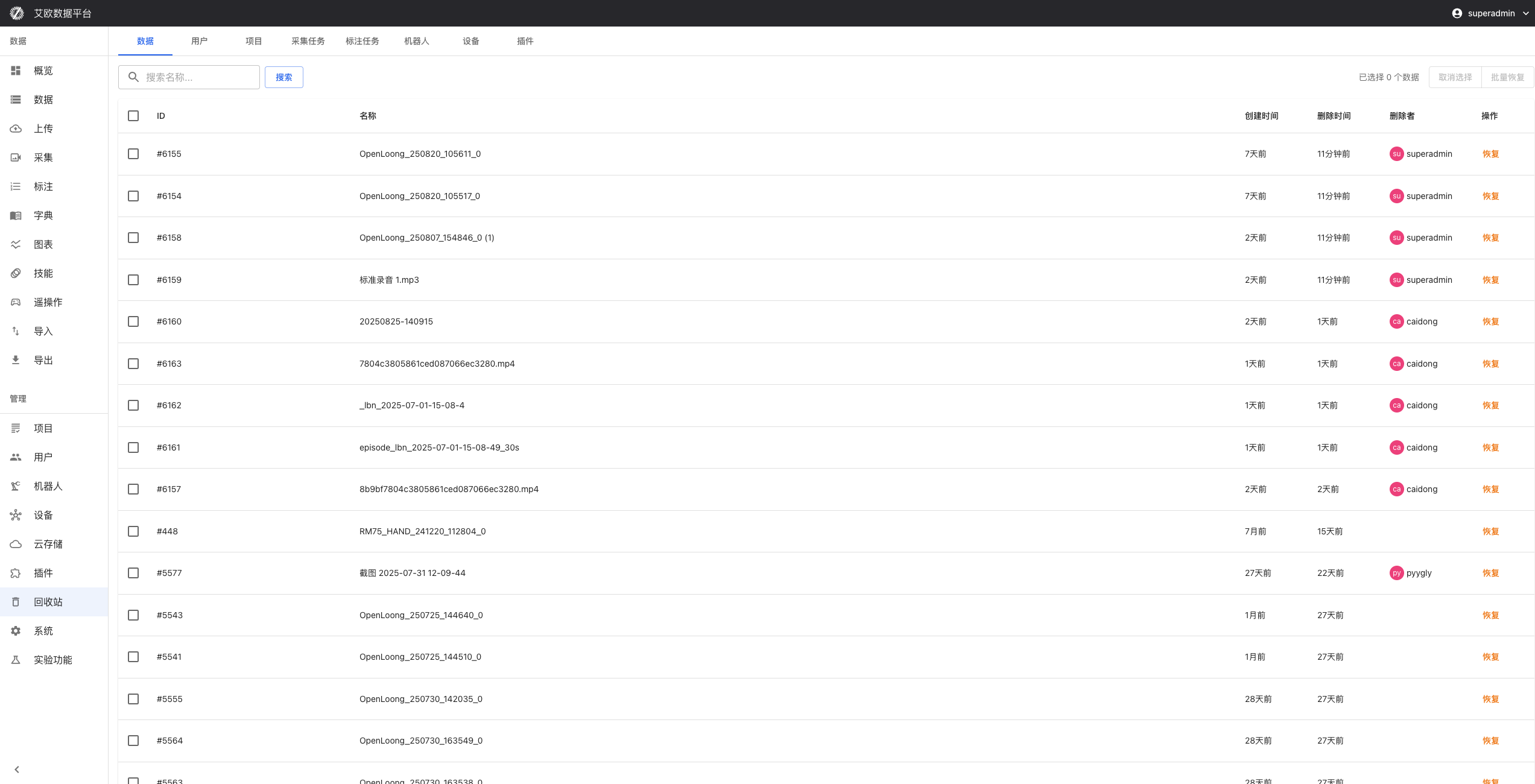
Quick Start: Recover Accidentally Deleted Data
Step 1: Find Deleted Data
- Go to Trash page
- Use search function to find data to recover:
- Filter by data type
- Filter by deletion time
- Filter by operator
- Use keyword search
- Find data to recover
Step 2: Recover Data
- Select data to recover
- Click "Recover" button
- Confirm recovery operation
- Data recovered to original location
Step 3: Verify Recovery Results
- View recovered data at original location
- Confirm data is complete and correct
- Check data associations
- Complete recovery
Centralized Data Management
How to View Deleted Data?
Data Display:
- Unified Display: Centrally display logically deleted data from all modules
- Classification Management: Classify by data type and source module
- Status Tracking: Display deletion time, deletion reason, operator and other information
Viewing Method:
- Go to Trash page
- View deleted data list
- Use filter function to view specific types of data
- Click data to view detailed information
How to Classify Manage Deleted Data?
Classification Methods:
- Data Type: User data, project data, task data, annotation data, etc.
- Source Module: Which function module data comes from
- Deletion Time: Classify by deletion time
Management Method:
- Use classification filter in trash
- View specific types of data
- View data by source module
- View data by time range
Search and Filter
How to Search Deleted Data?
Search Methods:
- Multi-Dimensional Search: Search by data type, deletion time, operator, source module, etc.
- Keyword Search: Search through data name, description, tags, etc.
- Advanced Filter: Combine multiple conditions for precise filtering
Search Method:
- Use search box on Trash page
- Enter keywords or select filter conditions
- View search results
- Precisely locate target data
How to Perform Advanced Filtering?
Filter Conditions:
- Time Range: Select deletion time range
- Data Type: Select data type to view
- Operation Type: Select operation type (delete, recover, etc.)
- Operator: Select operator
Filter Method:
- Click "Advanced Filter" button
- Set filter conditions
- Apply filter
- View filter results
Batch Operation Functions
How to Batch Recover Data?
Batch Recovery:
- Select multiple data items
- Confirm recovery operation
- System automatically processes recovery results
Recovery Method:
- Select data to recover in trash
- Click "Batch Recover" button
- Confirm recovery operation
- Wait for recovery to complete
⚠️ Note: Recovering data will overwrite data with same name, please confirm before operating.
How to Batch Permanently Delete?
Batch Delete:
- Select data items to delete
- Confirm delete operation
- Data permanently deleted, cannot be recovered
Delete Method:
- Select data to delete in trash
- Click "Batch Permanently Delete" button
- Confirm delete operation
- Data permanently deleted
⚠️ Warning: Permanent delete operations are irreversible, please operate with caution.
How to Batch Export?
Export Functions:
- Export data list
- Export deletion records
- Export operation logs
Export Method:
- Select data to export
- Click "Batch Export" button
- Select export format
- Download exported file
Data Protection Mechanisms
How to Prevent Accidental Deletion?
Protection Mechanisms:
- Deletion Confirmation: Deletion operations require confirmation
- Permission Verification: Verify operation permissions
- Operation Records: Record all deletion operations
Protection Measures:
- System requires confirmation before deletion
- Verify user permissions
- Record operation logs
- Provide recovery function
How to Recover Data?
Recovery Functions:
- Recovery Verification: Verify if data can be recovered
- Conflict Handling: Handle conflicts during recovery
- Recovery Notification: Notify recovery results
Recovery Method:
- Select data to recover in trash
- Click "Recover" button
- System verifies and recovers data
- View recovery results
Permission Control
Permission Types:
- View Permission: Permission to view trash data
- Recovery Permission: Permission to recover data
- Delete Permission: Permission to permanently delete data
Permission Management:
- Different roles have different permissions
- Administrators have all permissions
- Regular users can only view and recover their own data
Audit and Monitoring
How to View Operation Records?
Operation Records:
- View Records: Record all view operations
- Recovery Records: Record all recovery operations
- Delete Records: Record all delete operations
Viewing Method:
- View operation records in trash
- Filter specific types of operations
- View operation details
- Export operation records
How to Monitor Anomalous Operations?
Anomaly Monitoring:
- Anomalous Access: Monitor anomalous access behavior
- Batch Operations: Monitor batch operations
- Permission Anomalies: Monitor permission anomalies
Monitoring Method:
- System automatically monitors anomalous operations
- Send alert notifications
- View anomaly details
- Take handling measures
How to Generate Reports?
Report Content:
- Operation Statistics: Count operation times and types
- Data Changes: Count data change situations
- Security Events: Record security events
Generation Method:
- Select "Generate Report" in trash
- Select report type and time range
- Generate report
- View or export report
Common Questions
How Long Is Data Retained in Trash?
Retention Time:
- Data retained in trash for a certain time (usually 30 days)
- Data exceeding retention time will be automatically permanently deleted
- Can adjust retention time based on data retention policies
How to Permanently Delete Data?
Delete Method:
- Select data to delete in trash
- Click "Permanently Delete" button
- Confirm delete operation
- Data permanently deleted
⚠️ Warning: Permanent delete operations are irreversible, please operate with caution.
Will Recovering Data Affect Existing Data?
Impact Note:
- If data with same name exists at original location, will prompt conflict during recovery
- Can choose to overwrite or skip
- Recommend checking original location data first, then decide whether to recover
Applicable Roles
Administrator
You can:
- Uniformly recover or clean up data
- Follow company data retention policies
- Monitor data deletion status
- Handle data recovery requests
Related Features
After completing trash management, you may also need:
- Data Management: View recovered data
- User Management: Recover user data
- Project Management: Recover project data